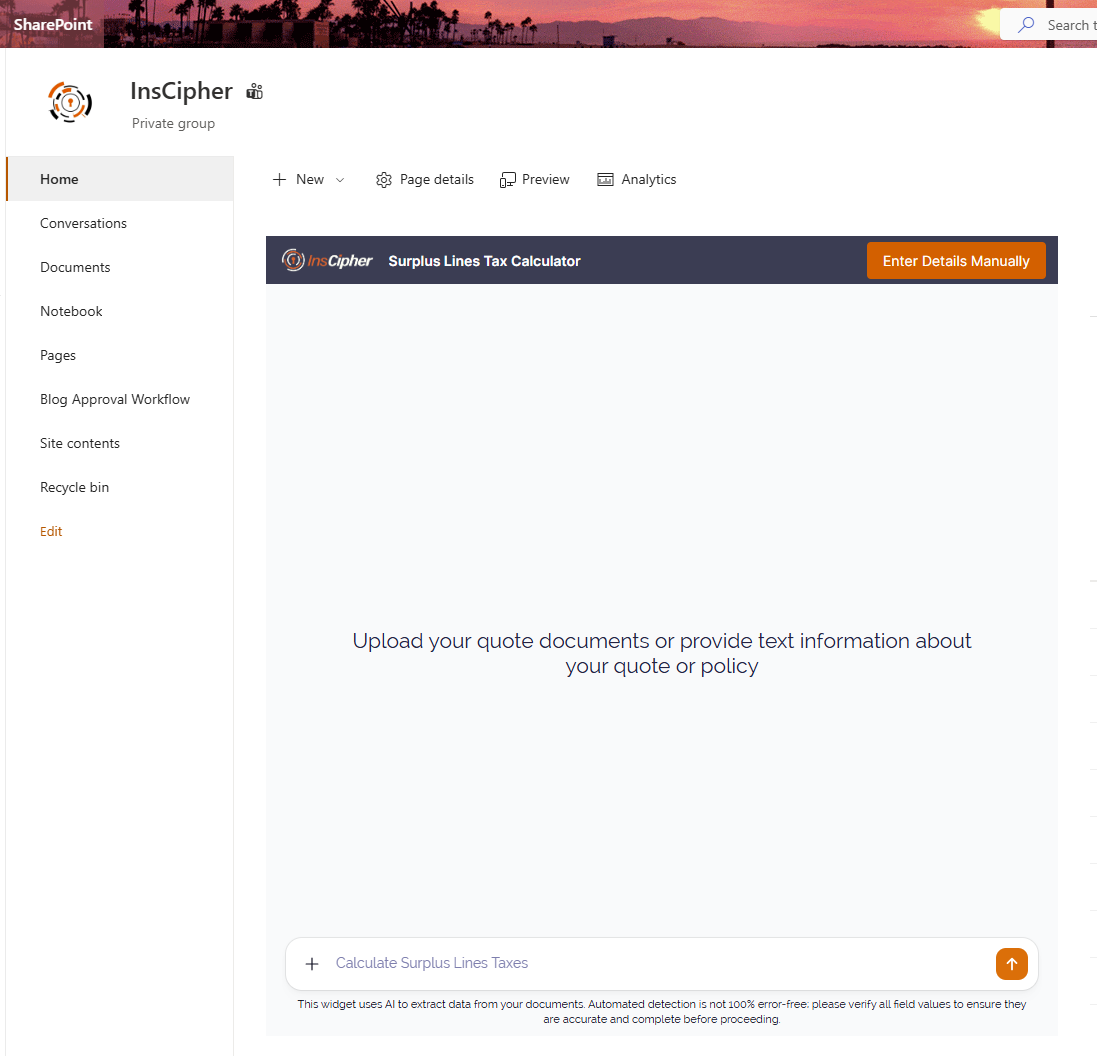
 ### Using the Widget
#### Calculate Taxes
##### AI-Assisted Mode (Default)
1. On the widget's main screen, upload a policy PDF, or type the policy details directly into the chat.
2. The widget will extract the relevant fields and pre-fill the form automatically.
3. Review all pre-filled values carefully before proceeding.
:::warning
Automated detection is not 100% error-free — always verify the values are accurate and complete.
:::
4. Click **Calculate Taxes**.
##### Manual Mode
1. Click **Enter Details Manually** in the top right corner of the widget.
2. Fill out the fields.
3. Click **Calculate Taxes**.
#### Review and Download Results
After clicking **Calculate Taxes**, the widget displays a **Calculation Result** screen with two tabs:
##### Taxes Tab
Shows a full breakdown of the calculation including state, premium, line of business, transaction type, all applicable taxes and fees, total amount due, state stamp wording, and document notes.
Click **Download PDF** to save the full tax breakdown.
##### State Documents Tab
Shows state-specific documents split into two sections:
* **Required Uploads** — documents that must be attached, with filing, binding, and signature requirements indicated for each.
* **Optional/Reference** — additional documents provided for reference.
Click **Download** next to individual documents or **Download All** to save all at once.
To start over, click **Start New Calculation**. To go back and edit the form, click **Back to Form**.
import { PayloadTroubleshooter } from '../components/PayloadTroubleshooter'
## Payload Troubleshooter — Test Page
### Using the Widget
#### Calculate Taxes
##### AI-Assisted Mode (Default)
1. On the widget's main screen, upload a policy PDF, or type the policy details directly into the chat.
2. The widget will extract the relevant fields and pre-fill the form automatically.
3. Review all pre-filled values carefully before proceeding.
:::warning
Automated detection is not 100% error-free — always verify the values are accurate and complete.
:::
4. Click **Calculate Taxes**.
##### Manual Mode
1. Click **Enter Details Manually** in the top right corner of the widget.
2. Fill out the fields.
3. Click **Calculate Taxes**.
#### Review and Download Results
After clicking **Calculate Taxes**, the widget displays a **Calculation Result** screen with two tabs:
##### Taxes Tab
Shows a full breakdown of the calculation including state, premium, line of business, transaction type, all applicable taxes and fees, total amount due, state stamp wording, and document notes.
Click **Download PDF** to save the full tax breakdown.
##### State Documents Tab
Shows state-specific documents split into two sections:
* **Required Uploads** — documents that must be attached, with filing, binding, and signature requirements indicated for each.
* **Optional/Reference** — additional documents provided for reference.
Click **Download** next to individual documents or **Download All** to save all at once.
To start over, click **Start New Calculation**. To go back and edit the form, click **Back to Form**.
import { PayloadTroubleshooter } from '../components/PayloadTroubleshooter'
## Payload Troubleshooter — Test Page
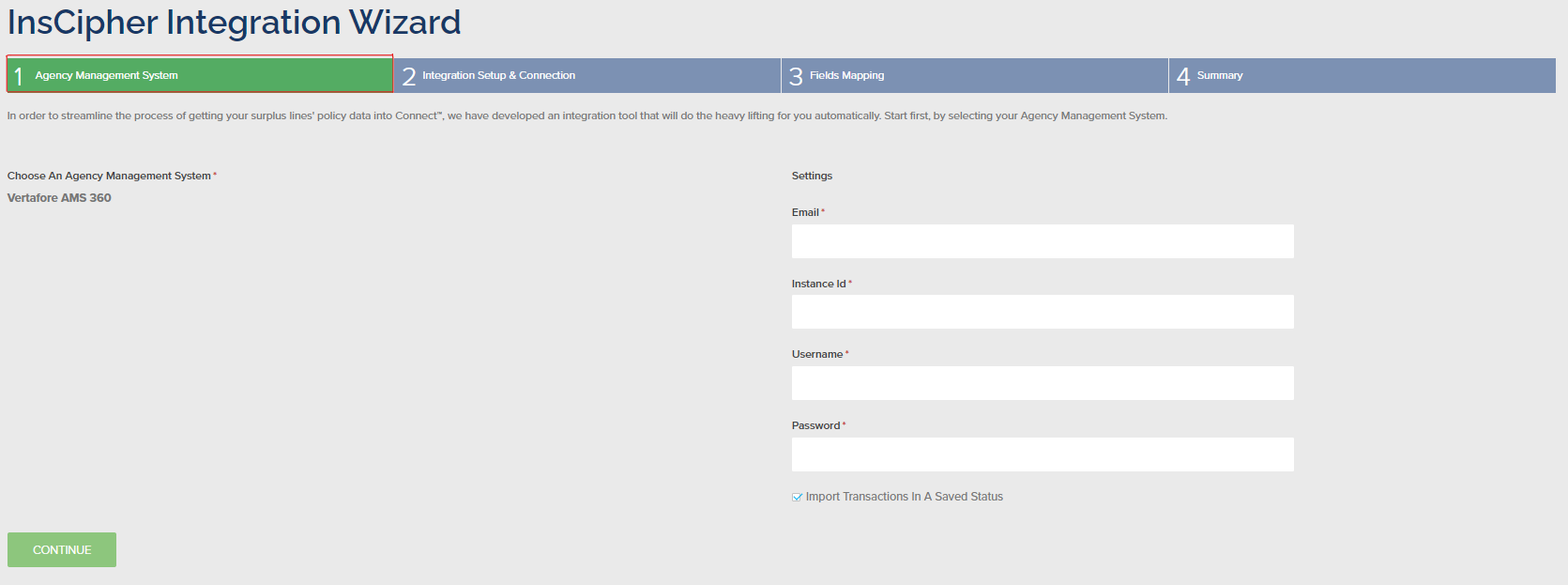 ### 2. Initiate Mappings and install API connection
InsCipher establishes the connection to your AMS360 instance and pulls the fields needed for the mapping in Step 3. Unless the wizard reports an API connection error or a problem retrieving mapping data, no manual input is needed here — continue to Step 3.
### 2. Initiate Mappings and install API connection
InsCipher establishes the connection to your AMS360 instance and pulls the fields needed for the mapping in Step 3. Unless the wizard reports an API connection error or a problem retrieving mapping data, no manual input is needed here — continue to Step 3.
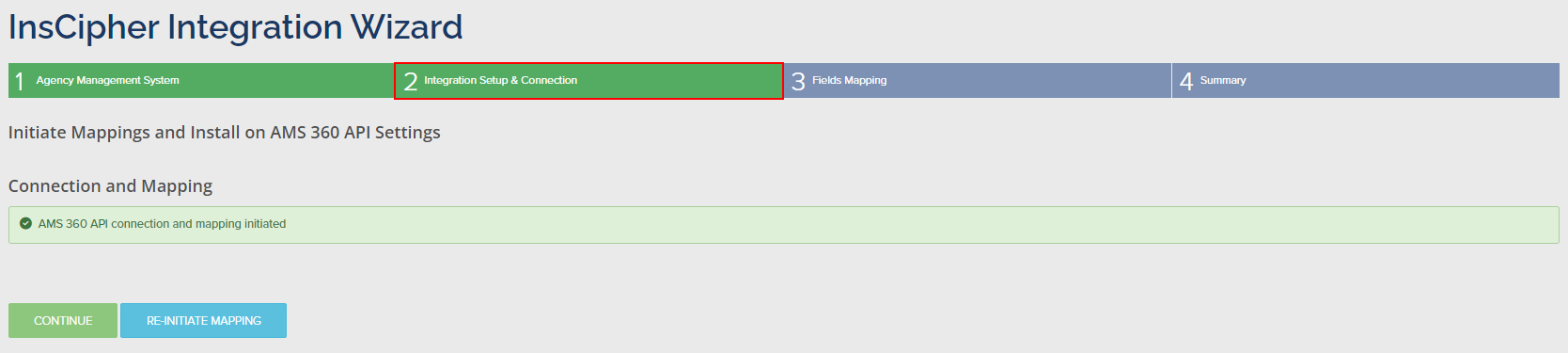 ### 3. Field Mapping
After the connection completes and the Integration Tool syncs with Connect®, map the data pulled from AMS360 to standard InsCipher values so the two systems stay in parity. You must complete all of these tables before continuing to Step 4:
* Taxes and Fees
* Line of Business (LOB)
* Business Units
* Filing Types
* Insurance Companies
#### Map Taxes and Fees
The integration pulls both the AMS Code and AMS Description for each AMS360 tax or fee. For each AMS Code line item, choose a value in the dropdown under InsCipher Taxable Fees and State Taxes. The options are:
* Do Not Import
* Broker Fee
* Carrier Fee
* Stamping Fee
* Sl Tax
* EMPA Tax
* FM Tax
* Municipal Fee
* Sl Service Charge
### 3. Field Mapping
After the connection completes and the Integration Tool syncs with Connect®, map the data pulled from AMS360 to standard InsCipher values so the two systems stay in parity. You must complete all of these tables before continuing to Step 4:
* Taxes and Fees
* Line of Business (LOB)
* Business Units
* Filing Types
* Insurance Companies
#### Map Taxes and Fees
The integration pulls both the AMS Code and AMS Description for each AMS360 tax or fee. For each AMS Code line item, choose a value in the dropdown under InsCipher Taxable Fees and State Taxes. The options are:
* Do Not Import
* Broker Fee
* Carrier Fee
* Stamping Fee
* Sl Tax
* EMPA Tax
* FM Tax
* Municipal Fee
* Sl Service Charge
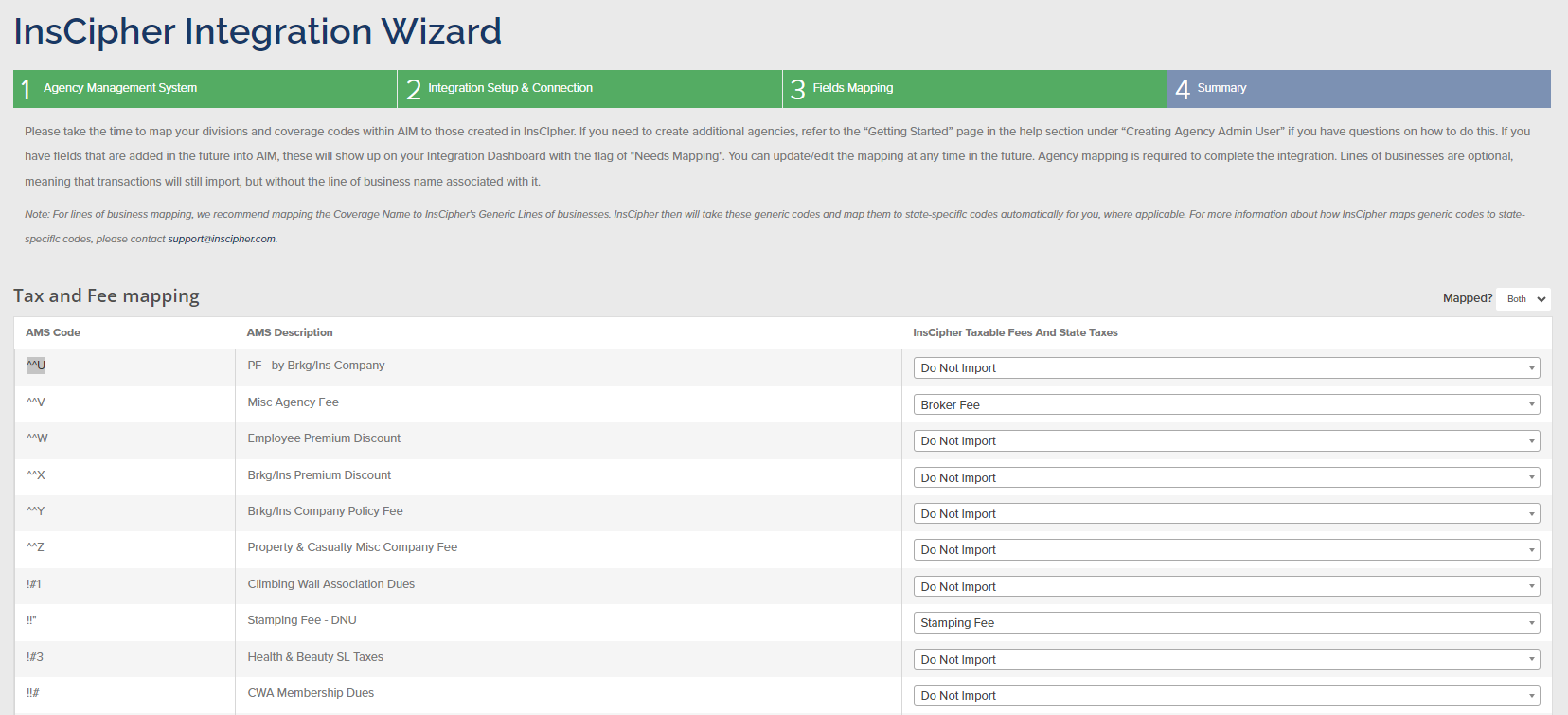 #### Map Lines of Business
Map the derived AMS codes for each Line of Business (LOB) to an InsCipher Generic Line of Business code. Use the
#### Map Lines of Business
Map the derived AMS codes for each Line of Business (LOB) to an InsCipher Generic Line of Business code. Use the 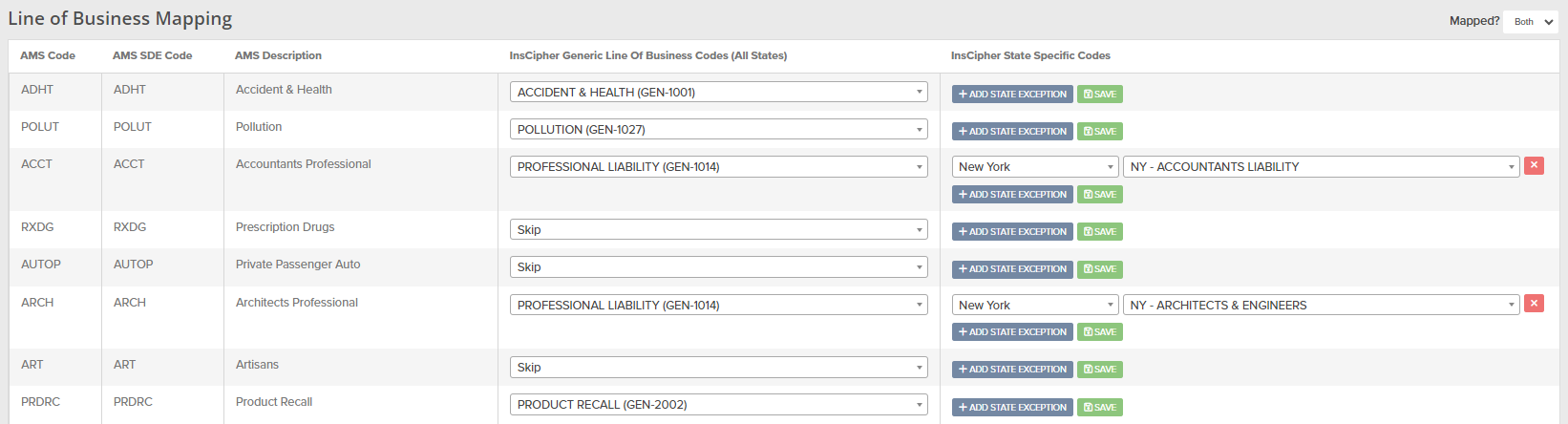 #### Map Business Units
In the **Business Unit Map** section, enable or disable the import of policy data for each AMS360 business unit tag. By default, the integration can pull business unit information down to the Group level. Under the **Import** column, choose whether to enable import; the default state is **Import Disabled**.
See also Vertafore's reference on
#### Map Business Units
In the **Business Unit Map** section, enable or disable the import of policy data for each AMS360 business unit tag. By default, the integration can pull business unit information down to the Group level. Under the **Import** column, choose whether to enable import; the default state is **Import Disabled**.
See also Vertafore's reference on 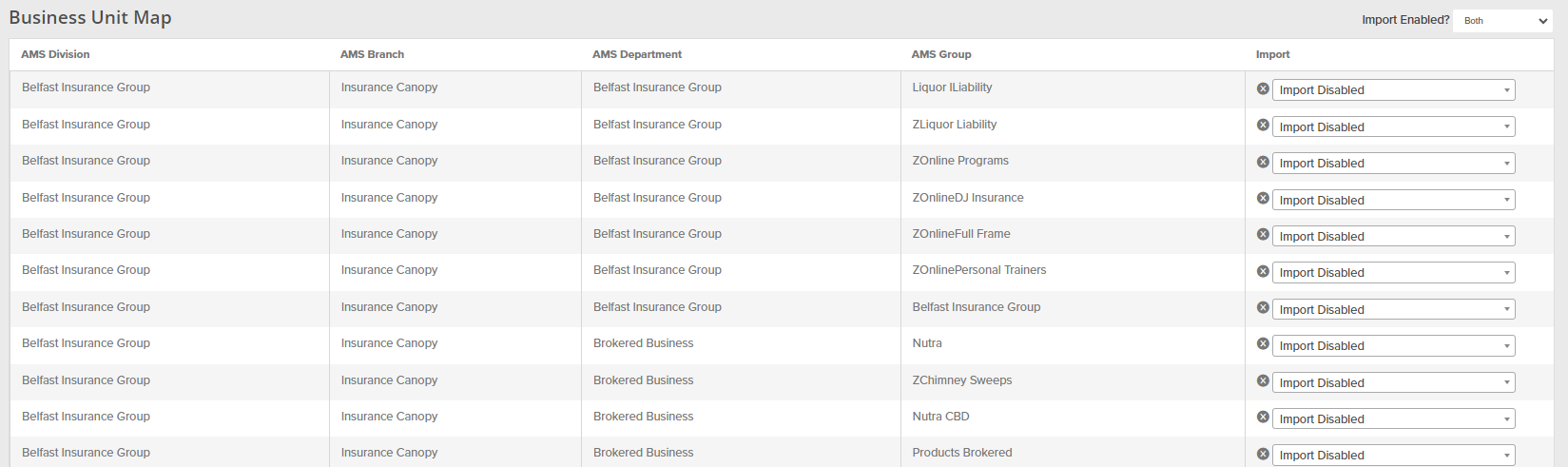 #### Map Filing Types
Filing/transaction type naming differs between AMS360 and InsCipher. The **Filing Types Mapping table** lets you map each type, with the option to use a different type for positive and negative amounts to match your workflow.
AMS360 Policy Transaction Codes appear under the **AMS Transaction Type** column with their **Comments** (description). Map each to an InsCipher transaction type using the InsCipher Positive Premium Filing Code and/or Negative Premium Filing Code dropdowns. The InsCipher transaction types are:
* PN (New Policy)
* PR (Renewal Policy)
* APE (Additional Premium Endorsement)
* RPE (Return Premium Endorsement)
* AE (Audit Endorsement)
* FC (Flat Cancellation)
* ZPE (Zero Premium Endorsement)
* PC (Pro Rata Cancellation)
* XE (Extension Endorsement)
* RI (Reinstatement)
* BO (Back-out / Reversal)
* BD (Binder)
See also Vertafore's reference on
#### Map Filing Types
Filing/transaction type naming differs between AMS360 and InsCipher. The **Filing Types Mapping table** lets you map each type, with the option to use a different type for positive and negative amounts to match your workflow.
AMS360 Policy Transaction Codes appear under the **AMS Transaction Type** column with their **Comments** (description). Map each to an InsCipher transaction type using the InsCipher Positive Premium Filing Code and/or Negative Premium Filing Code dropdowns. The InsCipher transaction types are:
* PN (New Policy)
* PR (Renewal Policy)
* APE (Additional Premium Endorsement)
* RPE (Return Premium Endorsement)
* AE (Audit Endorsement)
* FC (Flat Cancellation)
* ZPE (Zero Premium Endorsement)
* PC (Pro Rata Cancellation)
* XE (Extension Endorsement)
* RI (Reinstatement)
* BO (Back-out / Reversal)
* BD (Binder)
See also Vertafore's reference on 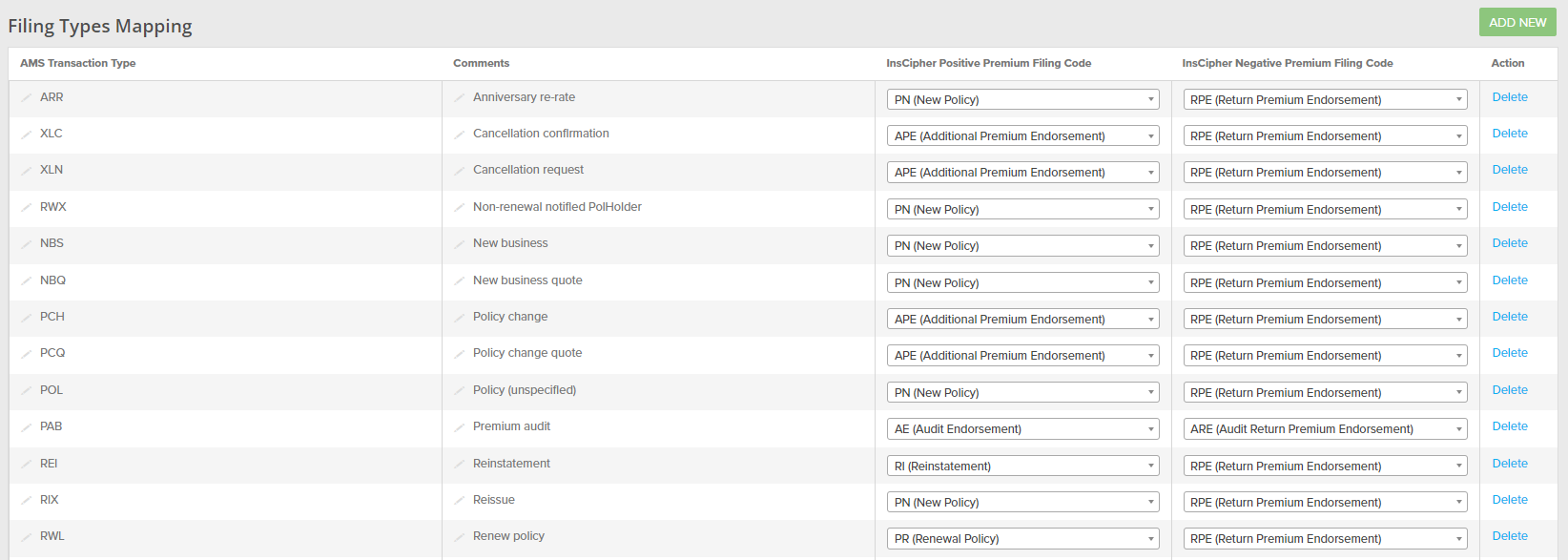 #### Map Insurance Companies
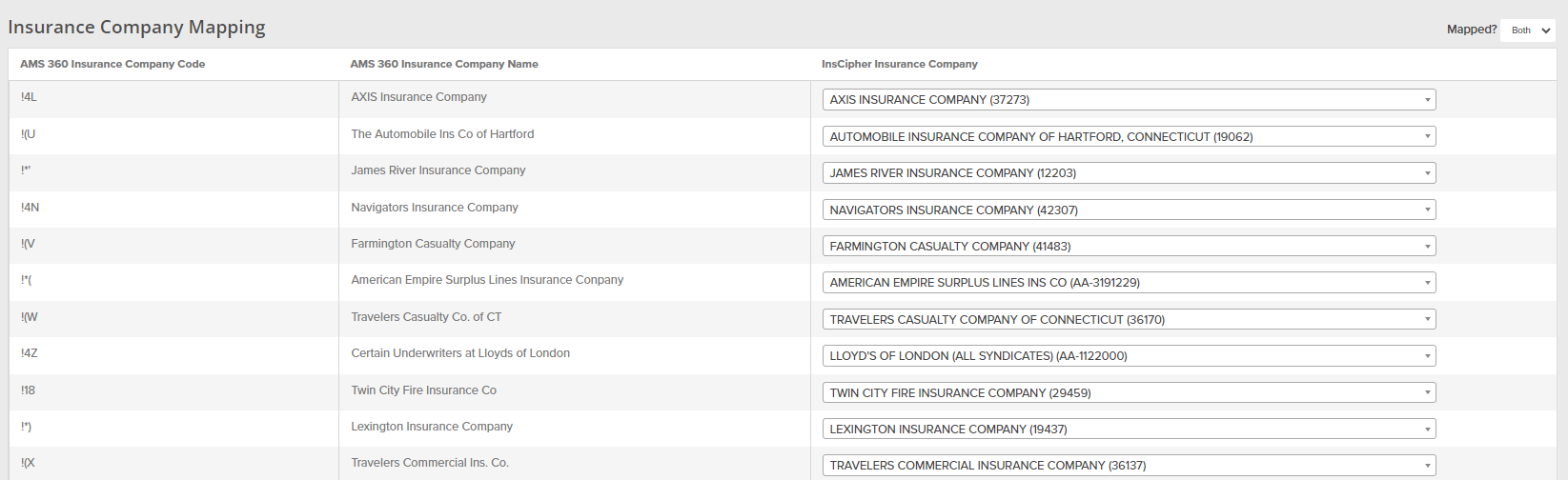
Insurance Company Code and Name are pulled from AMS360 and shown in the first two columns. In the third column, **InsCipher Insurance Company**, map each AMS360 company to the corresponding Insurance Company on record in InsCipher.
#### Map Insurance Companies
Insurance Company Code and Name are pulled from AMS360 and shown in the first two columns. In the third column, **InsCipher Insurance Company**, map each AMS360 company to the corresponding Insurance Company on record in InsCipher.
 ### 4. Summary
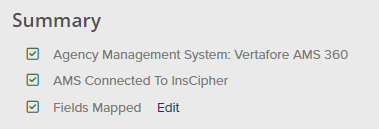
Step 4 reviews the completed steps and any outstanding issues. When the Summary items are all checked complete, the integration has no outstanding issues.
### 4. Summary
Step 4 reviews the completed steps and any outstanding issues. When the Summary items are all checked complete, the integration has no outstanding issues.
 :::note
A connection made during the day may not populate policy data until the next day, because of the integration's cadence. If data hasn't appeared in the Filings Import Log by the next day, contact InsCipher support.
:::
You can also pull up to two weeks of historical data using **Trigger a Manual Import**. The date picker is limited to two weeks prior to the current date.
:::note
A connection made during the day may not populate policy data until the next day, because of the integration's cadence. If data hasn't appeared in the Filings Import Log by the next day, contact InsCipher support.
:::
You can also pull up to two weeks of historical data using **Trigger a Manual Import**. The date picker is limited to two weeks prior to the current date.
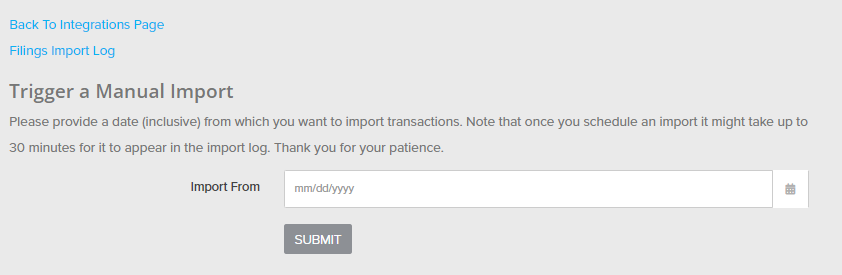 After submitting a manual import, it can take up to 30 minutes for the data to appear in the Filings Import Log. Any errors or status issues with the integration also appear on this page.
### How the import works
The integration uses an **OData pull model**: InsCipher reads your AMS360 instance directly through Vertafore's OData connection on a daily cadence (typically around 2 AM MST), importing the previous day's activity. A manual import covers a date range you choose.
**How invoices are selected.** InsCipher reads AMS360 **activity** records for the import window and picks up invoices from posting activity (`Invoice (Posting)`) and voids from void activity (`Invoice (Void)`). This is why the three Activity/Suspense checkpoints described in
After submitting a manual import, it can take up to 30 minutes for the data to appear in the Filings Import Log. Any errors or status issues with the integration also appear on this page.
### How the import works
The integration uses an **OData pull model**: InsCipher reads your AMS360 instance directly through Vertafore's OData connection on a daily cadence (typically around 2 AM MST), importing the previous day's activity. A manual import covers a date range you choose.
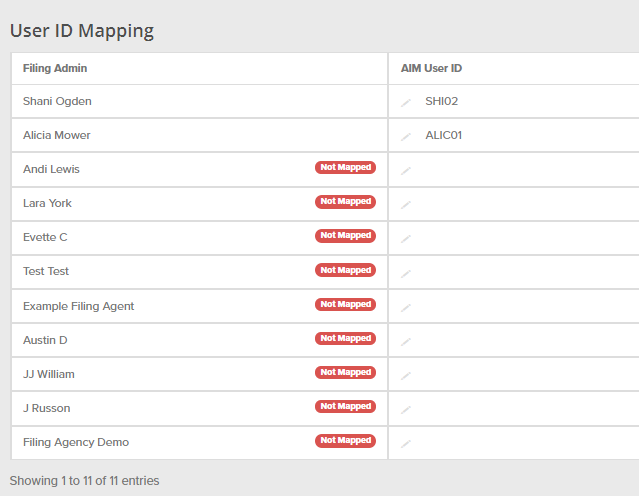
**How invoices are selected.** InsCipher reads AMS360 **activity** records for the import window and picks up invoices from posting activity (`Invoice (Posting)`) and voids from void activity (`Invoice (Void)`). This is why the three Activity/Suspense checkpoints described in 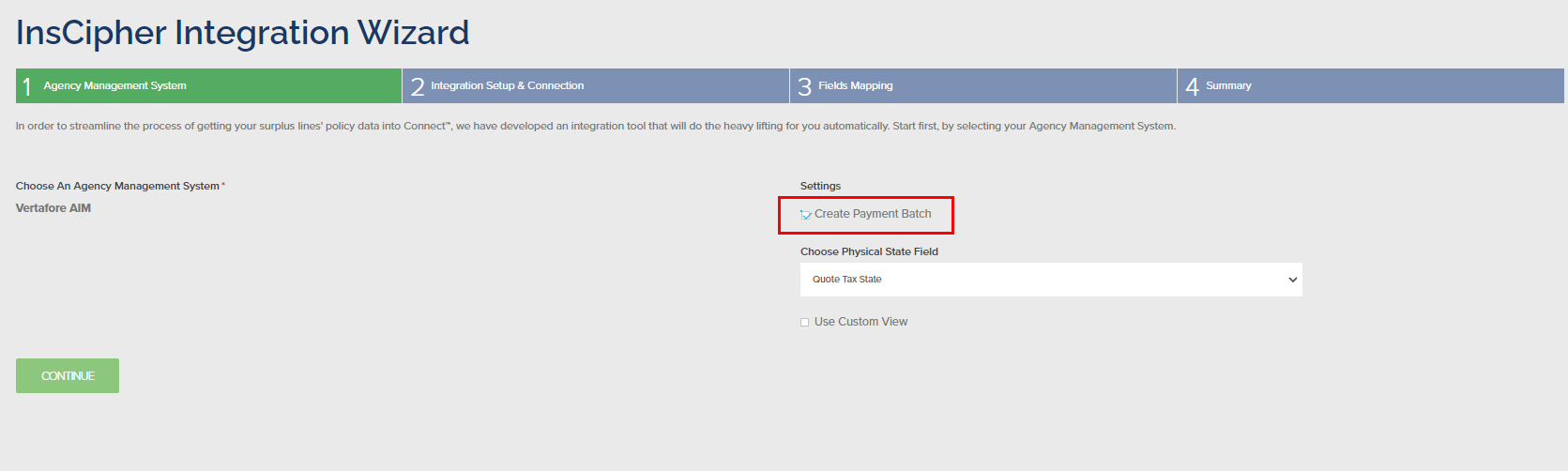 **Step 3** — On the **Field Mapping** page, ensure the **User ID Mapping** is set for each user. This is the user associated with the payment batch created in AIM.
 **Step 4** — Provide your implementation manager a report with four columns. They will set up your PayeeID mapping in the InsCipher backend settings (a customer-facing mapping table is planned for a later iteration):
1. State
2. TaxCode ID
3. Payee ID
4. Payee Code
:::warning[Important]
This mapping is critical to setup — without it, the feature will not work. Contact your Implementation Manager or support with questions.
:::
### How to create a payment batch
Once set up, create a payment batch from the State Reporting Task module in Connect®.
**Step 1** — In the State Reporting Task module, find a payment task that needs to be completed and open its details page.
**Step 2** — Review the task to confirm the correct transactions are in the **Related Filings** section. You can view the filings via the link or download a CSV to review.
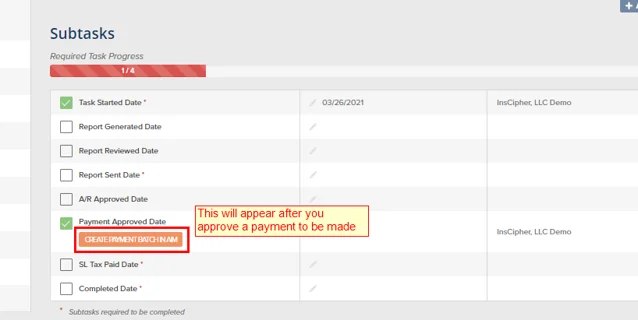
**Step 3** — Once verified and ready to pay, add the **Payment Approved** date. This makes a button appear; click **CREATE PAYMENT BATCH IN AIM**.
**Step 4** — Provide your implementation manager a report with four columns. They will set up your PayeeID mapping in the InsCipher backend settings (a customer-facing mapping table is planned for a later iteration):
1. State
2. TaxCode ID
3. Payee ID
4. Payee Code
:::warning[Important]
This mapping is critical to setup — without it, the feature will not work. Contact your Implementation Manager or support with questions.
:::
### How to create a payment batch
Once set up, create a payment batch from the State Reporting Task module in Connect®.
**Step 1** — In the State Reporting Task module, find a payment task that needs to be completed and open its details page.
**Step 2** — Review the task to confirm the correct transactions are in the **Related Filings** section. You can view the filings via the link or download a CSV to review.
**Step 3** — Once verified and ready to pay, add the **Payment Approved** date. This makes a button appear; click **CREATE PAYMENT BATCH IN AIM**.
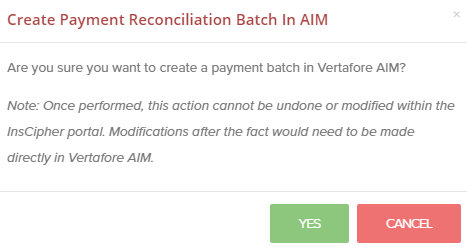
 **Step 4** — Confirm by clicking **YES**. A payment batch is generated in your AIM® accounting database.
 ### Response and validation messages
If there are errors, they display. Otherwise you see a success message:
### Response and validation messages
If there are errors, they display. Otherwise you see a success message:
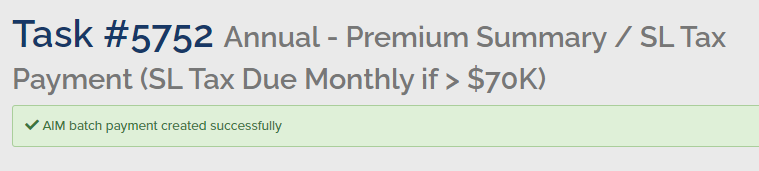 The status also appears at the bottom of the Task Details section:
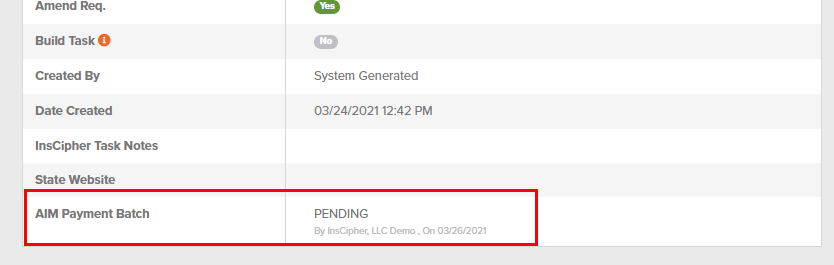 A payment batch is created for each PayeeID associated with the AIM® invoice transactions included in the State Reporting Task. The system uses the mapping from setup to create a batch in AIM with the correct PayeeID. If any AIM® invoice transactions have an incorrect PayeeID on the invoice header, they are flagged in the error messages. To view the error message, click the **Summary** link next to the status.
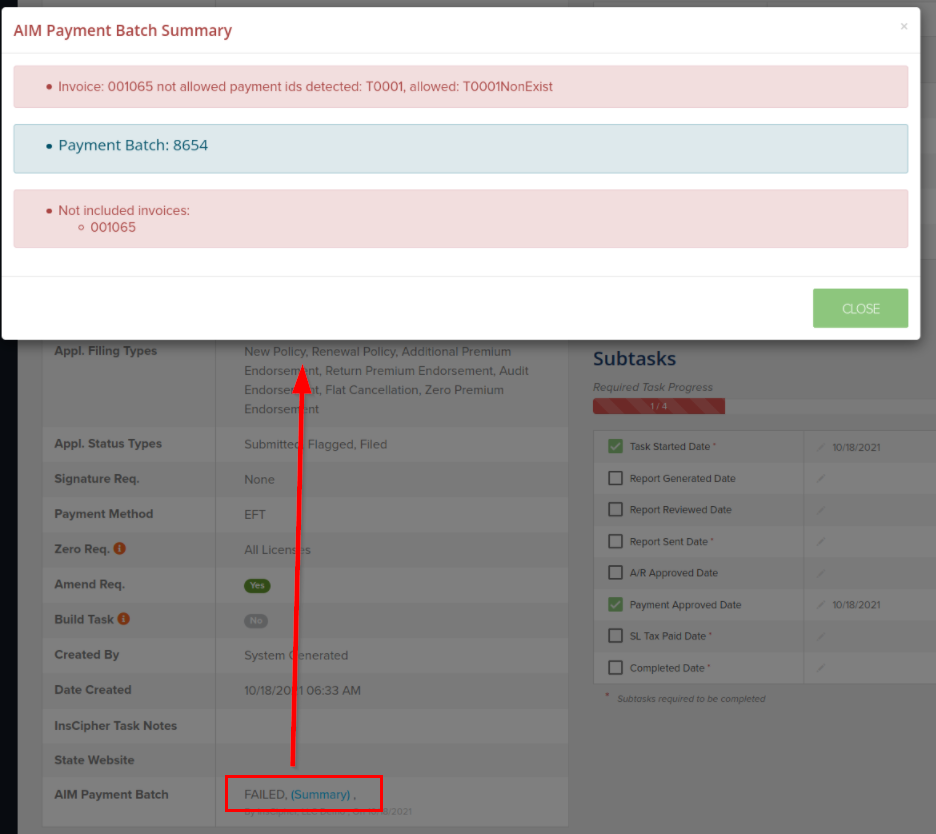 :::danger[Caution]
Once the "Create Payment Batch in AIM" action is performed, it cannot be undone or modified within the InsCipher portal. Later modifications must be made directly in Vertafore AIM®.
:::
:::warning[Important]
Only transactions imported into InsCipher using the AIM® integration tool and that have a valid Invoice Number can be exported back into AIM® via payment batches. This feature is not designed to be used separately from importing transactions. Validation errors appear if you attempt to create a payment batch without a valid AIM invoice number.
:::
### Next step
After this action completes, go into AIM® and review the payment batch in the **Tax Payables** section of your AIM® Accounting Module. To edit the batch, do so in Tax Payables. Once it looks correct, post it and continue creating checks.
## Import Policy Data
A guide to automating the import of your agency's policy data from AIM to InsCipher.
The Integration Client automatically extracts relevant surplus lines policy data from your local AIM® database and imports it into Connect® on a daily basis, typically around **2 AM Mountain Standard Time (MST)**. The import selects invoices whose post date falls in the import window and that meet either of these conditions:
* The invoice is **exported and taxed** and is not an installment — from a developer's perspective, `StatusID = "E"`, `Taxed = "Y"`, and `InstallmentFlag = "N"` on the invoice header.
* The invoice is a **memo invoice** in a reviewed or pending status — `MemoInvoiceFlag = "Y"` and `StatusID IN ("R", "P")`.
Invoices in other statuses are not included because they may still change before being exported to accounting; importing only these invoices keeps the transaction list in Connect® cleaner and more current.
In the standard import (no custom view), a transaction is additionally skipped unless at least one of its invoice detail lines is collected by the agency (`CollectedBy = "A"`).
If your agency uses the [custom SQL view](#custom-sql-view-option), these conditions are defined inside your view instead — the integration then selects from the view by post date only.
:::warning[Important]
The InsCipher Integration Tool always runs in the background, even after you reboot your server. All imported batches appear on the **Filings Import Log** page in Connect® for your review.
:::
:::tip
For plans billed in installments, it is best practice to charge the entire SL taxes and fees up front so they can be reported and paid to the state. If a policy later cancels, create an offsetting invoice so you can report the unrealized premium to the state and return the SL taxes and fees to the insured.
:::
:::note
Duplicate transactions with the same Invoice ID are not imported. They appear in the Filings Import Log as "Not Imported" transactions.
:::
### 1. Set up a new integration in InsCipher
Log into your Connect® account, then go to **Setup** in the left navigation → **Integrations** → **ADD NEW** to start the Integration Wizard. The wizard guides you through a four-step process.
:::danger[Caution]
Once the "Create Payment Batch in AIM" action is performed, it cannot be undone or modified within the InsCipher portal. Later modifications must be made directly in Vertafore AIM®.
:::
:::warning[Important]
Only transactions imported into InsCipher using the AIM® integration tool and that have a valid Invoice Number can be exported back into AIM® via payment batches. This feature is not designed to be used separately from importing transactions. Validation errors appear if you attempt to create a payment batch without a valid AIM invoice number.
:::
### Next step
After this action completes, go into AIM® and review the payment batch in the **Tax Payables** section of your AIM® Accounting Module. To edit the batch, do so in Tax Payables. Once it looks correct, post it and continue creating checks.
## Import Policy Data
A guide to automating the import of your agency's policy data from AIM to InsCipher.
The Integration Client automatically extracts relevant surplus lines policy data from your local AIM® database and imports it into Connect® on a daily basis, typically around **2 AM Mountain Standard Time (MST)**. The import selects invoices whose post date falls in the import window and that meet either of these conditions:
* The invoice is **exported and taxed** and is not an installment — from a developer's perspective, `StatusID = "E"`, `Taxed = "Y"`, and `InstallmentFlag = "N"` on the invoice header.
* The invoice is a **memo invoice** in a reviewed or pending status — `MemoInvoiceFlag = "Y"` and `StatusID IN ("R", "P")`.
Invoices in other statuses are not included because they may still change before being exported to accounting; importing only these invoices keeps the transaction list in Connect® cleaner and more current.
In the standard import (no custom view), a transaction is additionally skipped unless at least one of its invoice detail lines is collected by the agency (`CollectedBy = "A"`).
If your agency uses the [custom SQL view](#custom-sql-view-option), these conditions are defined inside your view instead — the integration then selects from the view by post date only.
:::warning[Important]
The InsCipher Integration Tool always runs in the background, even after you reboot your server. All imported batches appear on the **Filings Import Log** page in Connect® for your review.
:::
:::tip
For plans billed in installments, it is best practice to charge the entire SL taxes and fees up front so they can be reported and paid to the state. If a policy later cancels, create an offsetting invoice so you can report the unrealized premium to the state and return the SL taxes and fees to the insured.
:::
:::note
Duplicate transactions with the same Invoice ID are not imported. They appear in the Filings Import Log as "Not Imported" transactions.
:::
### 1. Set up a new integration in InsCipher
Log into your Connect® account, then go to **Setup** in the left navigation → **Integrations** → **ADD NEW** to start the Integration Wizard. The wizard guides you through a four-step process.
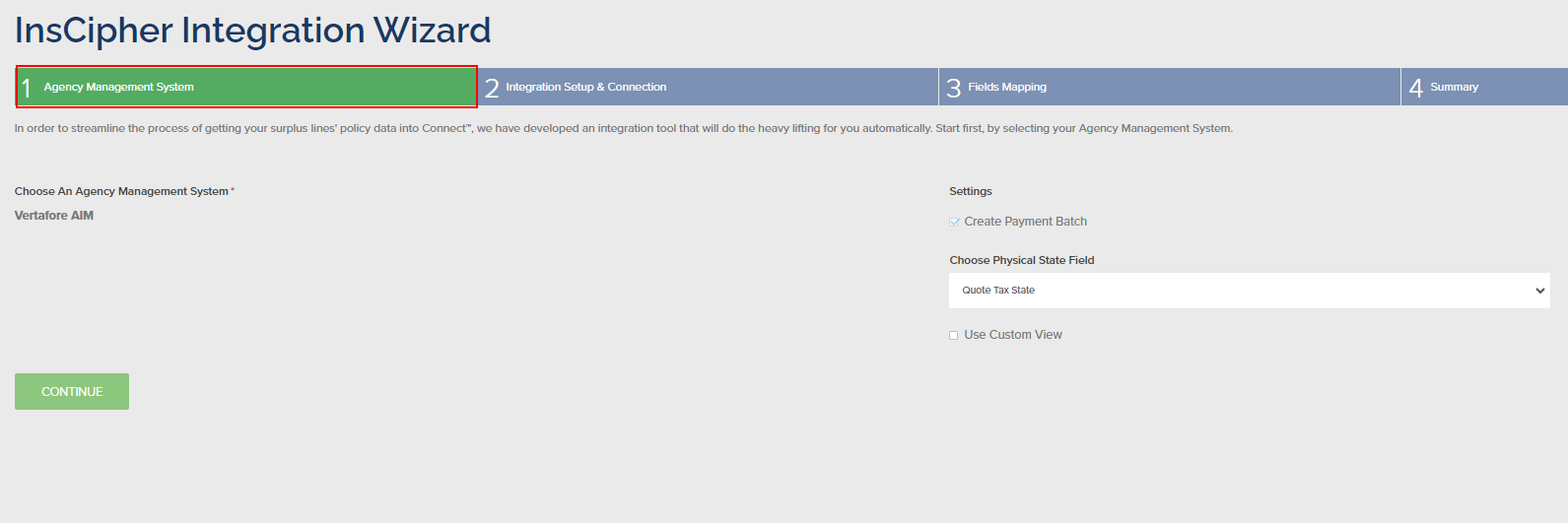 * Select **Vertafore AIM** and click **Continue**.
* Select **Create Payment Batch** if you want to use the payment reconciliation feature (see Create a Payment Batch).
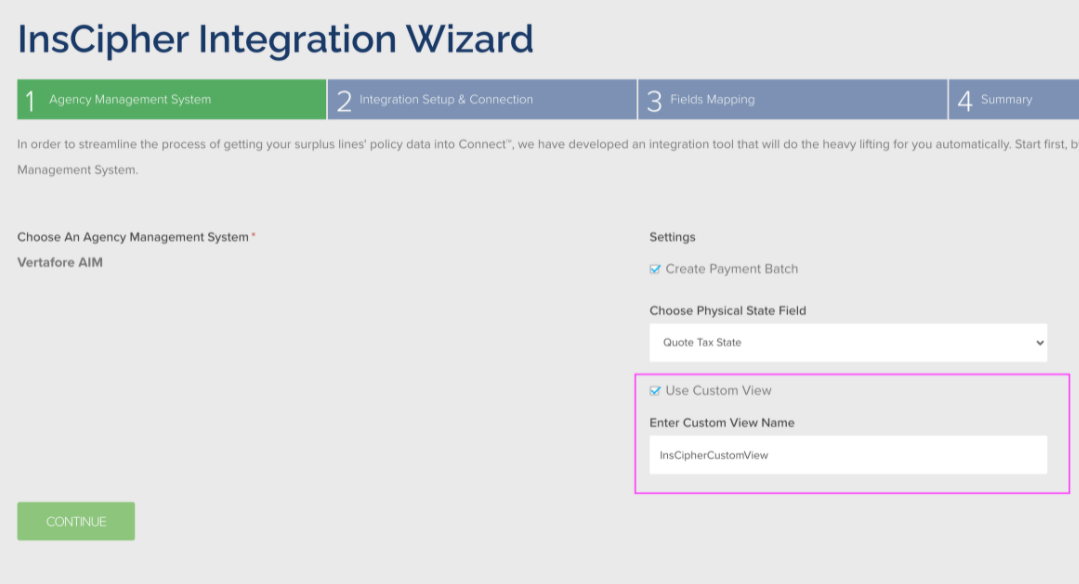
* Under **Choose Physical State Field**, indicate which AIM value to use for the Physical / Tax State in Connect®:
* **Quote State** pulls from the `Quote.State` field.
* **Quote Tax State** pulls from the `Quote.TaxState` field.
### 2. Download and initialize the Integration tool
In this step you download and install the InsCipher Integration Tool and receive your InsCipher Integration Token, which you use during installation.
* Select **Vertafore AIM** and click **Continue**.
* Select **Create Payment Batch** if you want to use the payment reconciliation feature (see Create a Payment Batch).
* Under **Choose Physical State Field**, indicate which AIM value to use for the Physical / Tax State in Connect®:
* **Quote State** pulls from the `Quote.State` field.
* **Quote Tax State** pulls from the `Quote.TaxState` field.
### 2. Download and initialize the Integration tool
In this step you download and install the InsCipher Integration Tool and receive your InsCipher Integration Token, which you use during installation.
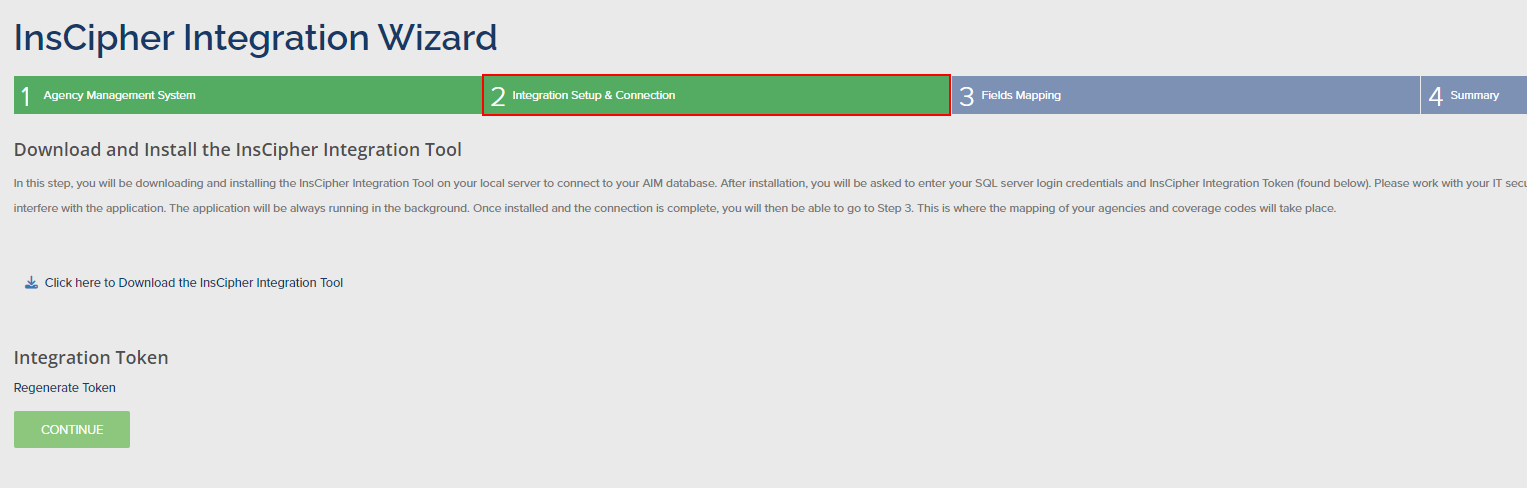 :::warning[Important]
You have **10 minutes** to use the token before you need to regenerate it.
:::
:::warning[Important]
You have **10 minutes** to use the token before you need to regenerate it.
:::
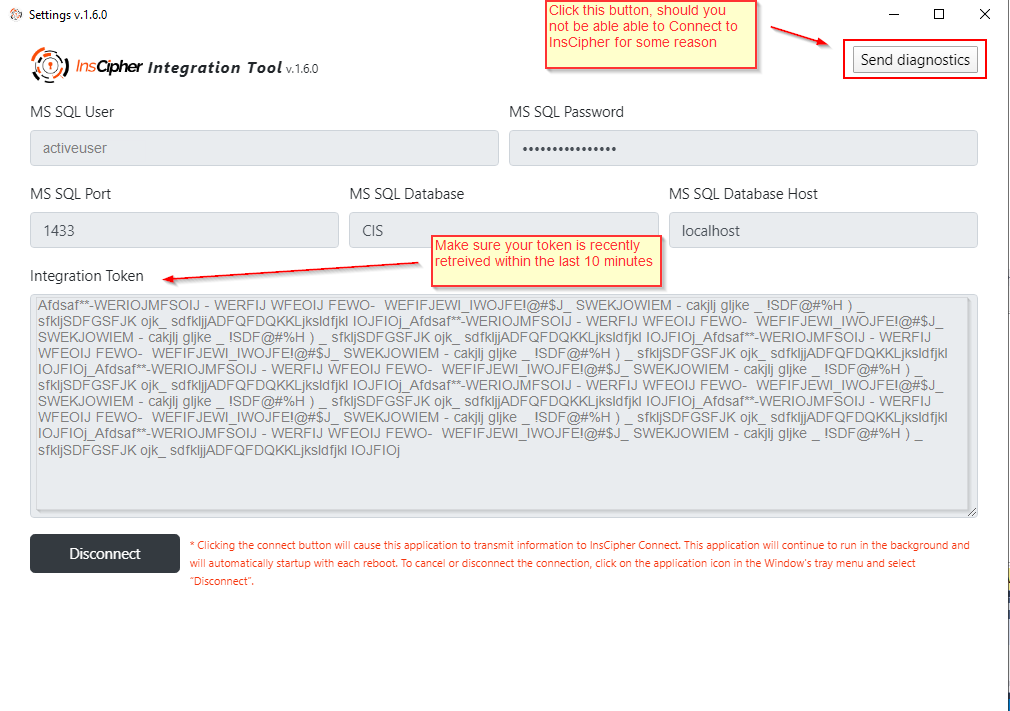 During installation, enter your SQL Server login credentials and your Integration Token, then click **Connect** to link to InsCipher. Processing can take a few minutes. If you have trouble connecting, confirm that your SQL login credentials are correct and that the account has read-only access to all AIM tables the IC queries:
* **For mappings:** `Division`, `Coverage`, `InvoiceTranCode`, `Product`
* **For transaction export:** `InvoiceHeader`, `InvoiceDetail`, `Insured`, `Quote`, `Policy`, `Company`, `taaTaxInfo`, `Endorse`, `taaCompanyContract`, `taaContractSyndicate`, `taaPremiumAllocation`, `Producer`
If problems persist, click **Send diagnostics** in the top-right corner of the Integration Client tool.
:::note
Once the connection completes, you get an "Installation successful" message. The application continues running in the background and starts automatically with each reboot. To cancel, disconnect, or adjust the connection, click the application icon in the Windows tray menu.
:::
### 3. Map division and coverage codes from AIM to InsCipher
Complete the following mapping tables to configure the integration:
* Agencies
* User ID
* Fees
* Line of Business (LOB)
* Filing Types
#### Map Agencies
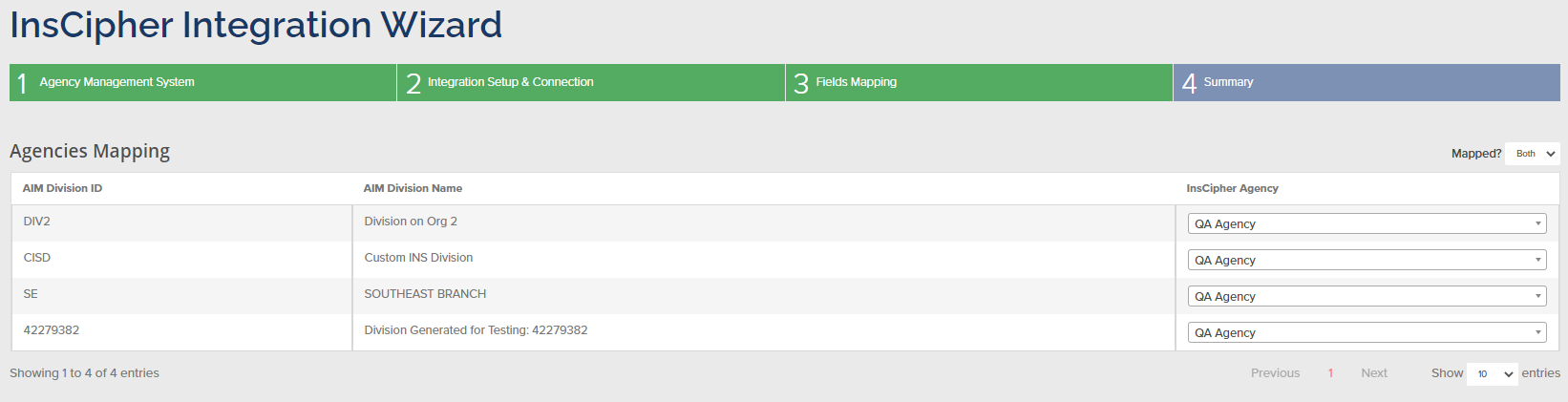
Map the agencies or divisions in AIM to the agencies created in Connect®. You can map multiple AIM divisions to a single Connect® agency, or use a one-to-one relationship. You must map your agencies before the integration is fully set up. To create additional agencies, see the "Creating Agency Admin User" topic in the Getting Started help section.
During installation, enter your SQL Server login credentials and your Integration Token, then click **Connect** to link to InsCipher. Processing can take a few minutes. If you have trouble connecting, confirm that your SQL login credentials are correct and that the account has read-only access to all AIM tables the IC queries:
* **For mappings:** `Division`, `Coverage`, `InvoiceTranCode`, `Product`
* **For transaction export:** `InvoiceHeader`, `InvoiceDetail`, `Insured`, `Quote`, `Policy`, `Company`, `taaTaxInfo`, `Endorse`, `taaCompanyContract`, `taaContractSyndicate`, `taaPremiumAllocation`, `Producer`
If problems persist, click **Send diagnostics** in the top-right corner of the Integration Client tool.
:::note
Once the connection completes, you get an "Installation successful" message. The application continues running in the background and starts automatically with each reboot. To cancel, disconnect, or adjust the connection, click the application icon in the Windows tray menu.
:::
### 3. Map division and coverage codes from AIM to InsCipher
Complete the following mapping tables to configure the integration:
* Agencies
* User ID
* Fees
* Line of Business (LOB)
* Filing Types
#### Map Agencies
Map the agencies or divisions in AIM to the agencies created in Connect®. You can map multiple AIM divisions to a single Connect® agency, or use a one-to-one relationship. You must map your agencies before the integration is fully set up. To create additional agencies, see the "Creating Agency Admin User" topic in the Getting Started help section.
 #### Map Fees — reportable Broker and Carrier fees
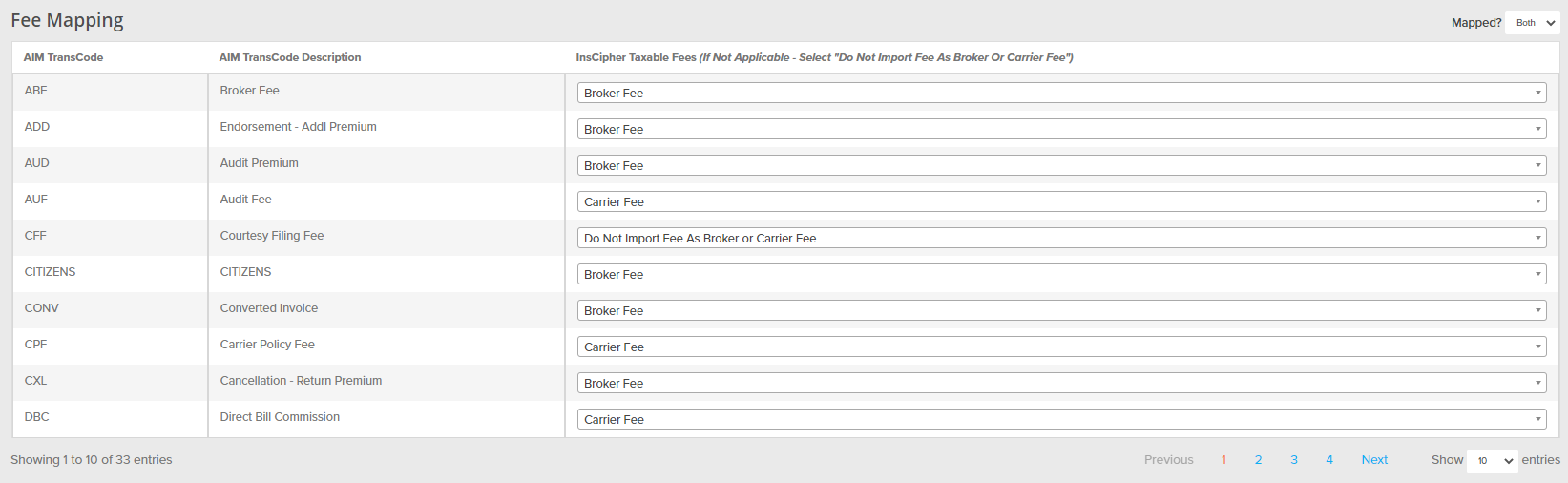
You decide which AIM fees import into Connect® as **Broker Fees** or **Carrier Fees**. The Fee Mapping section has three columns:
1. **AIM Transcode** — the transaction code pulled from your AIM instance. As pulled from AIM, these can include both taxes and fees.
2. **AIM TransCode Description** — the description of the fee associated with the AIM transaction code, pulled from your AIM instance.
3. **InsCipher Taxable Fee** — the InsCipher fee/tax field that the AIM Transcode and Description maps to.
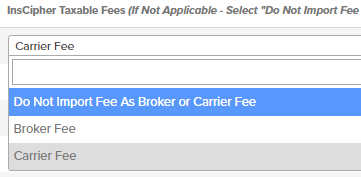
The dropdown under the InsCipher Taxable Fees column offers these options:
* **Broker Fee** — fees charged or retained by the broker (policy fee, filing fee, agency fee, etc.) that must be reported to the state.
* **Carrier Fee** — carrier-mandated fees added to the policy (inspection, underwriting, audit, etc.) that must be reported to the state.
* **Do Not Import Fee as Broker or Carrier Fee** — choose this for any line item that is not a broker or carrier fee, specifically if you do not report the fee or amount to the state.
#### Map Fees — reportable Broker and Carrier fees
You decide which AIM fees import into Connect® as **Broker Fees** or **Carrier Fees**. The Fee Mapping section has three columns:
1. **AIM Transcode** — the transaction code pulled from your AIM instance. As pulled from AIM, these can include both taxes and fees.
2. **AIM TransCode Description** — the description of the fee associated with the AIM transaction code, pulled from your AIM instance.
3. **InsCipher Taxable Fee** — the InsCipher fee/tax field that the AIM Transcode and Description maps to.
The dropdown under the InsCipher Taxable Fees column offers these options:
* **Broker Fee** — fees charged or retained by the broker (policy fee, filing fee, agency fee, etc.) that must be reported to the state.
* **Carrier Fee** — carrier-mandated fees added to the policy (inspection, underwriting, audit, etc.) that must be reported to the state.
* **Do Not Import Fee as Broker or Carrier Fee** — choose this for any line item that is not a broker or carrier fee, specifically if you do not report the fee or amount to the state.
 :::warning[What about taxes pulled into the fee mapping section?]
Although taxes are mapped automatically on import, they still appear in this section as needing to be mapped. For now, mark taxes as **Do Not Import Fee as Broker or Carrier Fee**. An enhancement to support both taxes and fees in this step is planned.
:::
#### Map Lines of Business — coverage codes
Lines of business codes vary from system to system. Where possible, InsCipher has compiled state-specific approved coverage codes and mapped generic lines of business codes to them. For additional generic code options or questions about generic mapping, contact your implementation specialist or [support@inscipher.com](mailto\:support@inscipher.com).
:::tip
Use the **Mapped?** filter to view only the LOBs that still need to be mapped.
:::
:::warning[Important]
Select **All States** when configuring this feature. The ability to map to state-specific codes is not yet fully released.
:::
:::warning[What about taxes pulled into the fee mapping section?]
Although taxes are mapped automatically on import, they still appear in this section as needing to be mapped. For now, mark taxes as **Do Not Import Fee as Broker or Carrier Fee**. An enhancement to support both taxes and fees in this step is planned.
:::
#### Map Lines of Business — coverage codes
Lines of business codes vary from system to system. Where possible, InsCipher has compiled state-specific approved coverage codes and mapped generic lines of business codes to them. For additional generic code options or questions about generic mapping, contact your implementation specialist or [support@inscipher.com](mailto\:support@inscipher.com).
:::tip
Use the **Mapped?** filter to view only the LOBs that still need to be mapped.
:::
:::warning[Important]
Select **All States** when configuring this feature. The ability to map to state-specific codes is not yet fully released.
:::
 #### Map Filing Types
Filing/transaction types vary between AIM and InsCipher. Click the green **Add New** button to add an AIM transaction code for a filing type, then map it to an InsCipher filing type. Because this can vary for positive and negative amounts, you can set them differently to match your workflow.
#### Map Filing Types
Filing/transaction types vary between AIM and InsCipher. Click the green **Add New** button to add an AIM transaction code for a filing type, then map it to an InsCipher filing type. Because this can vary for positive and negative amounts, you can set them differently to match your workflow.
 ### 4. Summary
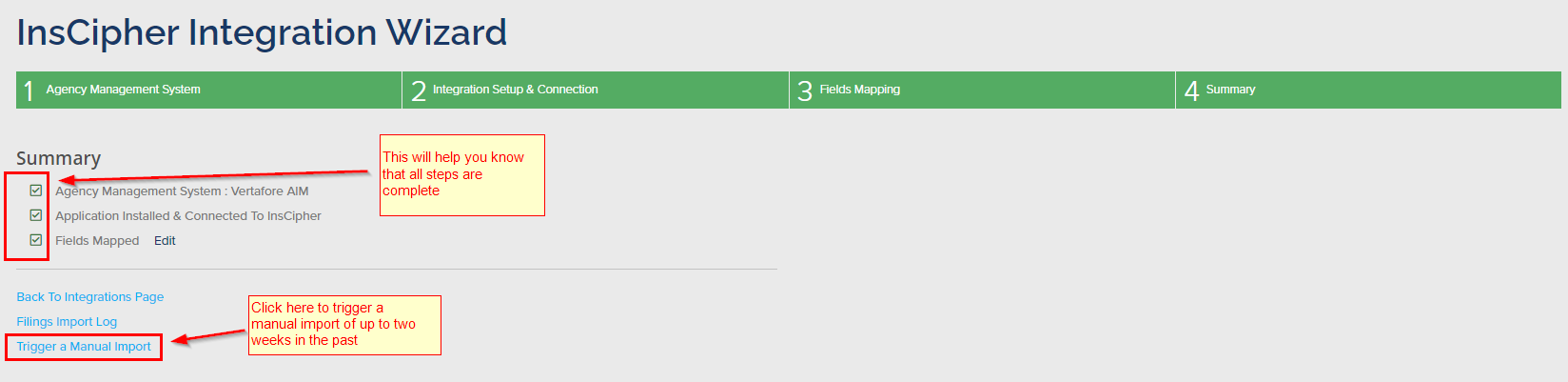
Setup is now complete. If there is an issue, the system informs you and you can return to previous sections. You can also set up a manual trigger to import up to two weeks of historical data from your AIM® database.
:::note
To prevent timeout errors, batches are grouped into 100 transactions. If you import more than 100 transactions at a time, they arrive as multiple batches in the Filings Import Log.
:::
### 4. Summary
Setup is now complete. If there is an issue, the system informs you and you can return to previous sections. You can also set up a manual trigger to import up to two weeks of historical data from your AIM® database.
:::note
To prevent timeout errors, batches are grouped into 100 transactions. If you import more than 100 transactions at a time, they arrive as multiple batches in the Filings Import Log.
:::
 :::warning[Important]
Regularly review the **Filings Import Log** to confirm all transactions import each day and to address any import errors. Import errors are described on the **Not Imported Filings** tab or by clicking a batch **Error Log**. Duplicate records are filtered out by Invoice ID.
:::
### How the import works
The integration uses a **push model**: the on-premise Integration Client reads your AIM database and sends transactions to InsCipher. The client supports two export paths.
**Standard export.** The client queries AIM directly (InvoiceHeader, Quote, Policy, Company, and related tables) for invoices matching the criteria above, attaches each invoice's raw detail lines, and pushes them to InsCipher. In this path, taxes and fees (SL tax, stamping fee, and so on) and syndicate breakdowns are calculated on the InsCipher side from those detail lines and contract data, using your Taxes and Fees mapping.
**Custom view export.** If your agency uses a [custom SQL view](#custom-sql-view-option), the client reads everything from that view, including pre-calculated taxes and fees. The custom view is also the only path that can supply several additional fields — declining carrier details (`dc_*`), service-of-process (`sop_*`), retail producer details, windstorm fields, and insured contact and limit fields. Fields marked "custom view only" in the mapping table are populated only through this path.
**Transaction type.** The InsCipher transaction type is derived from the AIM invoice type (`InvoiceTypeID`):
| AIM invoice type | InsCipher transaction type |
| ------------------------ | -------------------------- |
| NBS (New Business) | PN |
| REN (Renewal) | PR |
| ADD (Additional Premium) | APE |
| AUD (Audit) | AE |
| RMID (Reinstatement) | APE |
| CXL (Cancellation) | RPE |
| RET (Return Premium) | RPE |
| ENX (Extension) | PR in Texas, otherwise APE |
| Any other type | PN |
**Defaulted fields.** A few fields are set to fixed values on export rather than read from AIM: `account_written_as` is set to B (Brokerage), `rpg` to 0, `commission_received` to 1, and `export_list` to 0, while `agent_notes` and `purchasing_group_name` are left empty.
### FAQs
#### What if I need to change my integration settings?
You can change your configuration after setup is complete.
#### Regenerating your InsCipher token
You may occasionally be asked to regenerate a new InsCipher Token, typically only after a major version update — InsCipher will let you know. In Connect®, go to **Setup → Integrations → Details** under the AIM integration → **Step 2** ("Integration Setup & Connect") → click **Regenerate Token**. Copy the token into the InsCipher Integration Tool: select the application icon in the Windows server tray menu → **Settings** → update the token → click **Connect**.
#### How do I edit my SQL login credentials?
Select the application icon in the Windows server tray menu → **Settings** → update your SQL login credentials → click **Connect**.
#### Deleting the integration connection in Connect®
Go to **Setup → Integrations** and click **Delete** next to the AIM® integration. If you delete it and later reconnect, you must restart the setup process from Step 1.
#### What if there are updates to the application?
Versions 1.6.0 and above support automatic updates. InsCipher communicates any changes so you are aware of updates to the integration tool.
#### How will I know if there is an issue?
There are a few ways:
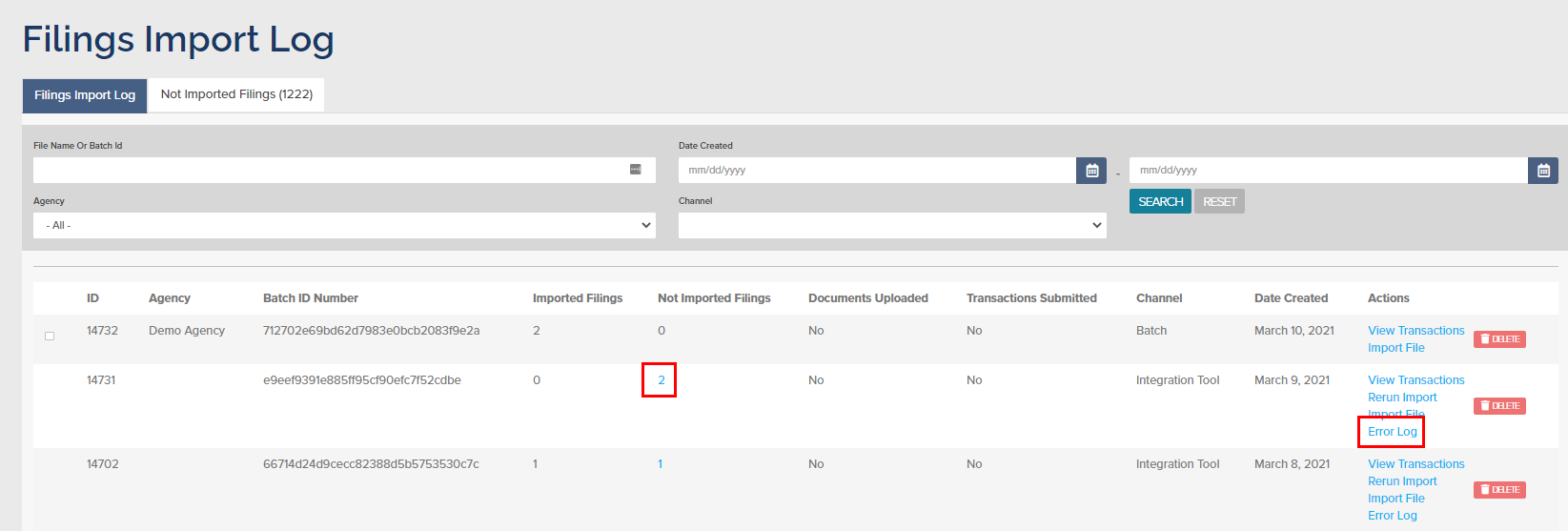
**Review the Filings Import Log.** All transactions imported via the Integration Tool appear on the Filings Import Log page (left navigation). It lists how many transactions imported on a given day and which did not. If there was an error, the batch ID appears as a blue link; click it to download an error log. In most cases the error is duplicate transactions filtered out by AIM invoice ID. You can also rerun the import.
:::warning[Important]
Regularly review the **Filings Import Log** to confirm all transactions import each day and to address any import errors. Import errors are described on the **Not Imported Filings** tab or by clicking a batch **Error Log**. Duplicate records are filtered out by Invoice ID.
:::
### How the import works
The integration uses a **push model**: the on-premise Integration Client reads your AIM database and sends transactions to InsCipher. The client supports two export paths.
**Standard export.** The client queries AIM directly (InvoiceHeader, Quote, Policy, Company, and related tables) for invoices matching the criteria above, attaches each invoice's raw detail lines, and pushes them to InsCipher. In this path, taxes and fees (SL tax, stamping fee, and so on) and syndicate breakdowns are calculated on the InsCipher side from those detail lines and contract data, using your Taxes and Fees mapping.
**Custom view export.** If your agency uses a [custom SQL view](#custom-sql-view-option), the client reads everything from that view, including pre-calculated taxes and fees. The custom view is also the only path that can supply several additional fields — declining carrier details (`dc_*`), service-of-process (`sop_*`), retail producer details, windstorm fields, and insured contact and limit fields. Fields marked "custom view only" in the mapping table are populated only through this path.
**Transaction type.** The InsCipher transaction type is derived from the AIM invoice type (`InvoiceTypeID`):
| AIM invoice type | InsCipher transaction type |
| ------------------------ | -------------------------- |
| NBS (New Business) | PN |
| REN (Renewal) | PR |
| ADD (Additional Premium) | APE |
| AUD (Audit) | AE |
| RMID (Reinstatement) | APE |
| CXL (Cancellation) | RPE |
| RET (Return Premium) | RPE |
| ENX (Extension) | PR in Texas, otherwise APE |
| Any other type | PN |
**Defaulted fields.** A few fields are set to fixed values on export rather than read from AIM: `account_written_as` is set to B (Brokerage), `rpg` to 0, `commission_received` to 1, and `export_list` to 0, while `agent_notes` and `purchasing_group_name` are left empty.
### FAQs
#### What if I need to change my integration settings?
You can change your configuration after setup is complete.
#### Regenerating your InsCipher token
You may occasionally be asked to regenerate a new InsCipher Token, typically only after a major version update — InsCipher will let you know. In Connect®, go to **Setup → Integrations → Details** under the AIM integration → **Step 2** ("Integration Setup & Connect") → click **Regenerate Token**. Copy the token into the InsCipher Integration Tool: select the application icon in the Windows server tray menu → **Settings** → update the token → click **Connect**.
#### How do I edit my SQL login credentials?
Select the application icon in the Windows server tray menu → **Settings** → update your SQL login credentials → click **Connect**.
#### Deleting the integration connection in Connect®
Go to **Setup → Integrations** and click **Delete** next to the AIM® integration. If you delete it and later reconnect, you must restart the setup process from Step 1.
#### What if there are updates to the application?
Versions 1.6.0 and above support automatic updates. InsCipher communicates any changes so you are aware of updates to the integration tool.
#### How will I know if there is an issue?
There are a few ways:
**Review the Filings Import Log.** All transactions imported via the Integration Tool appear on the Filings Import Log page (left navigation). It lists how many transactions imported on a given day and which did not. If there was an error, the batch ID appears as a blue link; click it to download an error log. In most cases the error is duplicate transactions filtered out by AIM invoice ID. You can also rerun the import.
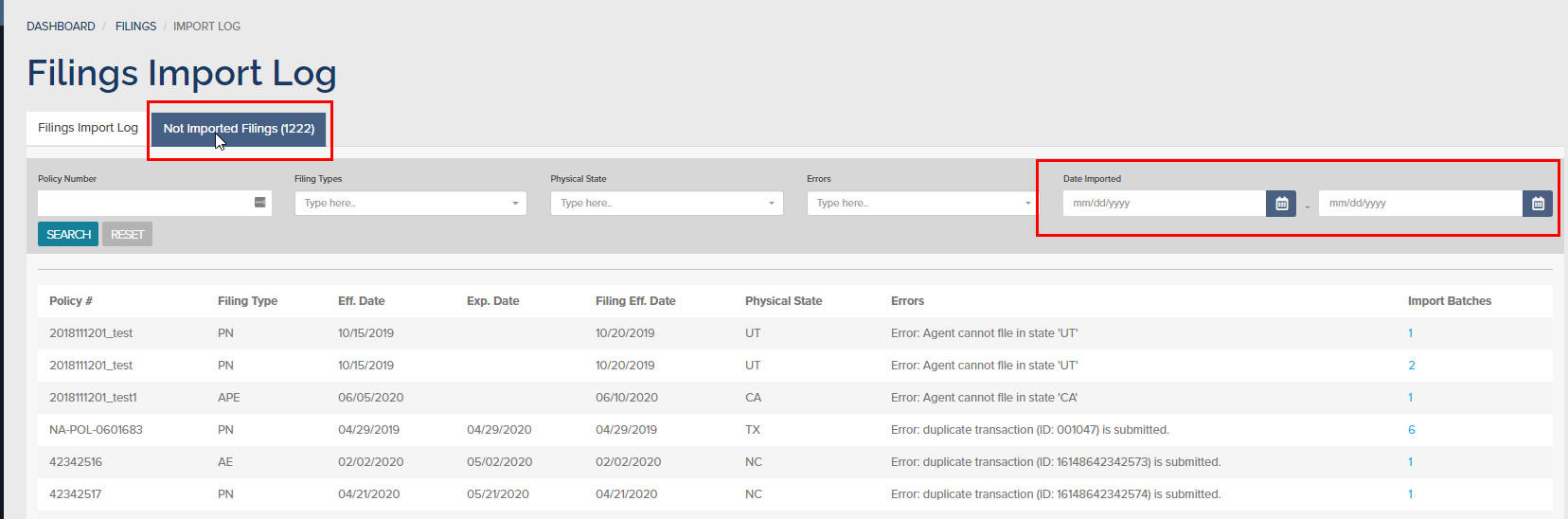
 The **Not Imported Filings** tab summarizes all not-imported filings and can be filtered by import date.
 **Email and dashboard notifications.** If there is a field-mapping or connection issue, the Filing Agency Admin user receives an email notification, and you are notified on the Connect® dashboard. For a connection issue, first reset your token, then open the InsCipher Integration application on your server (tray icon) → **Settings**, paste the updated token, and click **Connect**. If the issue persists, contact [support@inscipher.com](mailto\:support@inscipher.com). For an out-of-sync field, go to the Integrations page in Connect® and click **Details** next to the integration (status will show that mapping is needed); map any highlighted fields, using the **Mapped?** filter to find them.
### AIM field mapping
The table below reflects what the import actually populates. A blank **Mapped AIM Field** means the field is not supplied by the integration. The **Requirement** is the field's status in the shared InsCipher transaction schema; the same tiers apply across all InsCipher integrations. Fields not listed here are not supplied by the AIM integration — they are entered in Connect® or required only at state filing time.
**Legend:** R = Required · Rec = Recommended · O = Optional
**Dashboard reference:** lookerstudio.google.com
| InsCipher Field | Mapped AIM Field | Notes | Requirement |
| ----------------------------------------- | -------------------------------------------------------------------------------- | ----------------------------------------------------------------------------------------------------- | ----------- |
| id | InvoiceHeader.InvoiceKey\_PK | | O |
| policy\_number | InvoiceHeader.PolicyID | Non-unique field | R |
| policy\_effective\_date | Policy.Effective | | R |
| policy\_expiration\_date | Policy.Expiration | | R |
| transaction\_effective\_date | Policy.Effective | | R |
| expiring\_policy\_number | Quote.OldPolicyID | | O |
| invoice\_date | InvoiceHeader.InvoiceDate | State-renamed in some states | Rec |
| invoice\_number | InvoiceHeader.InvoiceID | "Invoice ID" field on the Tracking tab in Filing Details | R |
| transaction\_type | InvoiceHeader.InvoiceTypeID | Custom — configured in Integration Settings | R |
| account\_written\_as | B | Sent empty by the import; set during processing | O |
| rpg | 0 (No) | Sent empty by the import | O |
| purchasing\_group\_name | Not mapped | Sent empty by the import | O |
| risk\_description | Quote.RiskInformation (fallback: Quote.Description) | NY, OH, PA require manual entry post-import. Recommended populate for CA (SL1). | O |
| ecp | Insured.IsECP | Defaults to "No" if unknown | O |
| exempt | Quote.FlagTaxExempt | Imported value, not hardcoded | O |
| multi\_state | Quote.isMultiState | Imported value, not hardcoded | O |
| policy\_limit | taaTaxInfo.Limit1 | Required for some states. Only pulls if Policy Limit 1 enabled + populated. See dashboard link above. | O |
| export\_list | 0 (No) | Hardcoded | O |
| transaction\_line\_of\_business | Quote.CoverageID | Mapping defined in setup (Step 2: Field Mapping) | — |
| transaction\_line\_of\_business\_list | InvoiceDetail.CoverageID | Parsed from the Coverage list (CoverageID), pipe-joined | R |
| transaction\_line\_of\_business\_coverage | InvoiceDetail.Amount | Parsed from the Coverage list (Amount), pipe-joined | R |
| non\_admitted\_insurer\_code | Company.NAIC | NAIC must exist in AIM; Lloyd's = AA-1122000 | O |
| non\_admitted\_insurer\_code\_list | Not mapped | | Rec |
| non\_admitted\_insurer\_code\_coverage | Not mapped | | Rec |
| syndicate\_list | taaPremiumAllocation + taaCompanyContact + taaaContractNumber + SyndicateCompany | Weighted avg of contract/property % (Type S) | Rec |
| syndicate\_list\_coverage | Same as above | Weighted avg calculation | Rec |
| premium | InvoiceHeader.Premium | | O |
| agency\_fee | Integration mapping feature | Map agency-collected codes → "Broker Fee" | Rec |
| inspection\_fee | Integration mapping feature | Map carrier-collected codes → "Carrier" | Rec |
| sl\_tax | InvoiceDetail.Amount (TransCd = SLT) | | O |
| stamping\_fee | InvoiceDetail.Amount (TransCd = SOF) | Stamping Fee / FSLO / Fire Marshal (OR) | O |
| sl\_service\_charge | InvoiceDetail.Amount (TransCd = SLSC, TXA) | OR, MS | O |
| municipal\_fee | InvoiceDetail.Amount (TransCd = MUNI, MUNIT) | KY | O |
| fm\_tax | InvoiceDetail.Amount (TransCd = FMT) | Fire Marshal Tax | O |
| empa\_tax | InvoiceDetail.Amount (TransCd = EMPA) | Florida EMPA Tax | O |
| total | InvoiceHeader.InvoiceTotal | Premium + all taxes + fees | O |
| commission\_received | 1 (Yes) | Hardcoded. Review if NH commission not collected. | O |
| mailing\_insured\_name | Quote.NamedInsured | Quote.NamedInsured; fallback Insured.NamedInsured | R |
| mailing\_address | Quote.MailAddress1 | Quote.MailAddress1; fallback Insured.MailAddress1 | R |
| mailing\_address2 | Quote.MailAddress2 | Quote.MailAddress2; fallback Insured.MailAddress2 | O |
| mailing\_city | Quote.MailCity | Quote.MailCity; fallback Insured.MailCity | R |
| mailing\_zip\_code | Quote.MailZip | Quote.MailZip; fallback Insured.MailZip | R |
| mailing\_state\_code | Quote.MailState | Quote.MailState; fallback Insured.MailState | R |
| physical\_same\_as\_mailing | Yes if addresses match | Sent as false by the import | R |
| physical\_address | Quote.Address1 | Quote.Address1; fallback Insured.Address1 | Rec |
| physical\_address2 | Quote.Address2 | Quote.Address2; fallback Insured.Address2 | O |
| physical\_city | Quote.City | Quote.City; fallback Insured.City | Rec |
| physical\_zip\_code | Quote.Zip | Quote.Zip; fallback Insured.Zip | Rec |
| physical\_state\_code | Quote.State (fallback: Insured.State) | Configurable in Setup → Integrations → Step 2 | R |
| retail\_producer\_name | tnm.Name | Only if Account Written As = B | O |
| retail\_agency\_name | p.Name | Only if Account Written As = B | O |
| retail\_address | p.Address1 | Only if Account Written As = B | O |
| retail\_address2 | p.Address2 | Only if Account Written As = B | O |
| retail\_city | p.City | Only if Account Written As = B | O |
| retail\_state | p.State | Only if Account Written As = B | O |
| retail\_zip | p.Zip | Only if Account Written As = B | O |
| agent\_notes | Null | Hardcoded blank | Rec |
| transaction\_code | Quote.SLA | NJ only | O |
| customer\_code | Quote.QuoteID | Unique quote/submission ID | — |
| unique\_id | Quote.SLA | Used for MO, IL, NY, etc. | O |
| windstorm\_exclusion | Not imported (custom view only) | | O |
| windstorm\_deductible | Not imported (custom view only) | | O |
| agent\_id | DivisionID | Mapped via Agency mapping; agencies mapped to "Do Not Import" are skipped | O |
| invoice\_type\_id | InvoiceHeader.InvoiceTypeID | | — |
| product\_id | InvoiceHeader.ProductID | | — |
| entity | InvoiceHeader.Entity | | — |
| payable\_id | InvoiceHeader.PayableID | | — |
| pay\_to\_code | InvoiceHeader.PayToCode | | — |
| physical\_tax\_state\_code | Quote.TaxState | Configurable physical/tax state | — |
| single\_contract | SingleContract (JSON) | Syndicate/contract data | — |
| multi\_contract | MultiContract (JSON) | Syndicate/contract data | — |
| endorsement\_effective | Endorsements (JSON) | Latest endorsement effective date | — |
| endorsement\_number | Endorsements (JSON) | Latest endorsement number | — |
### Custom SQL view option
For some clients, the standard SQL query and transaction code mapping may not be adequate and may require customization. If you need it, use the custom view feature, which lets AIM users create custom views in AIM that the InsCipher AIM integration tool can later retrieve.
Advantages:
* AIM users control what data feeds into InsCipher.
* AIM users can identify edge cases and modify the custom view SQL accordingly.
* Maintenance is simpler — no frequent re-installation or tool updates.
:::warning[Important consideration]
Only use the Custom View feature if necessary. Otherwise, use the standard SQL query and transaction code mapping built into the AIM Integration setup wizard and do **not** turn this feature on.
:::
The AIM user creates a custom view containing the filings/transactions and related information to feed to InsCipher. The view is saved on the same AIM database connected to the InsCipher Integration tool. With a custom view, the Transaction Code mapping settings in Connect® are ignored — meaning the mapping of which fees import as Carrier or Broker fees must be programmed into the view, and amounts for SL Taxes, Stamping Fees, and other state-specific fees must be specified in the view.
:::tip
InsCipher has default field names for tax titles, but these can vary slightly by state. See the tax-title mapping sheet for reference.
:::
**Step 1** — As a Connect® user, go to the AIM tool integration wizard → Step 1 (Agency Management System), check the **Use custom view** setting, and enter a custom view name.
**Email and dashboard notifications.** If there is a field-mapping or connection issue, the Filing Agency Admin user receives an email notification, and you are notified on the Connect® dashboard. For a connection issue, first reset your token, then open the InsCipher Integration application on your server (tray icon) → **Settings**, paste the updated token, and click **Connect**. If the issue persists, contact [support@inscipher.com](mailto\:support@inscipher.com). For an out-of-sync field, go to the Integrations page in Connect® and click **Details** next to the integration (status will show that mapping is needed); map any highlighted fields, using the **Mapped?** filter to find them.
### AIM field mapping
The table below reflects what the import actually populates. A blank **Mapped AIM Field** means the field is not supplied by the integration. The **Requirement** is the field's status in the shared InsCipher transaction schema; the same tiers apply across all InsCipher integrations. Fields not listed here are not supplied by the AIM integration — they are entered in Connect® or required only at state filing time.
**Legend:** R = Required · Rec = Recommended · O = Optional
**Dashboard reference:** lookerstudio.google.com
| InsCipher Field | Mapped AIM Field | Notes | Requirement |
| ----------------------------------------- | -------------------------------------------------------------------------------- | ----------------------------------------------------------------------------------------------------- | ----------- |
| id | InvoiceHeader.InvoiceKey\_PK | | O |
| policy\_number | InvoiceHeader.PolicyID | Non-unique field | R |
| policy\_effective\_date | Policy.Effective | | R |
| policy\_expiration\_date | Policy.Expiration | | R |
| transaction\_effective\_date | Policy.Effective | | R |
| expiring\_policy\_number | Quote.OldPolicyID | | O |
| invoice\_date | InvoiceHeader.InvoiceDate | State-renamed in some states | Rec |
| invoice\_number | InvoiceHeader.InvoiceID | "Invoice ID" field on the Tracking tab in Filing Details | R |
| transaction\_type | InvoiceHeader.InvoiceTypeID | Custom — configured in Integration Settings | R |
| account\_written\_as | B | Sent empty by the import; set during processing | O |
| rpg | 0 (No) | Sent empty by the import | O |
| purchasing\_group\_name | Not mapped | Sent empty by the import | O |
| risk\_description | Quote.RiskInformation (fallback: Quote.Description) | NY, OH, PA require manual entry post-import. Recommended populate for CA (SL1). | O |
| ecp | Insured.IsECP | Defaults to "No" if unknown | O |
| exempt | Quote.FlagTaxExempt | Imported value, not hardcoded | O |
| multi\_state | Quote.isMultiState | Imported value, not hardcoded | O |
| policy\_limit | taaTaxInfo.Limit1 | Required for some states. Only pulls if Policy Limit 1 enabled + populated. See dashboard link above. | O |
| export\_list | 0 (No) | Hardcoded | O |
| transaction\_line\_of\_business | Quote.CoverageID | Mapping defined in setup (Step 2: Field Mapping) | — |
| transaction\_line\_of\_business\_list | InvoiceDetail.CoverageID | Parsed from the Coverage list (CoverageID), pipe-joined | R |
| transaction\_line\_of\_business\_coverage | InvoiceDetail.Amount | Parsed from the Coverage list (Amount), pipe-joined | R |
| non\_admitted\_insurer\_code | Company.NAIC | NAIC must exist in AIM; Lloyd's = AA-1122000 | O |
| non\_admitted\_insurer\_code\_list | Not mapped | | Rec |
| non\_admitted\_insurer\_code\_coverage | Not mapped | | Rec |
| syndicate\_list | taaPremiumAllocation + taaCompanyContact + taaaContractNumber + SyndicateCompany | Weighted avg of contract/property % (Type S) | Rec |
| syndicate\_list\_coverage | Same as above | Weighted avg calculation | Rec |
| premium | InvoiceHeader.Premium | | O |
| agency\_fee | Integration mapping feature | Map agency-collected codes → "Broker Fee" | Rec |
| inspection\_fee | Integration mapping feature | Map carrier-collected codes → "Carrier" | Rec |
| sl\_tax | InvoiceDetail.Amount (TransCd = SLT) | | O |
| stamping\_fee | InvoiceDetail.Amount (TransCd = SOF) | Stamping Fee / FSLO / Fire Marshal (OR) | O |
| sl\_service\_charge | InvoiceDetail.Amount (TransCd = SLSC, TXA) | OR, MS | O |
| municipal\_fee | InvoiceDetail.Amount (TransCd = MUNI, MUNIT) | KY | O |
| fm\_tax | InvoiceDetail.Amount (TransCd = FMT) | Fire Marshal Tax | O |
| empa\_tax | InvoiceDetail.Amount (TransCd = EMPA) | Florida EMPA Tax | O |
| total | InvoiceHeader.InvoiceTotal | Premium + all taxes + fees | O |
| commission\_received | 1 (Yes) | Hardcoded. Review if NH commission not collected. | O |
| mailing\_insured\_name | Quote.NamedInsured | Quote.NamedInsured; fallback Insured.NamedInsured | R |
| mailing\_address | Quote.MailAddress1 | Quote.MailAddress1; fallback Insured.MailAddress1 | R |
| mailing\_address2 | Quote.MailAddress2 | Quote.MailAddress2; fallback Insured.MailAddress2 | O |
| mailing\_city | Quote.MailCity | Quote.MailCity; fallback Insured.MailCity | R |
| mailing\_zip\_code | Quote.MailZip | Quote.MailZip; fallback Insured.MailZip | R |
| mailing\_state\_code | Quote.MailState | Quote.MailState; fallback Insured.MailState | R |
| physical\_same\_as\_mailing | Yes if addresses match | Sent as false by the import | R |
| physical\_address | Quote.Address1 | Quote.Address1; fallback Insured.Address1 | Rec |
| physical\_address2 | Quote.Address2 | Quote.Address2; fallback Insured.Address2 | O |
| physical\_city | Quote.City | Quote.City; fallback Insured.City | Rec |
| physical\_zip\_code | Quote.Zip | Quote.Zip; fallback Insured.Zip | Rec |
| physical\_state\_code | Quote.State (fallback: Insured.State) | Configurable in Setup → Integrations → Step 2 | R |
| retail\_producer\_name | tnm.Name | Only if Account Written As = B | O |
| retail\_agency\_name | p.Name | Only if Account Written As = B | O |
| retail\_address | p.Address1 | Only if Account Written As = B | O |
| retail\_address2 | p.Address2 | Only if Account Written As = B | O |
| retail\_city | p.City | Only if Account Written As = B | O |
| retail\_state | p.State | Only if Account Written As = B | O |
| retail\_zip | p.Zip | Only if Account Written As = B | O |
| agent\_notes | Null | Hardcoded blank | Rec |
| transaction\_code | Quote.SLA | NJ only | O |
| customer\_code | Quote.QuoteID | Unique quote/submission ID | — |
| unique\_id | Quote.SLA | Used for MO, IL, NY, etc. | O |
| windstorm\_exclusion | Not imported (custom view only) | | O |
| windstorm\_deductible | Not imported (custom view only) | | O |
| agent\_id | DivisionID | Mapped via Agency mapping; agencies mapped to "Do Not Import" are skipped | O |
| invoice\_type\_id | InvoiceHeader.InvoiceTypeID | | — |
| product\_id | InvoiceHeader.ProductID | | — |
| entity | InvoiceHeader.Entity | | — |
| payable\_id | InvoiceHeader.PayableID | | — |
| pay\_to\_code | InvoiceHeader.PayToCode | | — |
| physical\_tax\_state\_code | Quote.TaxState | Configurable physical/tax state | — |
| single\_contract | SingleContract (JSON) | Syndicate/contract data | — |
| multi\_contract | MultiContract (JSON) | Syndicate/contract data | — |
| endorsement\_effective | Endorsements (JSON) | Latest endorsement effective date | — |
| endorsement\_number | Endorsements (JSON) | Latest endorsement number | — |
### Custom SQL view option
For some clients, the standard SQL query and transaction code mapping may not be adequate and may require customization. If you need it, use the custom view feature, which lets AIM users create custom views in AIM that the InsCipher AIM integration tool can later retrieve.
Advantages:
* AIM users control what data feeds into InsCipher.
* AIM users can identify edge cases and modify the custom view SQL accordingly.
* Maintenance is simpler — no frequent re-installation or tool updates.
:::warning[Important consideration]
Only use the Custom View feature if necessary. Otherwise, use the standard SQL query and transaction code mapping built into the AIM Integration setup wizard and do **not** turn this feature on.
:::
The AIM user creates a custom view containing the filings/transactions and related information to feed to InsCipher. The view is saved on the same AIM database connected to the InsCipher Integration tool. With a custom view, the Transaction Code mapping settings in Connect® are ignored — meaning the mapping of which fees import as Carrier or Broker fees must be programmed into the view, and amounts for SL Taxes, Stamping Fees, and other state-specific fees must be specified in the view.
:::tip
InsCipher has default field names for tax titles, but these can vary slightly by state. See the tax-title mapping sheet for reference.
:::
**Step 1** — As a Connect® user, go to the AIM tool integration wizard → Step 1 (Agency Management System), check the **Use custom view** setting, and enter a custom view name.
 **Step 2** — Ask your AIM database admin to create and save a custom SQL view on the same AIM database connected to the InsCipher Integration Tool. The view name must match the name referenced in Step 1.
#### Custom SQL view (starting point)
Here is the out-of-the-box custom SQL view your company can use as a starting point and modify as needed:
```sql
CREATE VIEW [dbo].[InsCipherCustomView] AS
WITH CTE AS
(SELECT
ih.InvoiceKey_PK,
ih.InvoiceID,
ih.PolicyID,
ih.QuoteID,
ih.InvoiceTypeID,
ih.Premium,
ih.InvoiceTotal,
ih.InvoiceDate,
ih.ProductID,
ih.DivisionID,
ih.Entity,
ih.PayableID,
ih.PayToCode,
ih.InsuredID,
ih.CompanyID,
ih.PostDate
FROM InvoiceHeader ih WHERE ((ih.StatusID = 'E'
AND ih.Taxed = 'Y'
AND ih.InstallmentFlag = 'N')
OR(ih.MemoInvoiceFlag = 'Y'
AND ih.StatusID IN('R', 'P')))
) SELECT
h.InvoiceKey_PK,
h.InvoiceID,
h.PolicyID,
h.QuoteID,
h.InvoiceTypeID,
h.Premium,
h.InvoiceTotal,
h.InvoiceDate,
h.ProductID,
h.Entity AS Entity,
h.PayableID AS PayableID,
h.PayToCode AS PayToCode,
h.PostDate,
h.DivisionID AS DivisionID,
p.Effective,
p.Expiration,
q.OldPolicyID,
q.CoverageID,
i.IsECP,
q.RiskInformation AS RiskInformation,
q.NamedInsured AS NamedInsured,
q.MailAddress1 AS MailAddress1,
q.MailAddress2 AS MailAddress2,
q.MailCity AS MailCity,
q.MailState AS MailState,
q.MailZip AS MailZip,
q.Address1 AS Address1,
q.Address2 AS Address2,
q.City AS City,
q.Zip AS Zip,
q.State AS State,
q.SLA AS SLA,
q.TaxState AS TaxState,
q.FlagTaxExempt AS FlagTaxExempt,
q.isMultiState AS isMultiState,
ic.NAIC AS NAIC,
ti.Limit1 AS Limit1,
i.NamedInsured AS InsuredNamedInsured,
i.MailAddress1 AS InsuredMailAddress1,
i.MailAddress2 AS InsuredMailAddress2,
i.MailCity AS InsuredMailCity,
i.MailState AS InsuredMailState,
i.MailZip AS InsuredMailZip,
i.Address1 AS InsuredAddress1,
i.Address2 AS InsuredAddress2,
i.City AS InsuredCity,
i.Zip AS InsuredZip,
i.State AS InsuredState,
q.Description AS RiskInformationFromDescription,
d.AgencyFee,
d.InspectionFee,
d.StampingFee,
d.SlTax,
d.EmpaTax,
d.FmTax,
d.MunicipalFee,
d.SlServiceCharge,
NULL AS InsuredEntity,
NULL AS InsuredPhone,
NULL AS InsuredEmail,
NULL AS InsuredCounty,
NULL AS PropertyLimit,
NULL AS LayeredRisk,
NULL AS BrokerOfRecord,
NULL AS RiskRetentionGroup,
NULL AS ServiceOfProcessName,
NULL AS ServiceOfProcessAddress,
NULL AS ServiceOfProcessAddress2,
NULL AS ServiceOfProcessCity,
NULL AS ServiceOfProcessState,
NULL AS ServiceOfProcessZip,
NULL AS WindStormExclusion,
0 AS WindStormDeductible,
NULL AS DecliningCarriers,
STUFF((SELECT ' | ' + details.CoverageID + ' ^ ' + CONVERT(varchar(255),details.Amount, 0)
FROM InvoiceDetail AS details WHERE details.InvoiceKey_FK = h.InvoiceKey_PK AND details.LineTypeID = 'P' FOR XML PATH(''),TYPE).value('.','varchar(MAX)'),1,3,'') AS Coverage,
pr.Name AS RetailProducerName,
pr.Name AS RetailAgencyName,
pr.Address1 AS RetailAddress,
pr.Address2 AS RetailAddress2,
pr.City AS RetailCity,
pr.Zip AS RetailZip,
pr.State AS RetailState,
pr.License AS RetailProducerLicense,
pr.License AS RetailAgencyLicense,
pr.Phone AS RetailPhoneNumber,
pr.EMail AS RetailEmailAddress
FROM CTE AS h (NOLOCK)
JOIN Insured AS i (NOLOCK) ON h.InsuredID = i.InsuredID
JOIN Quote AS q (NOLOCK) ON h.QuoteID = q.QuoteID
JOIN POLICY AS p (NOLOCK) ON h.QuoteID = p.QuoteID
LEFT OUTER JOIN Company AS ic (NOLOCK) ON h.CompanyID = ic.CompanyID
LEFT OUTER JOIN taaTaxInfo AS ti (NOLOCK) ON h.QuoteID = ti.QuoteID
LEFT OUTER JOIN Producer AS pr (NOLOCK) ON q.ProducerID = pr.ProducerID
AND q.TaxState = 'WA'
AND GETDATE() BETWEEN q.Effective AND q.Expiration
LEFT JOIN (
SELECT
id.InvoiceKey_FK,
SUM(CASE WHEN id.TransCd IN('ADF','AGCYF','ABF','CFF','JBL','MGF','MVR','OMNI','PLF','FEE','RMF','SVF','SLF','TPF','PRODF') THEN id.Amount ELSE 0 END) AS AgencyFee,
SUM(CASE WHEN id.TransCd IN('LLF','EC','INF','MAF','AUF','ATF','MBF','IN2','MMVR','CPF','MRM','WCA','WCS','UNF') THEN id.Amount ELSE 0 END) AS InspectionFee,
SUM(CASE WHEN id.TransCd IN('SOF')
OR(hh.State='AK' AND id.TransCd='AKFF')
OR(hh.State='KY' AND id.TransCd='KFE')
OR(hh.State='MI' AND id.TransCd='REGF')
OR(hh.State='OR' AND id.TransCd='FM')
OR(hh.State='PR' AND id.TransCd='NIMAF')
OR(hh.State='SD' AND id.TransCd='NIMAF')
OR(hh.State='TN' AND id.TransCd='TNTRN')
OR(hh.State='UT' AND id.TransCd='NIMAF')
OR(hh.State='VI' AND id.TransCd='VIFF')
OR(hh.State='VA' AND id.TransCd='VAF')
OR(hh.State='WY' AND id.TransCd='NIMAF') THEN id.Amount ELSE 0 END) AS StampingFee,
SUM(CASE WHEN id.TransCd IN('SLT')
OR(hh.State='MT' AND id.TransCd='FP')
OR(hh.State='NJ' AND id.TransCd='FFA') THEN id.Amount ELSE 0 END) AS SlTax,
SUM(CASE WHEN id.TransCd IN('EMPA')
OR(hh.State='FL' AND id.TransCd='FEM') THEN id.Amount ELSE 0 END) AS EmpaTax,
SUM(CASE WHEN id.TransCd IN('FMT')
OR(hh.State='AK' AND id.TransCd='WMT')
OR(hh.State='IL' AND id.TransCd='ILS')
OR(hh.State='MT' AND id.TransCd='FM')
OR(hh.State='SC' AND id.TransCd='SCMMA')
OR(hh.State='SD' AND id.TransCd='SDFIR') THEN id.Amount ELSE 0 END) AS FmTax,
SUM(CASE WHEN id.TransCd IN('MUNI','MUNIT') THEN id.Amount ELSE 0 END) AS MunicipalFee,
SUM(CASE WHEN id.TransCd IN('SLSC','TXA')
OR(hh.State='MS' AND id.TransCd='MWUA') THEN id.Amount ELSE 0 END) AS SlServiceCharge
FROM InvoiceDetail AS id
LEFT JOIN InvoiceHeader AS hh ON id.InvoiceKey_FK = hh.InvoiceKey_PK
GROUP BY id.InvoiceKey_FK
) AS d ON h.InvoiceKey_PK = d.InvoiceKey_FK
```
### Importing documents
:::tip
Many AIM clients choose, for now, to add documents to InsCipher only for the "State Export states" that require them — the states where InsCipher can batch file (programmatically or via an import file). With this workflow, most filing documents can be marked **Optional** in Connect®, so they don't need to be stored in InsCipher. You then only import documents for the states that require them for batch filing: **California, Mississippi, New Jersey, New York, Oregon, Pennsylvania, Washington**. For all other states, you can store policy documentation in ImageRight.
:::
## AIM™
Automates data-intensive surplus lines tasks between Vertafore AIM and InsCipher, including policy data import and payment batch reconciliation.
This integration uses the on-premise AIM Integration Client to read surplus lines data from your local AIM database and push it into InsCipher.
### Ownership & responsibilities
This integration is **built and maintained by InsCipher**. Your agency installs the InsCipher Integration Client on-premise and completes setup inside InsCipher Connect®, with support from the InsCipher team. The table below shows who handles what.
| Area | InsCipher | Your agency |
| ----------------------------------------------------------------- | --------- | ----------- |
| Integration Client (IC) and import logic | ✓ | |
| On-premise MS SQL Server (AIM database) and Windows host | | ✓ |
| Read access to the AIM tables the IC queries | | ✓ |
| Network access to InsCipher's Integration Management Server (IMS) | | ✓ |
| Field mapping in the Integration Wizard | ✓ | |
| Surplus-lines tax rates and compliance updates | ✓ | |
| Integration support and maintenance | ✓ | |
:::tip[What this integration does]
* Retrieves surplus lines policy data from AIM into InsCipher.
* Reconciles received and processed batch payments in AIM against InsCipher data.
:::
:::note[What this integration does not do]
* It does not automatically pull documents associated with policy data (see the document workflow in Import Policy Data).
* There is no Tax Calculation functionality yet. It is being researched for future phases.
:::
### Technical installation details
The Integration Client (IC) must be installed on-premise so it can reach the MS SQL machine over your private network. Ideally the IC runs on the machine hosting the MS SQL server itself, but it can connect to a copy of the live database as long as the field names match and access is granted through your firewall.
Once installed, you configure the hostname and port of the MS SQL machine. The firewall and server software must allow connecting over the network. You also configure the IC to use a MS SQL user account to query insurance policy transactions — that account **must have at least read-only access** to the relevant tables in the AIM database (or a copy of it).
To integrate with InsCipher, the IC keeps a persistent connection to InsCipher's Integration Management Servers (IMS) using socket technology. The IC must be able to reach IMS over the internet and maintain the connection using the built-in socket client. This lets InsCipher control when import jobs run.
Using the MS SQL credentials configured in the IC, the client regularly queries the AIM database for new and updated insurance policy transactions and sends the results to InsCipher's API endpoints. Only the fields listed in the field mapping — those required for surplus lines filing and for Connect® to function — are imported. Some AIM data is not imported due to field-mapping limitations.
For technical questions, contact [support@inscipher.com](mailto\:support@inscipher.com).
## Troubleshooting
Helpful detail for understanding common AIM integration errors.
### Integration Connection is Lost
If the connection is lost, these initial steps can help resolve the issue quickly:
1. **Review your organization's network settings.** Confirm that the URL where the AIM integration service runs, [https://ims.surpluslines.inscipher.com](https://ims.surpluslines.inscipher.com), is not blocked by your organization's network or firewall.
2. **Manually restart the integration service and regenerate the token.** From the Windows Command Prompt (WIN + CMD), in the directory where the integration client is active, run:
```shell
net stop "InsCipher AIM Integration"
net start "InsCipher AIM Integration"
```
The service should confirm that it stopped and started again successfully. Once complete, go to Integration Wizard Step 2 and regenerate a new token.
For any other errors, contact InsCipher support.
## Insurity Submission Gateway (ISG)
Automate surplus lines transaction import and real-time tax calculations between Insurity Submission Gateway and InsCipher.
Insurity Submission Gateway (ISG), formerly Sure Submission Gateway (SSG), is a platform for wholesale distribution and the London Market. This **partner-owned (Insurity) integration** connects ISG to InsCipher's portal and Tax Calculator APIs to automate two surplus lines compliance workflows.
### Supported functionality
**Transaction Import** — Transaction data is transferred from ISG to InsCipher for surplus lines tax filing and reporting, along with documents for policies (PN) and endorsements (AE, APE, RPE, ZPE, XE). Transactions processed in ISG — new business, renewals, endorsements, cancellations, and reinstatements — are sent to InsCipher, ready for review and submission to the appropriate state surplus lines offices.
**Tax & Fee Calculation** — ISG requests real-time surplus lines taxes and fees from InsCipher during quoting, for all U.S. states and territories, without manual lookups.
:::note[What this integration does not do]
* It does not generate diligent effort forms or related diligent-search documents (affidavits, and so on).
* It does not reconcile or remit tax payments.
:::
### How it works
**Transaction Import** uses the InsCipher Filing Connect API to create transactions in InsCipher from ISG data. When a qualifying transaction is completed in ISG, the integration sends the relevant filing details — policy number, state, transaction type, effective date, premium, and applicable fees — to InsCipher, where the data is available for review, approval, and submission to the state filing authority.
* Core call: `POST /api/v2/single/transaction`
* The response confirms receipt and returns an InsCipher transaction ID for tracking.
**Tax Calculation** uses the InsCipher Tax API to return real-time surplus lines tax calculations. When a quote is processed in ISG, the integration sends the state, premium, applicable fees, line of business, and transaction type to InsCipher, which returns a detailed breakdown of taxes and fees displayed directly in ISG.
* Core call: `POST /api/taxcalculator`
### Responsibilities
| Area | Owned by Insurity | Owned by InsCipher |
| --------------------------------------------------------------------- | ----------------- | ------------------ |
| Integration built inside ISG | ✓ | |
| Configuration within ISG | ✓ | |
| InsCipher Filing Connect API and Tax API | | ✓ |
| API key provisioning and access | | ✓ |
| Surplus-lines and stamping-fee tax rates | | ✓ |
| Transaction review, approval, and state submission (InsCipher portal) | | ✓ |
### Requirements
* An active InsCipher Filing Connect account with API access enabled.
* A licensed Insurity Submission Gateway product.
* The API key and endpoint provided by InsCipher.
### Support
* **Implementation guidance:** Daniel Seddon (Sikich) — [daniel.seddon@sikich.com](mailto\:daniel.seddon@sikich.com)
* **API credentials and access:** Contact your InsCipher account manager or support.
## Import Policy Data
Once the Integration Connector Tool has been added to your agency, run the setup wizard to connect your Concept One database to InsCipher and start importing policy data. Setup is a four-part process in the InsCipher Integration Wizard.
To open the wizard, log into your Connect® account, then go to the **Settings** cog (top-right) → **Integrations** → **ADD NEW**. Select **Concept One** from the dropdown to add the integration.
### 1. Agency Management System
Step 1 confirms the initial setup. Review it and click **Continue** to move to Step 2.
**Step 2** — Ask your AIM database admin to create and save a custom SQL view on the same AIM database connected to the InsCipher Integration Tool. The view name must match the name referenced in Step 1.
#### Custom SQL view (starting point)
Here is the out-of-the-box custom SQL view your company can use as a starting point and modify as needed:
```sql
CREATE VIEW [dbo].[InsCipherCustomView] AS
WITH CTE AS
(SELECT
ih.InvoiceKey_PK,
ih.InvoiceID,
ih.PolicyID,
ih.QuoteID,
ih.InvoiceTypeID,
ih.Premium,
ih.InvoiceTotal,
ih.InvoiceDate,
ih.ProductID,
ih.DivisionID,
ih.Entity,
ih.PayableID,
ih.PayToCode,
ih.InsuredID,
ih.CompanyID,
ih.PostDate
FROM InvoiceHeader ih WHERE ((ih.StatusID = 'E'
AND ih.Taxed = 'Y'
AND ih.InstallmentFlag = 'N')
OR(ih.MemoInvoiceFlag = 'Y'
AND ih.StatusID IN('R', 'P')))
) SELECT
h.InvoiceKey_PK,
h.InvoiceID,
h.PolicyID,
h.QuoteID,
h.InvoiceTypeID,
h.Premium,
h.InvoiceTotal,
h.InvoiceDate,
h.ProductID,
h.Entity AS Entity,
h.PayableID AS PayableID,
h.PayToCode AS PayToCode,
h.PostDate,
h.DivisionID AS DivisionID,
p.Effective,
p.Expiration,
q.OldPolicyID,
q.CoverageID,
i.IsECP,
q.RiskInformation AS RiskInformation,
q.NamedInsured AS NamedInsured,
q.MailAddress1 AS MailAddress1,
q.MailAddress2 AS MailAddress2,
q.MailCity AS MailCity,
q.MailState AS MailState,
q.MailZip AS MailZip,
q.Address1 AS Address1,
q.Address2 AS Address2,
q.City AS City,
q.Zip AS Zip,
q.State AS State,
q.SLA AS SLA,
q.TaxState AS TaxState,
q.FlagTaxExempt AS FlagTaxExempt,
q.isMultiState AS isMultiState,
ic.NAIC AS NAIC,
ti.Limit1 AS Limit1,
i.NamedInsured AS InsuredNamedInsured,
i.MailAddress1 AS InsuredMailAddress1,
i.MailAddress2 AS InsuredMailAddress2,
i.MailCity AS InsuredMailCity,
i.MailState AS InsuredMailState,
i.MailZip AS InsuredMailZip,
i.Address1 AS InsuredAddress1,
i.Address2 AS InsuredAddress2,
i.City AS InsuredCity,
i.Zip AS InsuredZip,
i.State AS InsuredState,
q.Description AS RiskInformationFromDescription,
d.AgencyFee,
d.InspectionFee,
d.StampingFee,
d.SlTax,
d.EmpaTax,
d.FmTax,
d.MunicipalFee,
d.SlServiceCharge,
NULL AS InsuredEntity,
NULL AS InsuredPhone,
NULL AS InsuredEmail,
NULL AS InsuredCounty,
NULL AS PropertyLimit,
NULL AS LayeredRisk,
NULL AS BrokerOfRecord,
NULL AS RiskRetentionGroup,
NULL AS ServiceOfProcessName,
NULL AS ServiceOfProcessAddress,
NULL AS ServiceOfProcessAddress2,
NULL AS ServiceOfProcessCity,
NULL AS ServiceOfProcessState,
NULL AS ServiceOfProcessZip,
NULL AS WindStormExclusion,
0 AS WindStormDeductible,
NULL AS DecliningCarriers,
STUFF((SELECT ' | ' + details.CoverageID + ' ^ ' + CONVERT(varchar(255),details.Amount, 0)
FROM InvoiceDetail AS details WHERE details.InvoiceKey_FK = h.InvoiceKey_PK AND details.LineTypeID = 'P' FOR XML PATH(''),TYPE).value('.','varchar(MAX)'),1,3,'') AS Coverage,
pr.Name AS RetailProducerName,
pr.Name AS RetailAgencyName,
pr.Address1 AS RetailAddress,
pr.Address2 AS RetailAddress2,
pr.City AS RetailCity,
pr.Zip AS RetailZip,
pr.State AS RetailState,
pr.License AS RetailProducerLicense,
pr.License AS RetailAgencyLicense,
pr.Phone AS RetailPhoneNumber,
pr.EMail AS RetailEmailAddress
FROM CTE AS h (NOLOCK)
JOIN Insured AS i (NOLOCK) ON h.InsuredID = i.InsuredID
JOIN Quote AS q (NOLOCK) ON h.QuoteID = q.QuoteID
JOIN POLICY AS p (NOLOCK) ON h.QuoteID = p.QuoteID
LEFT OUTER JOIN Company AS ic (NOLOCK) ON h.CompanyID = ic.CompanyID
LEFT OUTER JOIN taaTaxInfo AS ti (NOLOCK) ON h.QuoteID = ti.QuoteID
LEFT OUTER JOIN Producer AS pr (NOLOCK) ON q.ProducerID = pr.ProducerID
AND q.TaxState = 'WA'
AND GETDATE() BETWEEN q.Effective AND q.Expiration
LEFT JOIN (
SELECT
id.InvoiceKey_FK,
SUM(CASE WHEN id.TransCd IN('ADF','AGCYF','ABF','CFF','JBL','MGF','MVR','OMNI','PLF','FEE','RMF','SVF','SLF','TPF','PRODF') THEN id.Amount ELSE 0 END) AS AgencyFee,
SUM(CASE WHEN id.TransCd IN('LLF','EC','INF','MAF','AUF','ATF','MBF','IN2','MMVR','CPF','MRM','WCA','WCS','UNF') THEN id.Amount ELSE 0 END) AS InspectionFee,
SUM(CASE WHEN id.TransCd IN('SOF')
OR(hh.State='AK' AND id.TransCd='AKFF')
OR(hh.State='KY' AND id.TransCd='KFE')
OR(hh.State='MI' AND id.TransCd='REGF')
OR(hh.State='OR' AND id.TransCd='FM')
OR(hh.State='PR' AND id.TransCd='NIMAF')
OR(hh.State='SD' AND id.TransCd='NIMAF')
OR(hh.State='TN' AND id.TransCd='TNTRN')
OR(hh.State='UT' AND id.TransCd='NIMAF')
OR(hh.State='VI' AND id.TransCd='VIFF')
OR(hh.State='VA' AND id.TransCd='VAF')
OR(hh.State='WY' AND id.TransCd='NIMAF') THEN id.Amount ELSE 0 END) AS StampingFee,
SUM(CASE WHEN id.TransCd IN('SLT')
OR(hh.State='MT' AND id.TransCd='FP')
OR(hh.State='NJ' AND id.TransCd='FFA') THEN id.Amount ELSE 0 END) AS SlTax,
SUM(CASE WHEN id.TransCd IN('EMPA')
OR(hh.State='FL' AND id.TransCd='FEM') THEN id.Amount ELSE 0 END) AS EmpaTax,
SUM(CASE WHEN id.TransCd IN('FMT')
OR(hh.State='AK' AND id.TransCd='WMT')
OR(hh.State='IL' AND id.TransCd='ILS')
OR(hh.State='MT' AND id.TransCd='FM')
OR(hh.State='SC' AND id.TransCd='SCMMA')
OR(hh.State='SD' AND id.TransCd='SDFIR') THEN id.Amount ELSE 0 END) AS FmTax,
SUM(CASE WHEN id.TransCd IN('MUNI','MUNIT') THEN id.Amount ELSE 0 END) AS MunicipalFee,
SUM(CASE WHEN id.TransCd IN('SLSC','TXA')
OR(hh.State='MS' AND id.TransCd='MWUA') THEN id.Amount ELSE 0 END) AS SlServiceCharge
FROM InvoiceDetail AS id
LEFT JOIN InvoiceHeader AS hh ON id.InvoiceKey_FK = hh.InvoiceKey_PK
GROUP BY id.InvoiceKey_FK
) AS d ON h.InvoiceKey_PK = d.InvoiceKey_FK
```
### Importing documents
:::tip
Many AIM clients choose, for now, to add documents to InsCipher only for the "State Export states" that require them — the states where InsCipher can batch file (programmatically or via an import file). With this workflow, most filing documents can be marked **Optional** in Connect®, so they don't need to be stored in InsCipher. You then only import documents for the states that require them for batch filing: **California, Mississippi, New Jersey, New York, Oregon, Pennsylvania, Washington**. For all other states, you can store policy documentation in ImageRight.
:::
## AIM™
Automates data-intensive surplus lines tasks between Vertafore AIM and InsCipher, including policy data import and payment batch reconciliation.
This integration uses the on-premise AIM Integration Client to read surplus lines data from your local AIM database and push it into InsCipher.
### Ownership & responsibilities
This integration is **built and maintained by InsCipher**. Your agency installs the InsCipher Integration Client on-premise and completes setup inside InsCipher Connect®, with support from the InsCipher team. The table below shows who handles what.
| Area | InsCipher | Your agency |
| ----------------------------------------------------------------- | --------- | ----------- |
| Integration Client (IC) and import logic | ✓ | |
| On-premise MS SQL Server (AIM database) and Windows host | | ✓ |
| Read access to the AIM tables the IC queries | | ✓ |
| Network access to InsCipher's Integration Management Server (IMS) | | ✓ |
| Field mapping in the Integration Wizard | ✓ | |
| Surplus-lines tax rates and compliance updates | ✓ | |
| Integration support and maintenance | ✓ | |
:::tip[What this integration does]
* Retrieves surplus lines policy data from AIM into InsCipher.
* Reconciles received and processed batch payments in AIM against InsCipher data.
:::
:::note[What this integration does not do]
* It does not automatically pull documents associated with policy data (see the document workflow in Import Policy Data).
* There is no Tax Calculation functionality yet. It is being researched for future phases.
:::
### Technical installation details
The Integration Client (IC) must be installed on-premise so it can reach the MS SQL machine over your private network. Ideally the IC runs on the machine hosting the MS SQL server itself, but it can connect to a copy of the live database as long as the field names match and access is granted through your firewall.
Once installed, you configure the hostname and port of the MS SQL machine. The firewall and server software must allow connecting over the network. You also configure the IC to use a MS SQL user account to query insurance policy transactions — that account **must have at least read-only access** to the relevant tables in the AIM database (or a copy of it).
To integrate with InsCipher, the IC keeps a persistent connection to InsCipher's Integration Management Servers (IMS) using socket technology. The IC must be able to reach IMS over the internet and maintain the connection using the built-in socket client. This lets InsCipher control when import jobs run.
Using the MS SQL credentials configured in the IC, the client regularly queries the AIM database for new and updated insurance policy transactions and sends the results to InsCipher's API endpoints. Only the fields listed in the field mapping — those required for surplus lines filing and for Connect® to function — are imported. Some AIM data is not imported due to field-mapping limitations.
For technical questions, contact [support@inscipher.com](mailto\:support@inscipher.com).
## Troubleshooting
Helpful detail for understanding common AIM integration errors.
### Integration Connection is Lost
If the connection is lost, these initial steps can help resolve the issue quickly:
1. **Review your organization's network settings.** Confirm that the URL where the AIM integration service runs, [https://ims.surpluslines.inscipher.com](https://ims.surpluslines.inscipher.com), is not blocked by your organization's network or firewall.
2. **Manually restart the integration service and regenerate the token.** From the Windows Command Prompt (WIN + CMD), in the directory where the integration client is active, run:
```shell
net stop "InsCipher AIM Integration"
net start "InsCipher AIM Integration"
```
The service should confirm that it stopped and started again successfully. Once complete, go to Integration Wizard Step 2 and regenerate a new token.
For any other errors, contact InsCipher support.
## Insurity Submission Gateway (ISG)
Automate surplus lines transaction import and real-time tax calculations between Insurity Submission Gateway and InsCipher.
Insurity Submission Gateway (ISG), formerly Sure Submission Gateway (SSG), is a platform for wholesale distribution and the London Market. This **partner-owned (Insurity) integration** connects ISG to InsCipher's portal and Tax Calculator APIs to automate two surplus lines compliance workflows.
### Supported functionality
**Transaction Import** — Transaction data is transferred from ISG to InsCipher for surplus lines tax filing and reporting, along with documents for policies (PN) and endorsements (AE, APE, RPE, ZPE, XE). Transactions processed in ISG — new business, renewals, endorsements, cancellations, and reinstatements — are sent to InsCipher, ready for review and submission to the appropriate state surplus lines offices.
**Tax & Fee Calculation** — ISG requests real-time surplus lines taxes and fees from InsCipher during quoting, for all U.S. states and territories, without manual lookups.
:::note[What this integration does not do]
* It does not generate diligent effort forms or related diligent-search documents (affidavits, and so on).
* It does not reconcile or remit tax payments.
:::
### How it works
**Transaction Import** uses the InsCipher Filing Connect API to create transactions in InsCipher from ISG data. When a qualifying transaction is completed in ISG, the integration sends the relevant filing details — policy number, state, transaction type, effective date, premium, and applicable fees — to InsCipher, where the data is available for review, approval, and submission to the state filing authority.
* Core call: `POST /api/v2/single/transaction`
* The response confirms receipt and returns an InsCipher transaction ID for tracking.
**Tax Calculation** uses the InsCipher Tax API to return real-time surplus lines tax calculations. When a quote is processed in ISG, the integration sends the state, premium, applicable fees, line of business, and transaction type to InsCipher, which returns a detailed breakdown of taxes and fees displayed directly in ISG.
* Core call: `POST /api/taxcalculator`
### Responsibilities
| Area | Owned by Insurity | Owned by InsCipher |
| --------------------------------------------------------------------- | ----------------- | ------------------ |
| Integration built inside ISG | ✓ | |
| Configuration within ISG | ✓ | |
| InsCipher Filing Connect API and Tax API | | ✓ |
| API key provisioning and access | | ✓ |
| Surplus-lines and stamping-fee tax rates | | ✓ |
| Transaction review, approval, and state submission (InsCipher portal) | | ✓ |
### Requirements
* An active InsCipher Filing Connect account with API access enabled.
* A licensed Insurity Submission Gateway product.
* The API key and endpoint provided by InsCipher.
### Support
* **Implementation guidance:** Daniel Seddon (Sikich) — [daniel.seddon@sikich.com](mailto\:daniel.seddon@sikich.com)
* **API credentials and access:** Contact your InsCipher account manager or support.
## Import Policy Data
Once the Integration Connector Tool has been added to your agency, run the setup wizard to connect your Concept One database to InsCipher and start importing policy data. Setup is a four-part process in the InsCipher Integration Wizard.
To open the wizard, log into your Connect® account, then go to the **Settings** cog (top-right) → **Integrations** → **ADD NEW**. Select **Concept One** from the dropdown to add the integration.
### 1. Agency Management System
Step 1 confirms the initial setup. Review it and click **Continue** to move to Step 2.
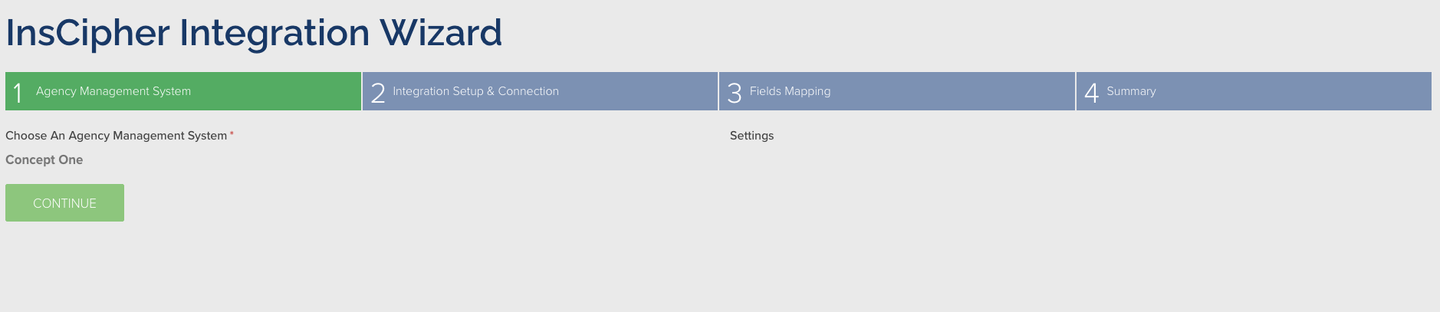 ### 2. Integration Setup & Connection
In this step you download and start the Windows-based Integration Connector Tool, then connect it to InsCipher.
1. Download the **InsCipher Connector Tool** from the link in this step and install the `.exe`. Once installed, open the browser-based interface at `http://localhost:3080`.
2. Generate an integration token using the button under **Integration Token**.
### 2. Integration Setup & Connection
In this step you download and start the Windows-based Integration Connector Tool, then connect it to InsCipher.
1. Download the **InsCipher Connector Tool** from the link in this step and install the `.exe`. Once installed, open the browser-based interface at `http://localhost:3080`.
2. Generate an integration token using the button under **Integration Token**.
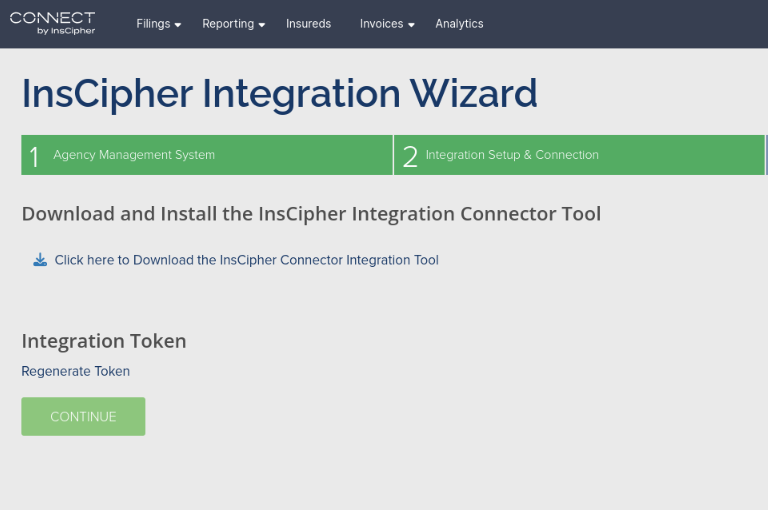 3. In the Connector Tool, go to **Settings**. Under **Connection Credentials**, paste the token into the **Integration Token** field and click **Save**.
4. Under **Integration Settings**, enter your MS SQL connection details and click **Save**:
* **User** — SQL Server login username
* **Password** — SQL Server login password
* **Database** — Concept One database name (e.g. `dba.conceptone`)
* **Port** — SQL Server port (default `1433`)
* **Host** — hostname or IP of the SQL Server (e.g. `localhost`)
3. In the Connector Tool, go to **Settings**. Under **Connection Credentials**, paste the token into the **Integration Token** field and click **Save**.
4. Under **Integration Settings**, enter your MS SQL connection details and click **Save**:
* **User** — SQL Server login username
* **Password** — SQL Server login password
* **Database** — Concept One database name (e.g. `dba.conceptone`)
* **Port** — SQL Server port (default `1433`)
* **Host** — hostname or IP of the SQL Server (e.g. `localhost`)
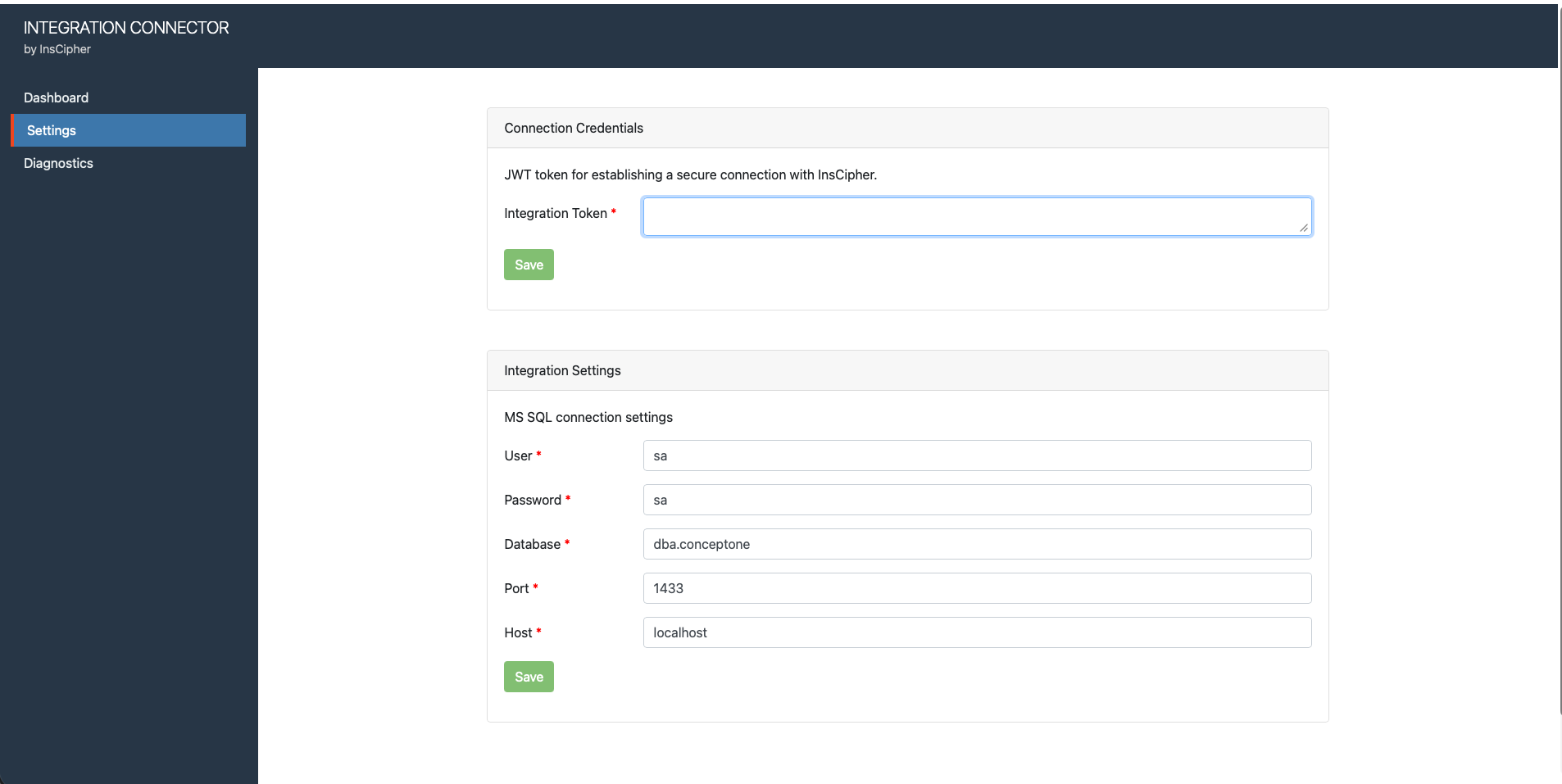 Once both sections are saved, continue to Step 3 to begin field mapping.
### 3. Field Mapping
After the connection completes and the Integration Tool syncs with Connect®, map the data pulled from Concept One to standard InsCipher values so the two systems stay in parity. You must complete all of these tables before continuing to Step 4:
* Agencies
* Taxes and Fees
* Lines of Business
* Filing Types
* Insurance Companies
#### Map Agencies
The integration pulls both the Agency Code and Name for each Concept One agency. For each one, choose the matching InsCipher Agency to map it to.
Once both sections are saved, continue to Step 3 to begin field mapping.
### 3. Field Mapping
After the connection completes and the Integration Tool syncs with Connect®, map the data pulled from Concept One to standard InsCipher values so the two systems stay in parity. You must complete all of these tables before continuing to Step 4:
* Agencies
* Taxes and Fees
* Lines of Business
* Filing Types
* Insurance Companies
#### Map Agencies
The integration pulls both the Agency Code and Name for each Concept One agency. For each one, choose the matching InsCipher Agency to map it to.
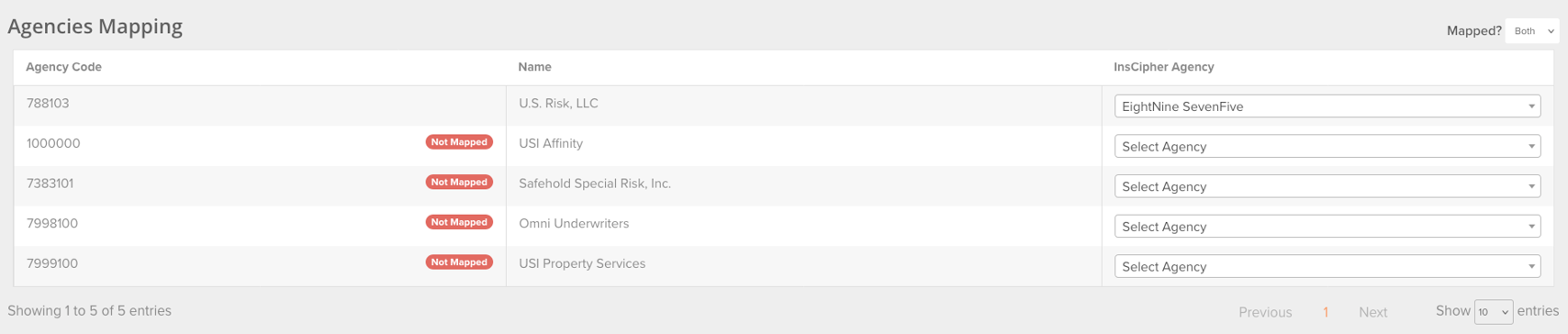 #### Map Taxes and Fees
For each Concept One Code and Description line item, choose a value in the dropdown under InsCipher Taxable Fees and State Taxes. The options are:
* Do Not Import
* Broker Fee
* Carrier Fee
* Stamping Fee
* Sl Tax
* EMPA Tax
* FM Tax
* Municipal Fee
* Sl Service Charge
#### Map Taxes and Fees
For each Concept One Code and Description line item, choose a value in the dropdown under InsCipher Taxable Fees and State Taxes. The options are:
* Do Not Import
* Broker Fee
* Carrier Fee
* Stamping Fee
* Sl Tax
* EMPA Tax
* FM Tax
* Municipal Fee
* Sl Service Charge
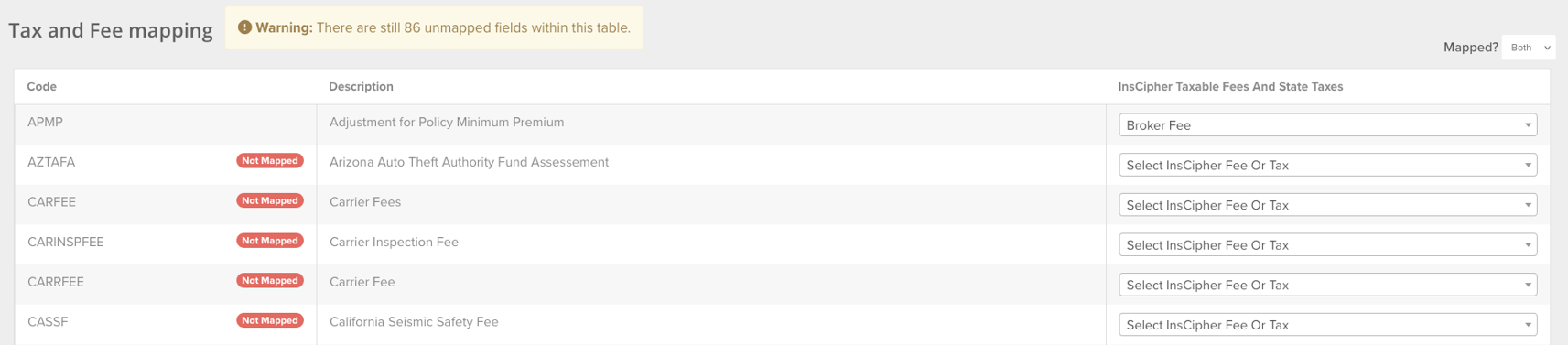 #### Map Lines of Business
Map the derived Concept One codes for each Line of Business (LOB) to an InsCipher Generic Line of Business code. Use the State Specific to Generic LOB mapping worksheet or the simpler Generic Lines of Business worksheet. If needed, map specific LOB codes per AMS code under the **InsCipher State Specific Codes** column, where you can select a state and LOB description.
#### Map Lines of Business
Map the derived Concept One codes for each Line of Business (LOB) to an InsCipher Generic Line of Business code. Use the State Specific to Generic LOB mapping worksheet or the simpler Generic Lines of Business worksheet. If needed, map specific LOB codes per AMS code under the **InsCipher State Specific Codes** column, where you can select a state and LOB description.
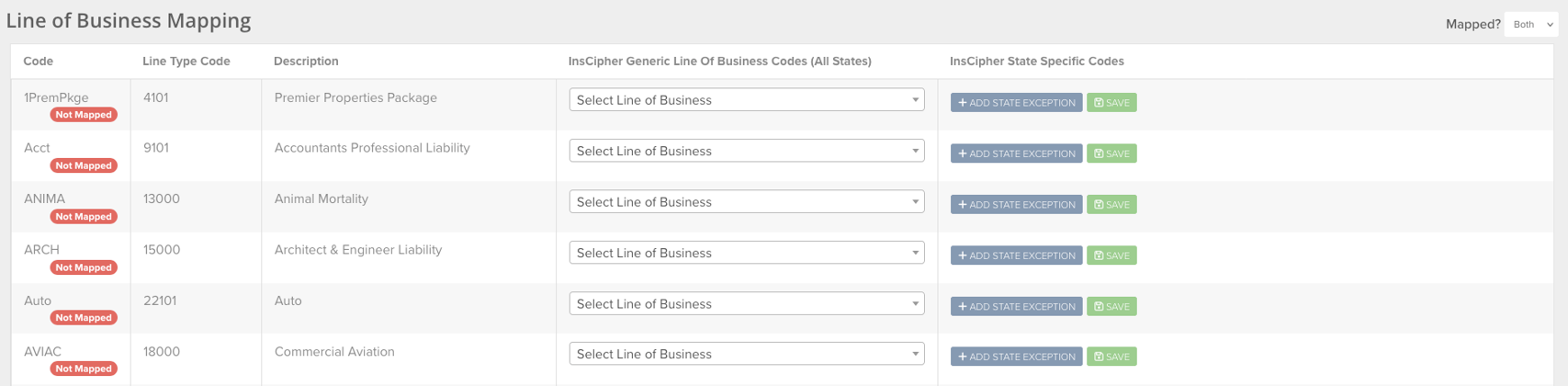 #### Map Filing Types
Filing/transaction type naming differs between Concept One and InsCipher. The **Filing Types Mapping table** lets you map each type, with the option to use a different type for positive and negative amounts to match your workflow.
In Concept One, the transaction type is referred to as **Invoice Billing Class**. These values appear under the **Transaction Type** column with their **Comments** (description). Map each to an InsCipher transaction type using the InsCipher Positive Premium Filing Code and/or Negative Premium Filing Code dropdowns. The InsCipher transaction types are:
* PN (New Policy)
* PR (Renewal Policy)
* APE (Additional Premium Endorsement)
* RPE (Return Premium Endorsement)
* AE (Audit Endorsement)
* FC (Flat Cancellation)
* ZPE (Zero Premium Endorsement)
* PC (Pro Rata Cancellation)
* XE (Extension Endorsement)
* RI (Reinstatement)
* BO (Back-out / Reversal)
* BD (Binder)
#### Map Filing Types
Filing/transaction type naming differs between Concept One and InsCipher. The **Filing Types Mapping table** lets you map each type, with the option to use a different type for positive and negative amounts to match your workflow.
In Concept One, the transaction type is referred to as **Invoice Billing Class**. These values appear under the **Transaction Type** column with their **Comments** (description). Map each to an InsCipher transaction type using the InsCipher Positive Premium Filing Code and/or Negative Premium Filing Code dropdowns. The InsCipher transaction types are:
* PN (New Policy)
* PR (Renewal Policy)
* APE (Additional Premium Endorsement)
* RPE (Return Premium Endorsement)
* AE (Audit Endorsement)
* FC (Flat Cancellation)
* ZPE (Zero Premium Endorsement)
* PC (Pro Rata Cancellation)
* XE (Extension Endorsement)
* RI (Reinstatement)
* BO (Back-out / Reversal)
* BD (Binder)
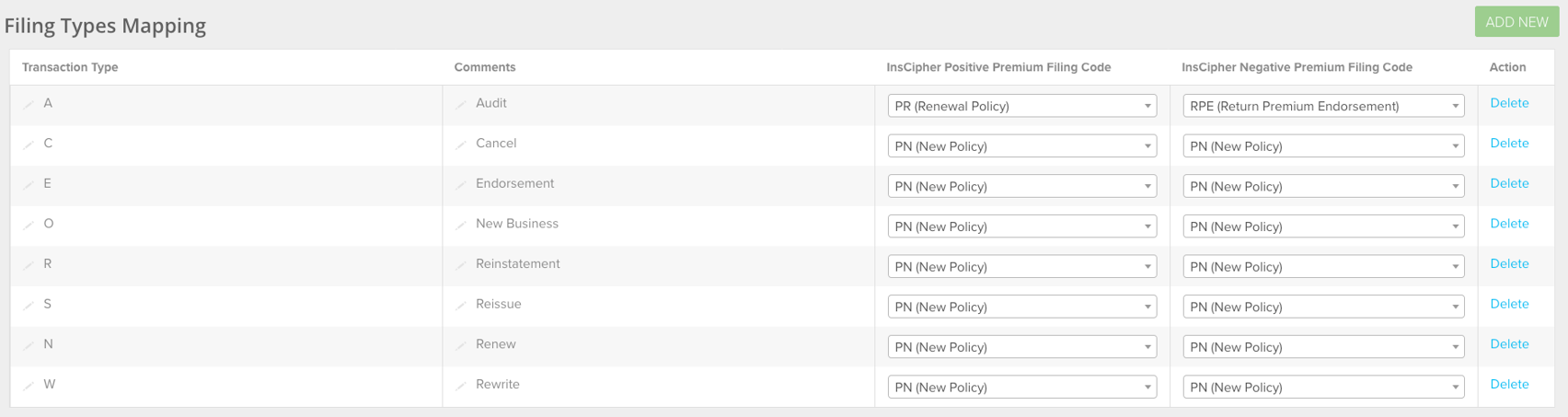 #### Map Insurance Companies
Map each insurance company pulled from Concept One to the corresponding Insurance Company on record in InsCipher.
### 4. Summary
Step 4 reviews the completed steps and any outstanding issues. When the Summary items are all checked complete, the integration has no outstanding issues.
#### Map Insurance Companies
Map each insurance company pulled from Concept One to the corresponding Insurance Company on record in InsCipher.
### 4. Summary
Step 4 reviews the completed steps and any outstanding issues. When the Summary items are all checked complete, the integration has no outstanding issues.
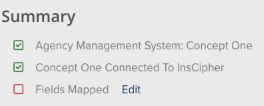 :::note
A connection made during the day may not populate policy data until the next day, because of the integration's cadence. If data hasn't appeared in the Filings Import Log by the next day, contact InsCipher support.
:::
You can also pull up to two weeks of historical data using **Trigger a Manual Import**. The date picker is limited to two weeks prior to the current date.
:::note
A connection made during the day may not populate policy data until the next day, because of the integration's cadence. If data hasn't appeared in the Filings Import Log by the next day, contact InsCipher support.
:::
You can also pull up to two weeks of historical data using **Trigger a Manual Import**. The date picker is limited to two weeks prior to the current date.
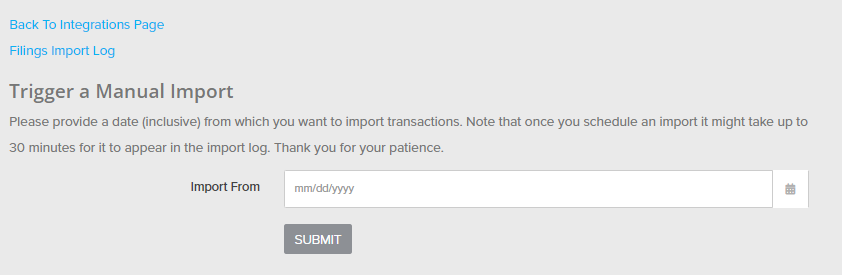 After submitting a manual import, it can take up to 30 minutes for the data to appear in the Filings Import Log. Any errors or status issues with the integration also appear on this page.
### How the import works
The daily import runs for the previous day. You can also run a manual import for a date range (up to two weeks back).
The integration imports **posted surplus lines invoices** whose post date falls in the range — invoices in Posted status that cover non-admitted (surplus lines) risk. One InsCipher transaction is created per policy. It also handles **voided invoices** (those voided in the range, in Voided status): if a policy was voided in Concept One and a matching transaction had previously been imported into InsCipher, the integration voids that transaction. Voided policies with no previously imported transaction are skipped.
Premium, lines of business, and fees come from the policy's invoice items:
* Premium lines (transaction class **P**) provide the lines of business — each line code is mapped to an InsCipher LOB — and the premium amounts. The transaction premium is the sum of these.
* Tax and fee lines (transaction class **T** or **F**) provide taxes and fees, summed according to your Taxes and Fees mapping (keyed on the Concept One transaction code).
A few behaviors to be aware of:
* Agencies mapped to **Do Not Import** are skipped.
* A transaction's physical address is sent only when the physical state differs from the mailing state.
#### Transaction types
Concept One reports transactions using a fixed set of codes, which you map on the Filing Types step:
| Code | Description |
| ---- | ------------- |
| A | Audit |
| C | Cancel |
| E | Endorsement |
| O | New Business |
| R | Reinstatement |
| S | Reissue |
| N | Renew |
| W | Rewrite |
### Concept One field mapping
The table below reflects what the import actually populates. A blank **Concept One source** means the field is not supplied by the integration. The **Requirement** is the field's status in the shared InsCipher transaction schema; the same tiers apply across all InsCipher integrations. Fields not listed here are not supplied by the Concept One integration — they are entered in Connect® or required only at state filing time.
**Legend:** R = Required · Rec = Recommended · O = Optional
| InsCipher Field | Concept One source | Notes | Requirement |
| ----------------------------------------- | ------------------------------------------------------------- | ------------------------------------------------------------------------------------------------------------------ | ----------- |
| id | Invoice.Invoice\_ID | | O |
| policy\_number | Contract.Contract\_Num | | R |
| policy\_effective\_date | Contract.Eff\_Date | | R |
| policy\_expiration\_date | Contract.Exp\_Date | | Rec |
| transaction\_effective\_date | Contract.Revision\_Eff\_Date | | R |
| expiring\_policy\_number | c3.Contract\_Num | | Rec |
| invoice\_date | Invoice.Post\_Date | | Rec |
| invoice\_number | Invoice.Invoice\_Num | | Rec |
| transaction\_type | Invoice.Billing\_Class (raw) | Mapping required; resolved by the sign of premium. Concept One uses a fixed code set (see Transaction types above) | R |
| account\_written\_as | Contract.Supplier\_Bill\_Ind (raw) | 'Y' maps to DC (Direct to Client); any other value maps to B (Brokerage) | R |
| rpg | | | R |
| dba | | | O |
| multi\_state | 0 | Hardcoded false | O |
| risk\_description | Contract.Operations\_Desc | | O |
| purchasing\_group\_name | | Not supplied by the integration | Rec |
| transaction\_line\_of\_business\_list | invoice\_items\[].Line\_Code | Mapped to LOB; pipe-joined per premium line | R |
| transaction\_line\_of\_business\_coverage | invoice\_items\[].Amount | Pipe-joined per premium line | R |
| non\_admitted\_insurer\_code\_list | non\_admitted\_insurer\_list\[].naic | Pipe-joined | Rec |
| non\_admitted\_insurer\_code\_coverage | non\_admitted\_insurer\_list\[].percentage | Pipe-joined | Rec |
| syndicate\_list | | Not supplied by the integration | Rec |
| syndicate\_list\_coverage | | Not supplied by the integration | Rec |
| premium | Invoice.Total\_Prem | | O |
| agency\_fee | invoice\_items (raw) | Broker Fee; summed by Taxes and Fees code mapping | R |
| inspection\_fee | invoice\_items (raw) | Carrier Fee; summed by Taxes and Fees code mapping | R |
| sl\_tax | invoice\_items (raw) | Summed by Taxes and Fees code mapping | O |
| stamping\_fee | invoice\_items (raw) | Summed by Taxes and Fees code mapping | O |
| sl\_service\_charge | invoice\_items (raw) | Summed by Taxes and Fees code mapping | O |
| municipal\_fee | invoice\_items (raw) | Summed by Taxes and Fees code mapping | O |
| fm\_tax | invoice\_items (raw) | Summed by Taxes and Fees code mapping | O |
| empa\_tax | invoice\_items (raw) | Summed by Taxes and Fees code mapping | O |
| total | Invoice.Total\_Prem + Invoice.Total\_Fee + Invoice.Total\_Tax | | O |
| mailing\_insured\_name | Entity.Entity\_Name | | R |
| mailing\_address | Address.Address\_Line\_1 | | R |
| mailing\_address2 | Address.Address\_Line\_2 | | O |
| mailing\_city | Address.City | | R |
| mailing\_zip\_code | Address.Zip | | R |
| mailing\_state\_code | Address.State | | R |
| insured\_email | contacts.email (Entity\_Det.Email\_Address) | | O |
| insured\_phone | contacts.phone | | O |
| policy\_limit | limits.limit | | O |
| physical\_same\_as\_mailing | computed | True when the physical state equals the mailing state | R |
| physical\_address | locations\[].Address\_Line\_1 | From the first location; only when physical differs from mailing | Rec |
| physical\_address2 | locations\[].Address\_Line\_2 | From the first location; only when physical differs from mailing | O |
| physical\_city | locations\[].City | From the first location; only when physical differs from mailing | Rec |
| physical\_zip\_code | locations\[].Zip | From the first location; only when physical differs from mailing | Rec |
| physical\_state\_code | Contract.Controling\_State | | R |
| agent\_id | Contract.Book\_Loc\_ID (agency) | Mapped via Agency mapping; agencies mapped to "Do Not Import" are skipped | O |
| agent\_notes | | Generated: "C1 Invoice #\
After submitting a manual import, it can take up to 30 minutes for the data to appear in the Filings Import Log. Any errors or status issues with the integration also appear on this page.
### How the import works
The daily import runs for the previous day. You can also run a manual import for a date range (up to two weeks back).
The integration imports **posted surplus lines invoices** whose post date falls in the range — invoices in Posted status that cover non-admitted (surplus lines) risk. One InsCipher transaction is created per policy. It also handles **voided invoices** (those voided in the range, in Voided status): if a policy was voided in Concept One and a matching transaction had previously been imported into InsCipher, the integration voids that transaction. Voided policies with no previously imported transaction are skipped.
Premium, lines of business, and fees come from the policy's invoice items:
* Premium lines (transaction class **P**) provide the lines of business — each line code is mapped to an InsCipher LOB — and the premium amounts. The transaction premium is the sum of these.
* Tax and fee lines (transaction class **T** or **F**) provide taxes and fees, summed according to your Taxes and Fees mapping (keyed on the Concept One transaction code).
A few behaviors to be aware of:
* Agencies mapped to **Do Not Import** are skipped.
* A transaction's physical address is sent only when the physical state differs from the mailing state.
#### Transaction types
Concept One reports transactions using a fixed set of codes, which you map on the Filing Types step:
| Code | Description |
| ---- | ------------- |
| A | Audit |
| C | Cancel |
| E | Endorsement |
| O | New Business |
| R | Reinstatement |
| S | Reissue |
| N | Renew |
| W | Rewrite |
### Concept One field mapping
The table below reflects what the import actually populates. A blank **Concept One source** means the field is not supplied by the integration. The **Requirement** is the field's status in the shared InsCipher transaction schema; the same tiers apply across all InsCipher integrations. Fields not listed here are not supplied by the Concept One integration — they are entered in Connect® or required only at state filing time.
**Legend:** R = Required · Rec = Recommended · O = Optional
| InsCipher Field | Concept One source | Notes | Requirement |
| ----------------------------------------- | ------------------------------------------------------------- | ------------------------------------------------------------------------------------------------------------------ | ----------- |
| id | Invoice.Invoice\_ID | | O |
| policy\_number | Contract.Contract\_Num | | R |
| policy\_effective\_date | Contract.Eff\_Date | | R |
| policy\_expiration\_date | Contract.Exp\_Date | | Rec |
| transaction\_effective\_date | Contract.Revision\_Eff\_Date | | R |
| expiring\_policy\_number | c3.Contract\_Num | | Rec |
| invoice\_date | Invoice.Post\_Date | | Rec |
| invoice\_number | Invoice.Invoice\_Num | | Rec |
| transaction\_type | Invoice.Billing\_Class (raw) | Mapping required; resolved by the sign of premium. Concept One uses a fixed code set (see Transaction types above) | R |
| account\_written\_as | Contract.Supplier\_Bill\_Ind (raw) | 'Y' maps to DC (Direct to Client); any other value maps to B (Brokerage) | R |
| rpg | | | R |
| dba | | | O |
| multi\_state | 0 | Hardcoded false | O |
| risk\_description | Contract.Operations\_Desc | | O |
| purchasing\_group\_name | | Not supplied by the integration | Rec |
| transaction\_line\_of\_business\_list | invoice\_items\[].Line\_Code | Mapped to LOB; pipe-joined per premium line | R |
| transaction\_line\_of\_business\_coverage | invoice\_items\[].Amount | Pipe-joined per premium line | R |
| non\_admitted\_insurer\_code\_list | non\_admitted\_insurer\_list\[].naic | Pipe-joined | Rec |
| non\_admitted\_insurer\_code\_coverage | non\_admitted\_insurer\_list\[].percentage | Pipe-joined | Rec |
| syndicate\_list | | Not supplied by the integration | Rec |
| syndicate\_list\_coverage | | Not supplied by the integration | Rec |
| premium | Invoice.Total\_Prem | | O |
| agency\_fee | invoice\_items (raw) | Broker Fee; summed by Taxes and Fees code mapping | R |
| inspection\_fee | invoice\_items (raw) | Carrier Fee; summed by Taxes and Fees code mapping | R |
| sl\_tax | invoice\_items (raw) | Summed by Taxes and Fees code mapping | O |
| stamping\_fee | invoice\_items (raw) | Summed by Taxes and Fees code mapping | O |
| sl\_service\_charge | invoice\_items (raw) | Summed by Taxes and Fees code mapping | O |
| municipal\_fee | invoice\_items (raw) | Summed by Taxes and Fees code mapping | O |
| fm\_tax | invoice\_items (raw) | Summed by Taxes and Fees code mapping | O |
| empa\_tax | invoice\_items (raw) | Summed by Taxes and Fees code mapping | O |
| total | Invoice.Total\_Prem + Invoice.Total\_Fee + Invoice.Total\_Tax | | O |
| mailing\_insured\_name | Entity.Entity\_Name | | R |
| mailing\_address | Address.Address\_Line\_1 | | R |
| mailing\_address2 | Address.Address\_Line\_2 | | O |
| mailing\_city | Address.City | | R |
| mailing\_zip\_code | Address.Zip | | R |
| mailing\_state\_code | Address.State | | R |
| insured\_email | contacts.email (Entity\_Det.Email\_Address) | | O |
| insured\_phone | contacts.phone | | O |
| policy\_limit | limits.limit | | O |
| physical\_same\_as\_mailing | computed | True when the physical state equals the mailing state | R |
| physical\_address | locations\[].Address\_Line\_1 | From the first location; only when physical differs from mailing | Rec |
| physical\_address2 | locations\[].Address\_Line\_2 | From the first location; only when physical differs from mailing | O |
| physical\_city | locations\[].City | From the first location; only when physical differs from mailing | Rec |
| physical\_zip\_code | locations\[].Zip | From the first location; only when physical differs from mailing | Rec |
| physical\_state\_code | Contract.Controling\_State | | R |
| agent\_id | Contract.Book\_Loc\_ID (agency) | Mapped via Agency mapping; agencies mapped to "Do Not Import" are skipped | O |
| agent\_notes | | Generated: "C1 Invoice #\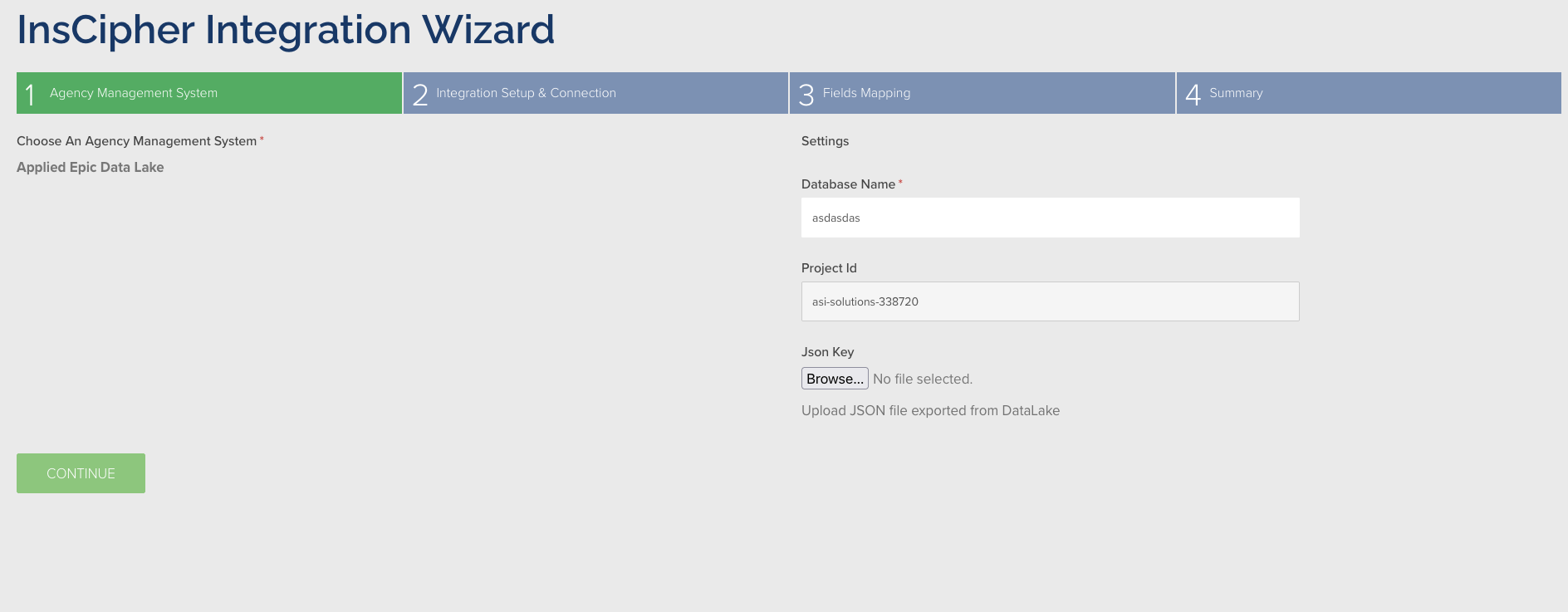 ### 2. Integration Setup & Connection
InsCipher establishes the connection to your Applied instance and pulls the fields needed for the mapping in Step 3. Unless the wizard reports an API connection error or a problem retrieving mapping data, no manual input is needed here — continue to Step 3.
### 2. Integration Setup & Connection
InsCipher establishes the connection to your Applied instance and pulls the fields needed for the mapping in Step 3. Unless the wizard reports an API connection error or a problem retrieving mapping data, no manual input is needed here — continue to Step 3.
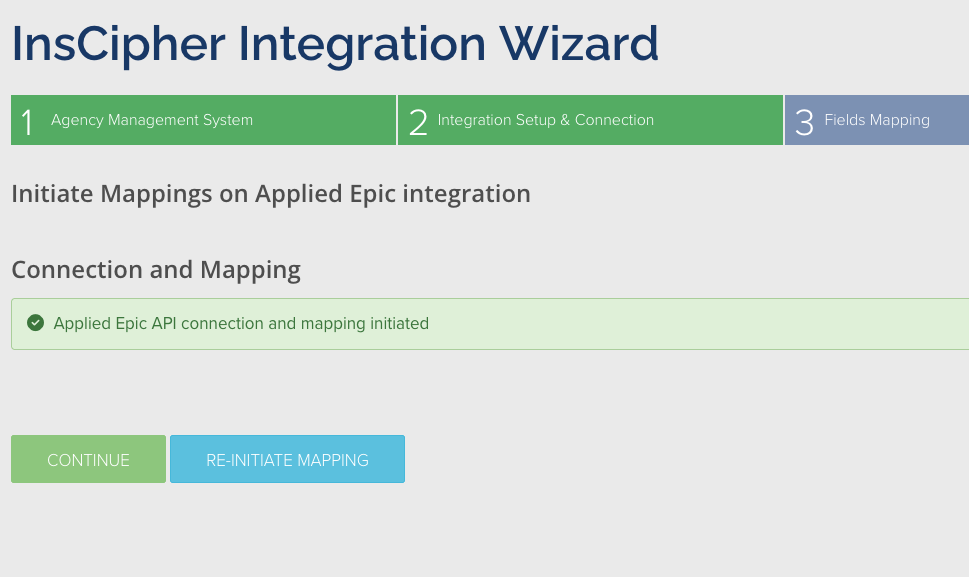 ### 3. Field Mapping
After the connection completes and the Integration Tool syncs with Connect®, map the data pulled from Applied to standard InsCipher values so the two systems stay in parity. You must complete all of these tables before continuing to Step 4:
* Agencies
* Taxes and Fees
* Lines of Business
* Filing Types
* Insurance Companies
#### Map Agencies
The integration pulls both the Agency Code and Name for each Applied Epic agency. For each one, choose the matching InsCipher Agency to map it to, or choose **Do Not Import** to exclude that agency's transactions from import.
### 3. Field Mapping
After the connection completes and the Integration Tool syncs with Connect®, map the data pulled from Applied to standard InsCipher values so the two systems stay in parity. You must complete all of these tables before continuing to Step 4:
* Agencies
* Taxes and Fees
* Lines of Business
* Filing Types
* Insurance Companies
#### Map Agencies
The integration pulls both the Agency Code and Name for each Applied Epic agency. For each one, choose the matching InsCipher Agency to map it to, or choose **Do Not Import** to exclude that agency's transactions from import.
 #### Map Taxes and Fees
For each Applied Code and Description line item, choose a value in the dropdown under InsCipher Taxable Fees and State Taxes. The options are:
* Do Not Import
* Broker Fee
* Carrier Fee
* Stamping Fee
* Sl Tax
* EMPA Tax
* FM Tax
* Municipal Fee
* Sl Service Charge
#### Map Taxes and Fees
For each Applied Code and Description line item, choose a value in the dropdown under InsCipher Taxable Fees and State Taxes. The options are:
* Do Not Import
* Broker Fee
* Carrier Fee
* Stamping Fee
* Sl Tax
* EMPA Tax
* FM Tax
* Municipal Fee
* Sl Service Charge
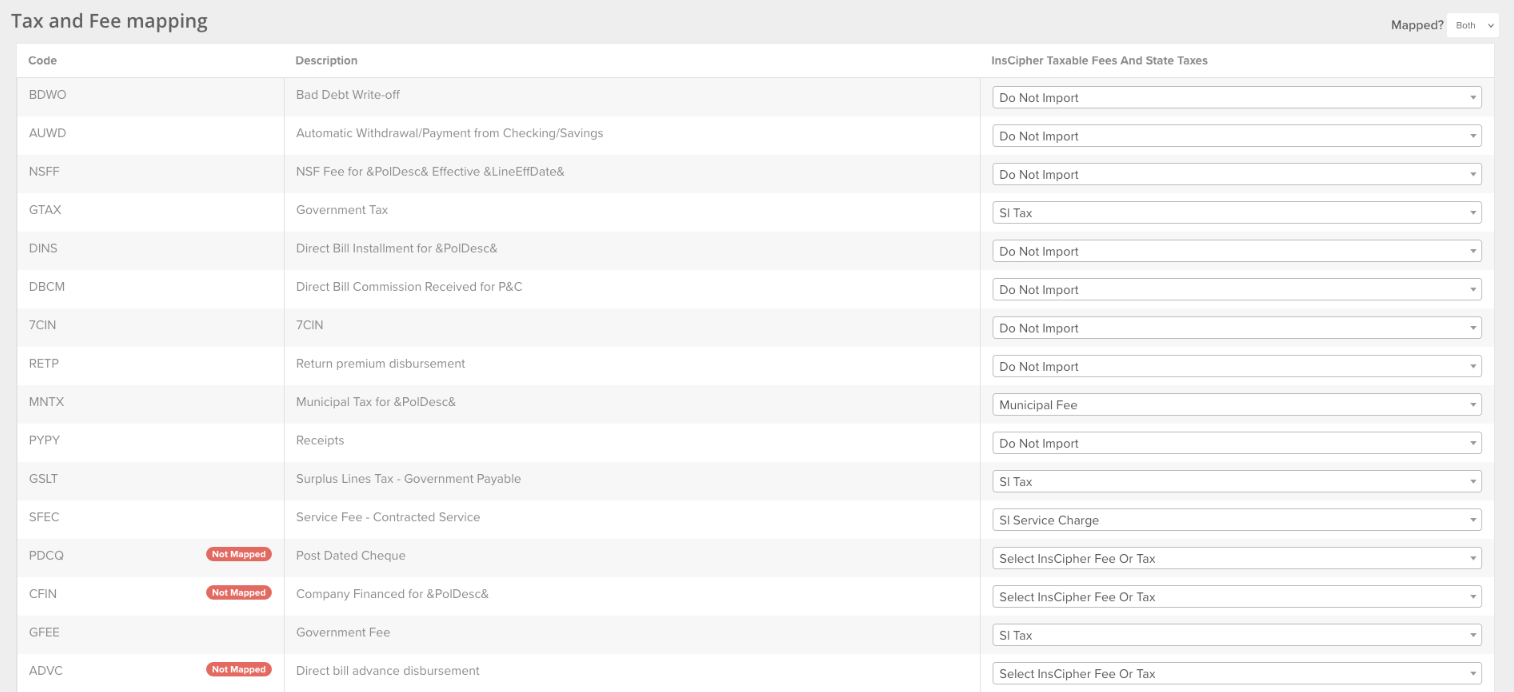 #### Map Lines of Business
Map the derived AMS codes for each Line of Business (LOB) to an InsCipher Generic Line of Business code. Use the State Specific to Generic LOB mapping worksheet or the simpler Generic Lines of Business worksheet. If needed, map specific LOB codes per AMS code under the **InsCipher State Specific Codes** column, where you can select a state and LOB description.
#### Map Lines of Business
Map the derived AMS codes for each Line of Business (LOB) to an InsCipher Generic Line of Business code. Use the State Specific to Generic LOB mapping worksheet or the simpler Generic Lines of Business worksheet. If needed, map specific LOB codes per AMS code under the **InsCipher State Specific Codes** column, where you can select a state and LOB description.
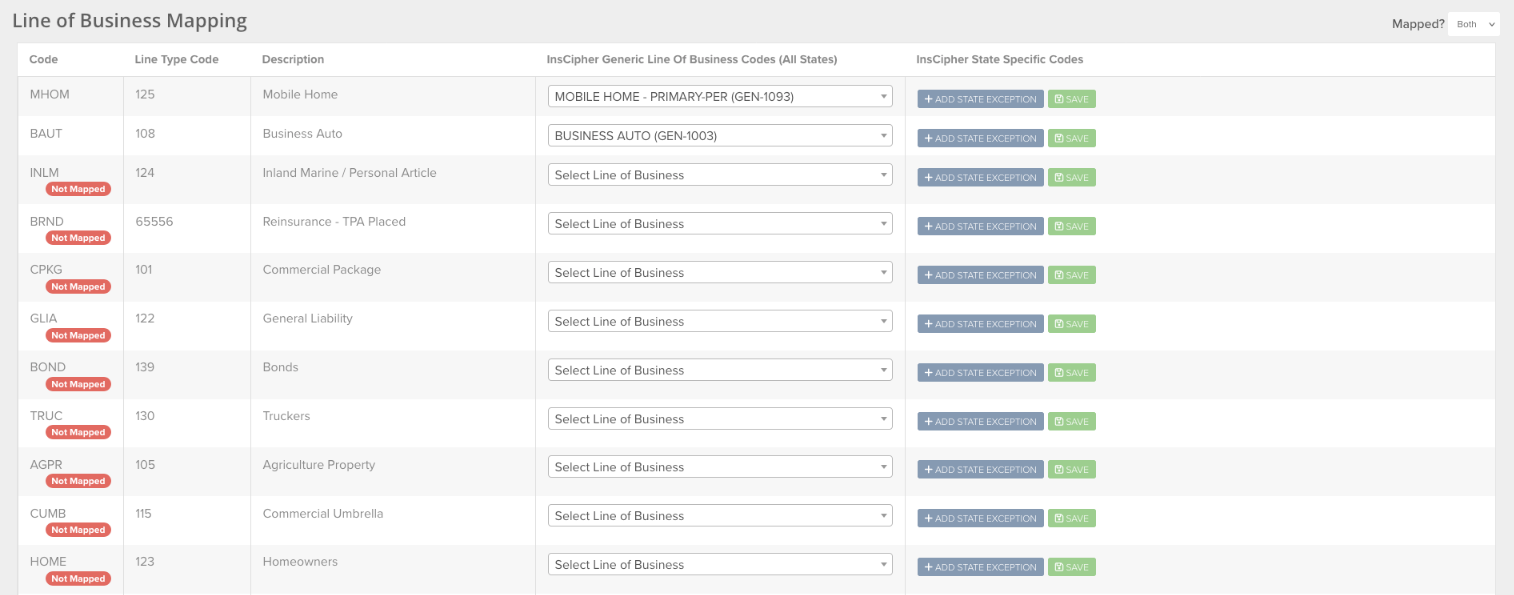 #### Map Filing Types
Filing/transaction type naming differs between Applied Epic and InsCipher. The **Filing Types Mapping table** lets you map each type, with the option to use a different type for positive and negative amounts to match your workflow.
Applied Policy Transaction Codes appear under the **Transaction Type** column with their **Comments** (description). Map each to an InsCipher transaction type using the InsCipher Positive Premium Filing Code and/or Negative Premium Filing Code dropdowns. The InsCipher transaction types are:
* PN (New Policy)
* PR (Renewal Policy)
* APE (Additional Premium Endorsement)
* RPE (Return Premium Endorsement)
* AE (Audit Endorsement)
* FC (Flat Cancellation)
* ZPE (Zero Premium Endorsement)
* PC (Pro Rata Cancellation)
* XE (Extension Endorsement)
* RI (Reinstatement)
* BO (Back-out / Reversal)
* BD (Binder)
#### Map Filing Types
Filing/transaction type naming differs between Applied Epic and InsCipher. The **Filing Types Mapping table** lets you map each type, with the option to use a different type for positive and negative amounts to match your workflow.
Applied Policy Transaction Codes appear under the **Transaction Type** column with their **Comments** (description). Map each to an InsCipher transaction type using the InsCipher Positive Premium Filing Code and/or Negative Premium Filing Code dropdowns. The InsCipher transaction types are:
* PN (New Policy)
* PR (Renewal Policy)
* APE (Additional Premium Endorsement)
* RPE (Return Premium Endorsement)
* AE (Audit Endorsement)
* FC (Flat Cancellation)
* ZPE (Zero Premium Endorsement)
* PC (Pro Rata Cancellation)
* XE (Extension Endorsement)
* RI (Reinstatement)
* BO (Back-out / Reversal)
* BD (Binder)
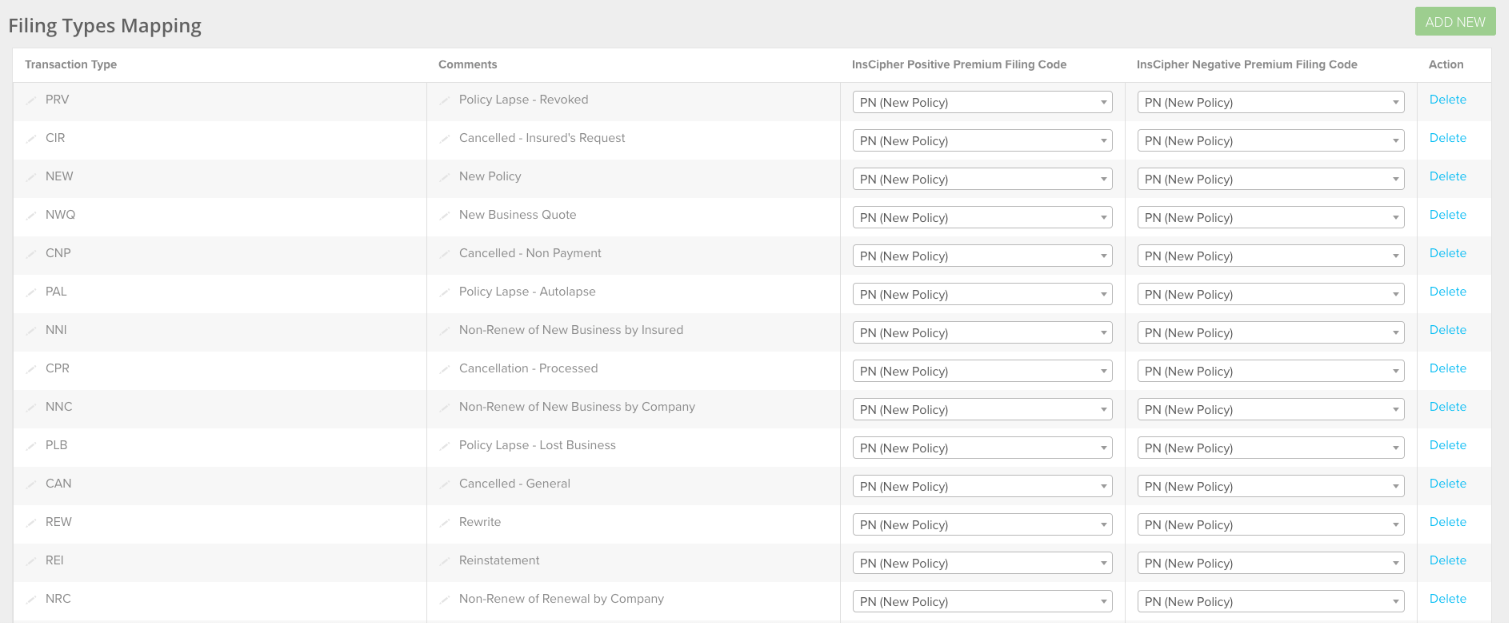 #### Map Insurance Companies
Map each insurance company pulled from Applied to the corresponding Insurance Company on record in InsCipher.
### 4. Summary
Step 4 reviews the completed steps and any outstanding issues. When the Summary items are all checked complete, the integration has no outstanding issues.
#### Map Insurance Companies
Map each insurance company pulled from Applied to the corresponding Insurance Company on record in InsCipher.
### 4. Summary
Step 4 reviews the completed steps and any outstanding issues. When the Summary items are all checked complete, the integration has no outstanding issues.
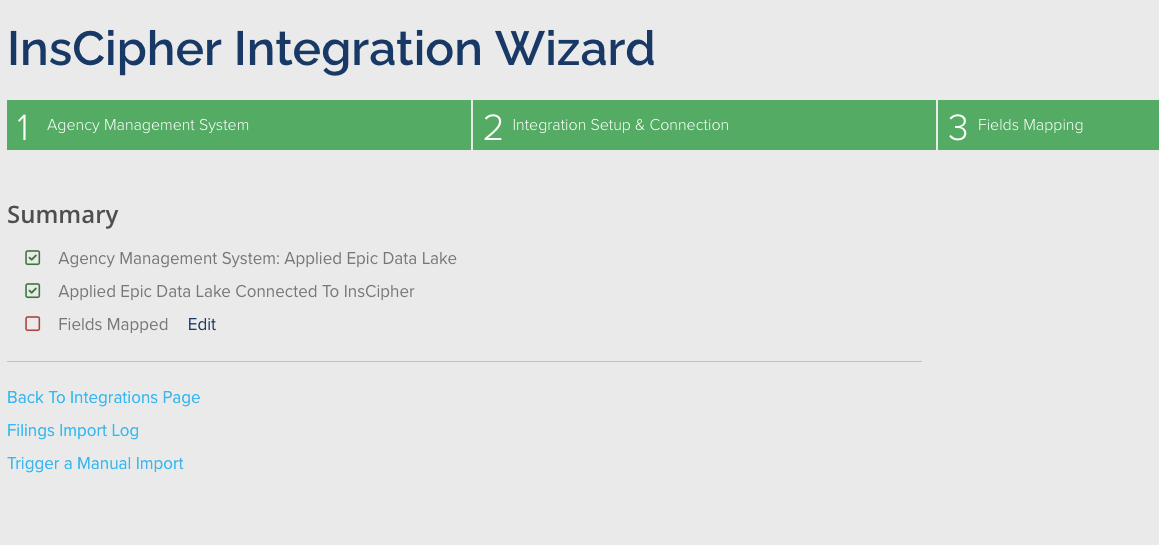 :::note
A connection made during the day may not populate policy data until the next day, because of the integration's cadence. If data hasn't appeared in the Filings Import Log by the next day, contact InsCipher support.
:::
You can also pull up to two weeks of historical data using **Trigger a Manual Import**, which lets you import from a specific date.
:::note
A connection made during the day may not populate policy data until the next day, because of the integration's cadence. If data hasn't appeared in the Filings Import Log by the next day, contact InsCipher support.
:::
You can also pull up to two weeks of historical data using **Trigger a Manual Import**, which lets you import from a specific date.
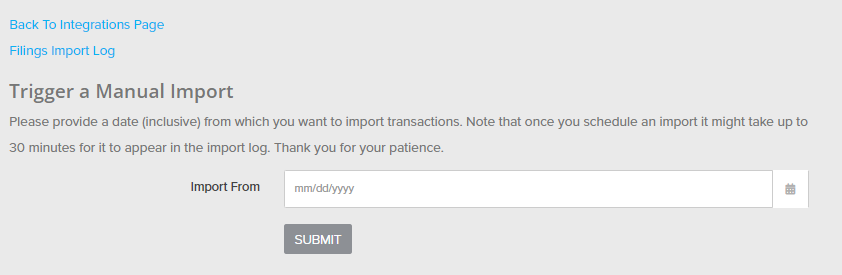 After submitting a manual import, it can take up to 30 minutes for the data to appear in the Filings Import Log. Any errors or status issues with the integration also appear on this page.
### How the import works
The integration imports **posted invoices** whose delivery date falls in the selected range. For each invoice it loads the invoice lines, the policy, and the policy lines, then creates one InsCipher transaction per policy on the invoice.
Only **surplus-lines transactions** are imported. A transaction is treated as surplus lines when one of its invoice lines is recognized as a surplus-lines tax (its description matches surplus-lines tax, SLT, or government payable) or when a line's code is mapped to SL Tax. Other transactions are skipped.
A few behaviors to be aware of:
* Taxes and fees are summed from the invoice line amounts according to your **Taxes and Fees** mapping.
* Agencies mapped to **Do Not Import** are skipped.
* A transaction fails to import if its policy lines carry more than one distinct transaction type.
### InsCipher field mapping
The table below reflects what the import actually populates. A blank **Applied source** means the field is not supplied by the integration. The **Requirement** is the field's status in the shared InsCipher transaction schema; the same tiers apply across all InsCipher integrations. Fields not listed here are not supplied by the Applied Epic integration — they are entered in Connect® or required only at state filing time.
**Legend:** R = Required · Rec = Recommended · O = Optional
| InsCipher Field | Applied source | Notes | Requirement |
| ----------------------------------------- | ------------------------------------------------ | -------------------------------------------------------------------------------------- | ----------- |
| id | Invoice.InvoiceID | | O |
| policy\_number | Policy.PolicyNumber | | R |
| policy\_effective\_date | Policy.EffectiveDate | | R |
| policy\_expiration\_date | Policy.ExpirationDate | | Rec |
| transaction\_effective\_date | Policy.EffectiveDate or Invoice.DeliveryDateTime | Policy.EffectiveDate for new/renewal transactions, otherwise the invoice delivery date | R |
| expiring\_policy\_number | | Not supplied by the integration | Rec |
| invoice\_date | Invoice.DeliveryDateTime | | Rec |
| invoice\_number | Invoice.InvoiceNumber | | Rec |
| transaction\_type | CdLineStatus.CdLineStatusCode | Mapping required; resolved by the sign of premium (positive/negative) | R |
| account\_written\_as | Line.BillModeCode | 'D' maps to DC (Direct to Client); any other value maps to B (Brokerage) | R |
| rpg | 0 | Hardcoded false | R |
| purchasing\_group\_name | | Not supplied by the integration | Rec |
| risk\_description | Policy.DescriptionOf | | O |
| multi\_state | 0 | Hardcoded false | O |
| dba | 0 | Hardcoded false | O |
| transaction\_line\_of\_business\_list | CdPolicyLineType.CdPolicyLineTypeCode | Pipe-joined across policy lines | R |
| transaction\_line\_of\_business\_coverage | Policy.BilledPremium ÷ line count | Pipe-joined; premium split evenly per line | R |
| non\_admitted\_insurer\_code\_list | Company.NAICCode | Pipe-joined across policy lines | Rec |
| non\_admitted\_insurer\_code\_coverage | 100 ÷ line count | Pipe-joined; split evenly per line | Rec |
| syndicate\_list | | Not supplied by the integration | Rec |
| syndicate\_list\_coverage | | Not supplied by the integration | Rec |
| premium | Policy.BilledPremium | | O |
| agency\_fee | Invoice line amount | Broker Fee; summed by Taxes and Fees code mapping | R |
| inspection\_fee | Invoice line amount | Carrier Fee; summed by Taxes and Fees code mapping | R |
| sl\_tax | Invoice line amount | Summed by Taxes and Fees code mapping | O |
| stamping\_fee | Invoice line amount | Summed by Taxes and Fees code mapping | O |
| sl\_service\_charge | Invoice line amount | Summed by Taxes and Fees code mapping | O |
| municipal\_fee | Invoice line amount | Summed by Taxes and Fees code mapping | O |
| fm\_tax | Invoice line amount | Summed by Taxes and Fees code mapping | O |
| empa\_tax | Invoice line amount | Summed by Taxes and Fees code mapping | O |
| total | Invoice lines | Sum of all invoice line amounts | O |
| mailing\_insured\_name | Line.ContactNameBillTo | | R |
| mailing\_address | Line.Address1BillTo | | R |
| mailing\_address2 | Line.Address2BillTo | | O |
| mailing\_city | Line.CityBillTo | | R |
| mailing\_zip\_code | Line.PostalCodeBillTo | | R |
| mailing\_state\_code | Line.CdStateCodeBillTo | | R |
| insured\_email | Line.Email | | O |
| insured\_phone | Line.Fax | Sourced from the Fax field | O |
| physical\_same\_as\_mailing | 1 | Hardcoded true | R |
| physical\_address | | Not supplied by the integration | Rec |
| physical\_city | | Not supplied by the integration | Rec |
| physical\_zip\_code | | Not supplied by the integration | Rec |
| physical\_state\_code | Line.CdStateCodeIssuing | | R |
| agent\_id | Policy.AgencyCode | Mapped via Agency mapping; agencies mapped to "Do Not Import" are skipped | O |
| agent\_notes | | Generated: "Applied Epic Invoice #\
After submitting a manual import, it can take up to 30 minutes for the data to appear in the Filings Import Log. Any errors or status issues with the integration also appear on this page.
### How the import works
The integration imports **posted invoices** whose delivery date falls in the selected range. For each invoice it loads the invoice lines, the policy, and the policy lines, then creates one InsCipher transaction per policy on the invoice.
Only **surplus-lines transactions** are imported. A transaction is treated as surplus lines when one of its invoice lines is recognized as a surplus-lines tax (its description matches surplus-lines tax, SLT, or government payable) or when a line's code is mapped to SL Tax. Other transactions are skipped.
A few behaviors to be aware of:
* Taxes and fees are summed from the invoice line amounts according to your **Taxes and Fees** mapping.
* Agencies mapped to **Do Not Import** are skipped.
* A transaction fails to import if its policy lines carry more than one distinct transaction type.
### InsCipher field mapping
The table below reflects what the import actually populates. A blank **Applied source** means the field is not supplied by the integration. The **Requirement** is the field's status in the shared InsCipher transaction schema; the same tiers apply across all InsCipher integrations. Fields not listed here are not supplied by the Applied Epic integration — they are entered in Connect® or required only at state filing time.
**Legend:** R = Required · Rec = Recommended · O = Optional
| InsCipher Field | Applied source | Notes | Requirement |
| ----------------------------------------- | ------------------------------------------------ | -------------------------------------------------------------------------------------- | ----------- |
| id | Invoice.InvoiceID | | O |
| policy\_number | Policy.PolicyNumber | | R |
| policy\_effective\_date | Policy.EffectiveDate | | R |
| policy\_expiration\_date | Policy.ExpirationDate | | Rec |
| transaction\_effective\_date | Policy.EffectiveDate or Invoice.DeliveryDateTime | Policy.EffectiveDate for new/renewal transactions, otherwise the invoice delivery date | R |
| expiring\_policy\_number | | Not supplied by the integration | Rec |
| invoice\_date | Invoice.DeliveryDateTime | | Rec |
| invoice\_number | Invoice.InvoiceNumber | | Rec |
| transaction\_type | CdLineStatus.CdLineStatusCode | Mapping required; resolved by the sign of premium (positive/negative) | R |
| account\_written\_as | Line.BillModeCode | 'D' maps to DC (Direct to Client); any other value maps to B (Brokerage) | R |
| rpg | 0 | Hardcoded false | R |
| purchasing\_group\_name | | Not supplied by the integration | Rec |
| risk\_description | Policy.DescriptionOf | | O |
| multi\_state | 0 | Hardcoded false | O |
| dba | 0 | Hardcoded false | O |
| transaction\_line\_of\_business\_list | CdPolicyLineType.CdPolicyLineTypeCode | Pipe-joined across policy lines | R |
| transaction\_line\_of\_business\_coverage | Policy.BilledPremium ÷ line count | Pipe-joined; premium split evenly per line | R |
| non\_admitted\_insurer\_code\_list | Company.NAICCode | Pipe-joined across policy lines | Rec |
| non\_admitted\_insurer\_code\_coverage | 100 ÷ line count | Pipe-joined; split evenly per line | Rec |
| syndicate\_list | | Not supplied by the integration | Rec |
| syndicate\_list\_coverage | | Not supplied by the integration | Rec |
| premium | Policy.BilledPremium | | O |
| agency\_fee | Invoice line amount | Broker Fee; summed by Taxes and Fees code mapping | R |
| inspection\_fee | Invoice line amount | Carrier Fee; summed by Taxes and Fees code mapping | R |
| sl\_tax | Invoice line amount | Summed by Taxes and Fees code mapping | O |
| stamping\_fee | Invoice line amount | Summed by Taxes and Fees code mapping | O |
| sl\_service\_charge | Invoice line amount | Summed by Taxes and Fees code mapping | O |
| municipal\_fee | Invoice line amount | Summed by Taxes and Fees code mapping | O |
| fm\_tax | Invoice line amount | Summed by Taxes and Fees code mapping | O |
| empa\_tax | Invoice line amount | Summed by Taxes and Fees code mapping | O |
| total | Invoice lines | Sum of all invoice line amounts | O |
| mailing\_insured\_name | Line.ContactNameBillTo | | R |
| mailing\_address | Line.Address1BillTo | | R |
| mailing\_address2 | Line.Address2BillTo | | O |
| mailing\_city | Line.CityBillTo | | R |
| mailing\_zip\_code | Line.PostalCodeBillTo | | R |
| mailing\_state\_code | Line.CdStateCodeBillTo | | R |
| insured\_email | Line.Email | | O |
| insured\_phone | Line.Fax | Sourced from the Fax field | O |
| physical\_same\_as\_mailing | 1 | Hardcoded true | R |
| physical\_address | | Not supplied by the integration | Rec |
| physical\_city | | Not supplied by the integration | Rec |
| physical\_zip\_code | | Not supplied by the integration | Rec |
| physical\_state\_code | Line.CdStateCodeIssuing | | R |
| agent\_id | Policy.AgencyCode | Mapped via Agency mapping; agencies mapped to "Do Not Import" are skipped | O |
| agent\_notes | | Generated: "Applied Epic Invoice #\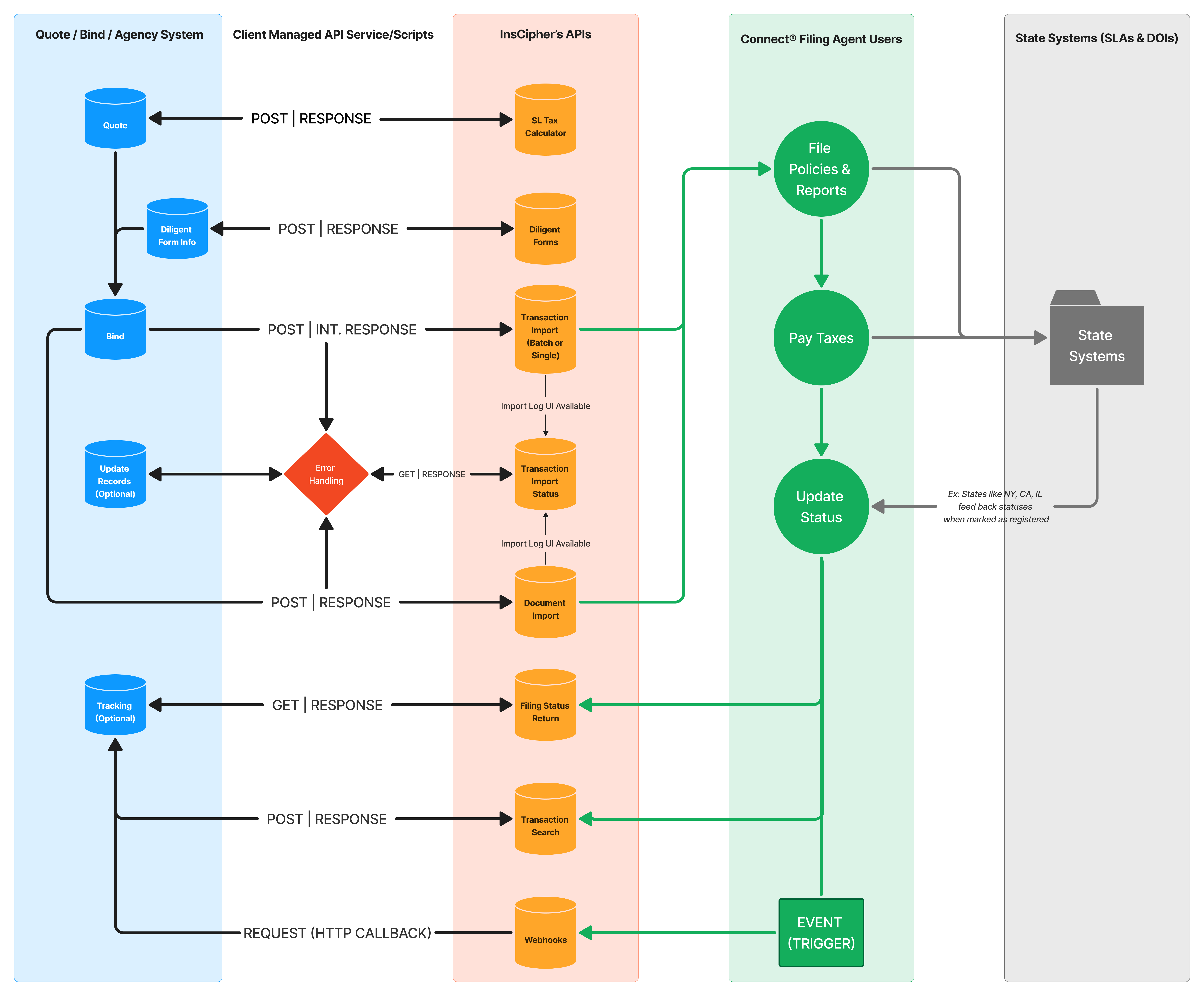 | Type | API | Description | Use Cases / Benefits |
| ------------- | ----------------------------------------------------------------------- | ----------------------------------------------------------------- | -------------------------------------------------------------------------------------------------------------------------------------------- |
| POST | SL Tax Calculator | Calculate SL taxes using InsCipher's engine | Get calculated SL taxes and state-specific fees; retrieve filing document requirements; get state stamp wording; apply fee restriction logic |
| POST | Diligent Forms | Auto-fill state diligent effort forms and affidavits | Submit policy data and diligent search results; receive a completed state form for all 50 states |
| POST | Transaction Import | Import policy transaction details and documents | **Single** — immediate success/fail response; **Batch** — submit batch, then poll for results |
| GET | Batch Import Status | Retrieve results for previously imported batches | Check import status; surface tax errors, missing fields, and missing documents |
| POST | Document Import | Import policy documents and diligent effort affidavits separately | Attach documents after transactions have been imported |
| GET | Transaction Search | Search and retrieve transaction details and filing status | Look up filed transactions by policy number, invoice, date range; get filing status, tax paid dates, SLA transaction IDs |
| GET | Transaction Status | Retrieve current status and full details for a single transaction | Check filing status, tax and fee breakdown, paid dates, and attached documents by transaction ID or invoice number |
| HTTP Callback | Webhooks | Receive event callbacks | Get notified when transaction events occur |
### Terminology
| Term | Definition |
| ------------------------ | ------------------------------------------------------------------------------ |
| **Transaction / Filing** | Policy data, invoice details, or an individual policy filing. |
| **Surplus Lines** | Non-admitted policies written on the Excess and Surplus Lines market. |
| **Documents** | Policy documents — declination pages, full policy docs, diligent effort forms. |
| **Line of Business** | The Line of Business / Coverage Code associated with the policy. |
### Rate Limits
:::warning[Rate Limit]
InsCipher API requests are limited to **10,000 requests per API key, per minute** across all public endpoints. Exceeding this limit returns a `429 Too Many Requests` response. Wait until the next minute to retry.
:::
### Errors
InsCipher uses standard HTTP response codes:
| Code | Meaning |
| ----- | -------------------------------------------------- |
| `2xx` | Success |
| `4xx` | Client-side error — invalid or missing information |
| `5xx` | Server-side error |
## Templates & Field Reference
Download the template for your account type. Each template has three sheets:
1. **Instructions** — overview and tips
2. **Field List & Definitions** — descriptions and accepted values for every field
3. **Import File > Save as .CSV** — fill in your data here, then save this sheet as `.csv` before uploading to InsCipher
| Account type | Template |
| --------------------------------------- | ---------------------------------------------------------------------------------------------------------------------------------------- |
| **Filing Services® and Connect® users** | Download Filing Services & Connect Template |
| **Utah Broker users** | Download Utah Broker Template |
For import codes (transaction types, lines of business, insurance companies, document types), refer to your mapping packet:
* [Filing Services® clients](https://lookerstudio.google.com/u/0/reporting/0b499657-4b92-4336-9bb3-c3650692bcf9/page/p_fxcbrpspyc)
* [Connect® clients](https://lookerstudio.google.com/u/0/reporting/41dce747-d045-4e1f-884d-07d23581a90a/page/p_fxcbrpspyc)
* [Utah Broker clients](https://datastudio.google.com/u/0/reporting/b58e42e6-38ac-4d36-9b03-422c45a6e83a/page/p_vw82sh8crc)
:::note
Boolean fields (`rpg`, `physical_same_as_mailing`, `layered_risk`, etc.) accept either `1`/`0` or `yes`/`no`. Both formats produce the same result.
:::
## Import Documents
| Type | API | Description | Use Cases / Benefits |
| ------------- | ----------------------------------------------------------------------- | ----------------------------------------------------------------- | -------------------------------------------------------------------------------------------------------------------------------------------- |
| POST | SL Tax Calculator | Calculate SL taxes using InsCipher's engine | Get calculated SL taxes and state-specific fees; retrieve filing document requirements; get state stamp wording; apply fee restriction logic |
| POST | Diligent Forms | Auto-fill state diligent effort forms and affidavits | Submit policy data and diligent search results; receive a completed state form for all 50 states |
| POST | Transaction Import | Import policy transaction details and documents | **Single** — immediate success/fail response; **Batch** — submit batch, then poll for results |
| GET | Batch Import Status | Retrieve results for previously imported batches | Check import status; surface tax errors, missing fields, and missing documents |
| POST | Document Import | Import policy documents and diligent effort affidavits separately | Attach documents after transactions have been imported |
| GET | Transaction Search | Search and retrieve transaction details and filing status | Look up filed transactions by policy number, invoice, date range; get filing status, tax paid dates, SLA transaction IDs |
| GET | Transaction Status | Retrieve current status and full details for a single transaction | Check filing status, tax and fee breakdown, paid dates, and attached documents by transaction ID or invoice number |
| HTTP Callback | Webhooks | Receive event callbacks | Get notified when transaction events occur |
### Terminology
| Term | Definition |
| ------------------------ | ------------------------------------------------------------------------------ |
| **Transaction / Filing** | Policy data, invoice details, or an individual policy filing. |
| **Surplus Lines** | Non-admitted policies written on the Excess and Surplus Lines market. |
| **Documents** | Policy documents — declination pages, full policy docs, diligent effort forms. |
| **Line of Business** | The Line of Business / Coverage Code associated with the policy. |
### Rate Limits
:::warning[Rate Limit]
InsCipher API requests are limited to **10,000 requests per API key, per minute** across all public endpoints. Exceeding this limit returns a `429 Too Many Requests` response. Wait until the next minute to retry.
:::
### Errors
InsCipher uses standard HTTP response codes:
| Code | Meaning |
| ----- | -------------------------------------------------- |
| `2xx` | Success |
| `4xx` | Client-side error — invalid or missing information |
| `5xx` | Server-side error |
## Templates & Field Reference
Download the template for your account type. Each template has three sheets:
1. **Instructions** — overview and tips
2. **Field List & Definitions** — descriptions and accepted values for every field
3. **Import File > Save as .CSV** — fill in your data here, then save this sheet as `.csv` before uploading to InsCipher
| Account type | Template |
| --------------------------------------- | ---------------------------------------------------------------------------------------------------------------------------------------- |
| **Filing Services® and Connect® users** | Download Filing Services & Connect Template |
| **Utah Broker users** | Download Utah Broker Template |
For import codes (transaction types, lines of business, insurance companies, document types), refer to your mapping packet:
* [Filing Services® clients](https://lookerstudio.google.com/u/0/reporting/0b499657-4b92-4336-9bb3-c3650692bcf9/page/p_fxcbrpspyc)
* [Connect® clients](https://lookerstudio.google.com/u/0/reporting/41dce747-d045-4e1f-884d-07d23581a90a/page/p_fxcbrpspyc)
* [Utah Broker clients](https://datastudio.google.com/u/0/reporting/b58e42e6-38ac-4d36-9b03-422c45a6e83a/page/p_vw82sh8crc)
:::note
Boolean fields (`rpg`, `physical_same_as_mailing`, `layered_risk`, etc.) accept either `1`/`0` or `yes`/`no`. Both formats produce the same result.
:::
## Import Documents
 2. Find the relevant batch.
3. Click **Attach Documents**.
2. Find the relevant batch.
3. Click **Attach Documents**.
 **From the Filing List:**
1. Go to **Filings > All Filings**.
**From the Filing List:**
1. Go to **Filings > All Filings**.
 2. Select one or more transactions. A dialog will appear in the bottom right showing the number of selected items.
 3. Click the **Select an Action** dropdown and choose **Attach Documents**.
4. Click **Submit**, then confirm in the dialog that appears.
3. Click the **Select an Action** dropdown and choose **Attach Documents**.
4. Click **Submit**, then confirm in the dialog that appears.
 ### 1. Choose Upload Method
Select whether you want to upload **one file at a time** or **multiple files at once**.
| Method | Best for |
| -------------------------- | ------------------------------------------------------------------------------------------------------------------------- |
| **One file at a time** | Reviewing a list of filings and dragging documents onto each one individually. |
| **Multiple files at once** | Attaching all documents in a single upload, mapped to transactions either manually via CSV or automatically by InsCipher. |
### 1. Choose Upload Method
Select whether you want to upload **one file at a time** or **multiple files at once**.
| Method | Best for |
| -------------------------- | ------------------------------------------------------------------------------------------------------------------------- |
| **One file at a time** | Reviewing a list of filings and dragging documents onto each one individually. |
| **Multiple files at once** | Attaching all documents in a single upload, mapped to transactions either manually via CSV or automatically by InsCipher. |
 ### 2. Upload Documents
The next step depends on the method you selected.
#### One file at a time
You will see a list of transactions with unfulfilled document requirements. The **Document Description** column shows which required document is missing for each transaction.
### 2. Upload Documents
The next step depends on the method you selected.
#### One file at a time
You will see a list of transactions with unfulfilled document requirements. The **Document Description** column shows which required document is missing for each transaction.
 Drag and drop the appropriate document onto the transaction, or click to select it from your computer.
The **Proceed without attaching all required documents** toggle lets you finalize and submit before all requirements are met — you can return later to attach remaining documents.
Drag and drop the appropriate document onto the transaction, or click to select it from your computer.
The **Proceed without attaching all required documents** toggle lets you finalize and submit before all requirements are met — you can return later to attach remaining documents.
 :::tip
* Open the document importer in one window and your file explorer in another — drag and drop directly between them.
* You can save progress and return later for any documents you haven't attached yet.
:::
#### Multiple files at once
Upload all your document files at once. After uploading, use the **Would you like us to automatically classify your documents?** toggle to choose the mapping method.
:::tip
* Open the document importer in one window and your file explorer in another — drag and drop directly between them.
* You can save progress and return later for any documents you haven't attached yet.
:::
#### Multiple files at once
Upload all your document files at once. After uploading, use the **Would you like us to automatically classify your documents?** toggle to choose the mapping method.
 ##### Map manually with a CSV file
Set the toggle to **No**. An additional **CSV Mapping File** upload area appears — upload your document files and your mapping CSV, then click **Continue**.
##### Map manually with a CSV file
Set the toggle to **No**. An additional **CSV Mapping File** upload area appears — upload your document files and your mapping CSV, then click **Continue**.
 The CSV mapping file requires these headers:
| Header | Description |
| ---------------- | ----------------------------------------------------------------------------------------------------------------- |
| `invoice_number` | The invoice number used when the transaction was imported. Used to match the document to the correct transaction. |
| `code` | InsCipher's document import code for the document type. See the mapping packet for your client type below. |
| `file` | Exact file name including extension, matching the files you uploaded. |
The CSV mapping file requires these headers:
| Header | Description |
| ---------------- | ----------------------------------------------------------------------------------------------------------------- |
| `invoice_number` | The invoice number used when the transaction was imported. Used to match the document to the correct transaction. |
| `code` | InsCipher's document import code for the document type. See the mapping packet for your client type below. |
| `file` | Exact file name including extension, matching the files you uploaded. |
 #### Document import code mapping packets
| Client type | Mapping packet |
| ------------------------ | ------------------------------------------------------------------------------------------------------------ |
| Filing Services® | [View](https://lookerstudio.google.com/u/0/reporting/0b499657-4b92-4336-9bb3-c3650692bcf9/page/p_otc1uchjqc) |
| Connect® | [View](https://lookerstudio.google.com/u/0/reporting/41dce747-d045-4e1f-884d-07d23581a90a/page/p_otc1uchjqc) |
| Utah-registered agencies | [View](https://lookerstudio.google.com/u/0/reporting/9b80f242-d698-4128-b457-e1875a7333b2/page/p_otc1uchjqc) |
[Download sample CSV mapping file](https://22769583.fs1.hubspotusercontent-na1.net/hubfs/22769583/documents%20\(3\).csv)
:::tip
If you are attaching more than 20 documents at a time, using a CSV mapping file speeds up the process.
:::
##### Let InsCipher classify documents automatically
Set the toggle to **Yes**. Upload your document files, then click **Continue**.
#### Document import code mapping packets
| Client type | Mapping packet |
| ------------------------ | ------------------------------------------------------------------------------------------------------------ |
| Filing Services® | [View](https://lookerstudio.google.com/u/0/reporting/0b499657-4b92-4336-9bb3-c3650692bcf9/page/p_otc1uchjqc) |
| Connect® | [View](https://lookerstudio.google.com/u/0/reporting/41dce747-d045-4e1f-884d-07d23581a90a/page/p_otc1uchjqc) |
| Utah-registered agencies | [View](https://lookerstudio.google.com/u/0/reporting/9b80f242-d698-4128-b457-e1875a7333b2/page/p_otc1uchjqc) |
[Download sample CSV mapping file](https://22769583.fs1.hubspotusercontent-na1.net/hubfs/22769583/documents%20\(3\).csv)
:::tip
If you are attaching more than 20 documents at a time, using a CSV mapping file speeds up the process.
:::
##### Let InsCipher classify documents automatically
Set the toggle to **Yes**. Upload your document files, then click **Continue**.
 InsCipher will match each document to a transaction automatically. The progress bar at the top of the **Match & Submit** screen shows that mapping is in progress — this can take a few seconds to several minutes.
 When mapping completes, any unresolved documents appear as **Unmapped documents**. Review these manually — select the correct transaction and document type for each unmapped file.

 ### 3. Finalize the Mapping
When you are ready, click **Finalize Document Mapping**. Confirm in the dialog that appears.
### 3. Finalize the Mapping
When you are ready, click **Finalize Document Mapping**. Confirm in the dialog that appears.
 You will be redirected back to the page you started from — the Filings Import Log or the Filing List.
## Import Transactions
Rather than submitting policy transactions one by one through the tax calculator wizard, you can upload a batch of transactions at once using a spreadsheet file.
You will be redirected back to the page you started from — the Filings Import Log or the Filing List.
## Import Transactions
Rather than submitting policy transactions one by one through the tax calculator wizard, you can upload a batch of transactions at once using a spreadsheet file.
 ### 3. Upload the CSV File
Upload your file. Connect® clients: first select your **Agency** from the dropdown, then upload.
Click **Continue** to proceed to column mapping.
### 3. Upload the CSV File
Upload your file. Connect® clients: first select your **Agency** from the dropdown, then upload.
Click **Continue** to proceed to column mapping.
 ### 4. Map Columns
Map the columns from your file to the required InsCipher headers.
**1. Use a saved mapping (if available)**
If you have imported before, click **Use saved mapping** to skip to step 5 — the system remembers your previous column mapping. To review or update it, click **Review column mapping**.
### 4. Map Columns
Map the columns from your file to the required InsCipher headers.
**1. Use a saved mapping (if available)**
If you have imported before, click **Use saved mapping** to skip to step 5 — the system remembers your previous column mapping. To review or update it, click **Review column mapping**.
 **2. Select the physical state column**
Select the column in your file that contains the physical/risk state. In the InsCipher template this is `physical_state_code`. In custom files it may have a different name.
**2. Select the physical state column**
Select the column in your file that contains the physical/risk state. In the InsCipher template this is `physical_state_code`. In custom files it may have a different name.
 If your file has **multiple rows per transaction** (for example, one row per line of business), set **Group By Column** to the column that identifies each unique transaction — such as `Transaction #`. Leave it blank if each transaction is already on a single row.
 **3. Map all remaining columns**
 Fields are grouped into three sections:
| Section | Description |
| --------------- | ------------------------------------------------------------------------------------------------------------------------------------------------------------------------------- |
| **Required** | Must be mapped to proceed. If you don't have data for a required field, map the header anyway and leave the data blank — you can fill in placeholders during Validate & Submit. |
| **Recommended** | Needed to complete the transaction for filing in most states. |
| **Other** | Optional in most states. |
Fields are grouped into three sections:
| Section | Description |
| --------------- | ------------------------------------------------------------------------------------------------------------------------------------------------------------------------------- |
| **Required** | Must be mapped to proceed. If you don't have data for a required field, map the header anyway and leave the data blank — you can fill in placeholders during Validate & Submit. |
| **Recommended** | Needed to complete the transaction for filing in most states. |
| **Other** | Optional in most states. |
 **Multi-index fields** (marked in the UI) let you map multiple columns from your file into a single InsCipher field. For example, if you have separate columns per line of business:
* Map `LOB1`, `LOB2`, `LOB3` → **Line of Business List**
* Map `LOB1 Premium`, `LOB2 Premium`, `LOB3 Premium` → **Premium Breakdown**
The number of columns mapped to Line of Business List must match the number mapped to Premium Breakdown, or you will get an import error.
**Multi-index fields** (marked in the UI) let you map multiple columns from your file into a single InsCipher field. For example, if you have separate columns per line of business:
* Map `LOB1`, `LOB2`, `LOB3` → **Line of Business List**
* Map `LOB1 Premium`, `LOB2 Premium`, `LOB3 Premium` → **Premium Breakdown**
The number of columns mapped to Line of Business List must match the number mapped to Premium Breakdown, or you will get an import error.
 To skip unmapped columns, click **Don't import data in unmapped columns** before proceeding.
### 5. Validate & Submit
Review your data before submitting. Two views are available:
* **View Error Rows Only** — shows only rows with validation errors. Click any highlighted cell to correct the value.
* **View All Rows** — shows all rows. Use this to make final adjustments before import.
To skip unmapped columns, click **Don't import data in unmapped columns** before proceeding.
### 5. Validate & Submit
Review your data before submitting. Two views are available:
* **View Error Rows Only** — shows only rows with validation errors. Click any highlighted cell to correct the value.
* **View All Rows** — shows all rows. Use this to make final adjustments before import.
 **Quick ways to fix errors:**
| Option | Effect |
| ------------------------------------------------- | ------------------------------------------------------------- |
| Click the number on a column header | Shows a summary of all issues in that column |
| **Apply to identical error** (checkbox 1) | Fixes all rows with the same error in the current import |
| **Apply to future identical errors** (checkbox 2) | Auto-applies your fix to the same value in all future imports |
If there are too many errors to address, fix the underlying file and start a new import.
**Quick ways to fix errors:**
| Option | Effect |
| ------------------------------------------------- | ------------------------------------------------------------- |
| Click the number on a column header | Shows a summary of all issues in that column |
| **Apply to identical error** (checkbox 1) | Fixes all rows with the same error in the current import |
| **Apply to future identical errors** (checkbox 2) | Auto-applies your fix to the same value in all future imports |
If there are too many errors to address, fix the underlying file and start a new import.
 For accepted values and field descriptions, see the Field Reference.
When you are ready, click **Continue**. Your file will be queued for import. If any errors remain after import, they will appear in the **Filings Import Log**.
import { CsvOverviewPage } from '../../components/CsvOverviewPage'
### Review Transactions in a Batch
Click **View Transactions** on the batch to see all transactions imported in that batch.
For accepted values and field descriptions, see the Field Reference.
When you are ready, click **Continue**. Your file will be queued for import. If any errors remain after import, they will appear in the **Filings Import Log**.
import { CsvOverviewPage } from '../../components/CsvOverviewPage'
### Review Transactions in a Batch
Click **View Transactions** on the batch to see all transactions imported in that batch.
 ### Download the Original Import File
To review the file that was imported, click **Import File** on the batch.
### Download the Original Import File
To review the file that was imported, click **Import File** on the batch.
 ### Download the Error Log
If a batch contains import errors, an **Error Log** button appears on the batch. Click it to download a list of all errors.
### Download the Error Log
If a batch contains import errors, an **Error Log** button appears on the batch. Click it to download a list of all errors.
 Each entry in the error log shows the reason for the error followed by the policy number that failed to import.
 ### Fix Errors in a Batch
To fix errors, open the batch and correct the values in the affected rows.
### Fix Errors in a Batch
To fix errors, open the batch and correct the values in the affected rows.
 For accepted values and field descriptions, see the Field Reference.
### Delete a Batch
If a batch contains too many errors to fix individually, delete the entire batch using the **Delete** button on the batch. Then fix the underlying file and re-import.
For accepted values and field descriptions, see the Field Reference.
### Delete a Batch
If a batch contains too many errors to fix individually, delete the entire batch using the **Delete** button on the batch. Then fix the underlying file and re-import.
 ### Attach Documents to a Batch
To attach policy documents to transactions in a batch, click **Attach Documents**. This opens the Document Import wizard.
### Attach Documents to a Batch
To attach policy documents to transactions in a batch, click **Attach Documents**. This opens the Document Import wizard.
 ## Changelog
Release notes for InsCipher APIs, integrations, and platform updates.
| Date | Release | Areas |
| --------- | ---------------------------------------------------------------- | --------------------------------------------------------- |
| June 2026 | Tax Calculator v2.2 | Tax Calculator · Transaction Import · Affidavit · Exports |
## Tax Calculator v2.2
**June 2026** · Tax Calculator · Transaction Import · Affidavit · Exports
New Jersey Fire Premium support — improving how Fire Premium is handled for New Jersey filings so your Fire Tax and Surplus Lines Tax calculate more accurately and stay aligned with the state's requirements. You can now tell us how much of your premium is Fire Premium, and InsCipher uses that to calculate the right taxes. The update applies across imports, tax calculations, affidavits, and exports, and is available now in Sandbox so your team can test ahead of the production release.
### What's changing for your integration
**Imports** (Transaction Import & Single Transaction Import): a new `fire_premium` field to report the premium allocated to fire. For multi-line-of-business filings, fire coverage is reported the same way you already report coverage today.
**Affidavit submissions**: a new `fire_premium` field is now accepted.
**Tax Calculator response** (new version 2.2): the response now includes Fire Premium tax logic. Specifically:
* The existing `premium` field has been renamed to `total_premium`, and a new `fire_premium` value is returned under it.
* A new `is_multiple_calculations_active` flag (`true`/`false`) has been added to the `tax_rule` section.
* A new `sl_tax_multiple` section is returned within `tax_rule` when multiple calculations apply (e.g. New Jersey), containing:
* `sl_tax_amount_type`
* `sl_tax_amount`
* `sl_tax_amount_applies_to`
* A new `fm_tax` section is returned within `tax_rule`, containing:
* `is_fire_tax_based_on_fire_premium_active` — indicates the state uses the Fire Premium total to calculate the Fire Marshal tax
* `fm_tax_title` — the renamed tax title
* `fm_tax_amount_type`
* `fm_tax_amount`
* `fm_tax_amount_applies_to`
* The `fm_tax` fields previously included per line of business in `line_of_business_list` have been removed and now live in the new `fm_tax` section above.
When a state's settings don't use Fire Premium for the requested period (expired or before the start date), the tax calculation is unchanged.
Because this is a new API version, your current integration keeps working until you choose to move up. See the Tax Calculator v2.2 reference for full request and response details.
**Exports**: a new `FirePremium` column is included in your CSV and XLS exports.
import { ScalarApiRef } from '../../components/ScalarApiRef'
## Diligent Forms POST
The Diligent Forms API automates surplus lines compliance document production, eliminating the manual process of downloading blank templates and filling them out by hand.
The API stores diligent search data and uses policy details passed in the request to auto-populate affidavits, state filing forms, and diligent effort forms, including carrier declination information sourced directly from your AMS. It returns a JSON response with download URLs for each generated document, along with field-level warnings for any data gaps requiring manual completion.
The API integrates into existing AMS, quote/bind, or rating systems, and the underlying compliance database is maintained by InsCipher's team with thousands of regulatory variables updated monthly, ensuring returned forms always reflect current state requirements.
* [Endpoint](#endpoint)
* [How It Works](#how-it-works)
* [Key Variables](#key-variables)
* [How to Use This Request](#how-to-use-this-request)
### Endpoint
| Environment | URL | Method |
| -------------- | --------------------------------------------------------------------------- | ------ |
| **Sandbox** | `https://sandbox.inscipher.com/api/pdf-filing-affidavit/generate.json` | POST |
| **Production** | `https://surpluslines.inscipher.com/api/pdf-filing-affidavit/generate.json` | POST |
:::warning
All API requests must be made over HTTPS and must include a valid API key in the `apikey` request header. See Authentication for details.
:::
### How It Works
1. Submit a POST request with the policy and insured details.
2. InsCipher determines the applicable state forms and populates them using the request data and stored configuration (diligent search records, license info, signatures).
3. The API returns a JSON response containing time-limited download URLs for each generated document.
4. Retrieve the documents using the returned URLs.
:::note
Not every field is used in every document. When required information is not provided or cannot be determined, the document is returned with partial information and must be completed manually.
:::
#### Signatures
Signature fields (`insured_signature`, `sl_broker_signature`, `retail_producer_signature`) accept a **Base64-encoded PNG** image string. If signatures are already stored in the license/user configuration in InsCipher, they are applied automatically and do not need to be passed in the request.
### Key Variables
| Resource | Purpose |
| ------------------------------------------------------------------------------------------------------------------------------------ | -------------------------------------------------- |
| [Transaction Types](https://datastudio.google.com/u/0/reporting/41dce747-d045-4e1f-884d-07d23581a90a/page/p_83noca0k9c) | Map your transaction types to InsCipher codes |
| [Generic Lines of Business](https://lookerstudio.google.com/u/0/reporting/f3c07407-ee34-4ec9-8a4a-f90b1d585e6b/page/p_4q66kh8crc) | Map lines of business to InsCipher import codes |
| [Complete Diligent Forms List](https://lookerstudio.google.com/u/0/reporting/0ee44eef-a838-4b25-99ca-1b61bf11b14b/page/p_r8qinkl7fd) | All state forms and their document codes |
| [Declining Reasons](https://lookerstudio.google.com/u/0/reporting/0ee44eef-a838-4b25-99ca-1b61bf11b14b/page/p_anzzcq710d) | Allowed values for `dc_declining_reason` by state |
| [Received Declination Options](https://lookerstudio.google.com/u/0/reporting/0ee44eef-a838-4b25-99ca-1b61bf11b14b/page/p_fld9hmw20d) | Allowed values for `dc_who_received_declinations` |
| [Underwriting Considerations](https://lookerstudio.google.com/u/0/reporting/0ee44eef-a838-4b25-99ca-1b61bf11b14b/page/p_wy2ov6z20d) | Allowed values for `dc_underwriting_consideration` |
| [Policy Limit Requirements](https://lookerstudio.google.com/u/0/reporting/41dce747-d045-4e1f-884d-07d23581a90a/page/p_fxcbrpspyc) | State-by-state `policy_limit` requirements |
***
### How to Use This Request
## Changelog
Release notes for InsCipher APIs, integrations, and platform updates.
| Date | Release | Areas |
| --------- | ---------------------------------------------------------------- | --------------------------------------------------------- |
| June 2026 | Tax Calculator v2.2 | Tax Calculator · Transaction Import · Affidavit · Exports |
## Tax Calculator v2.2
**June 2026** · Tax Calculator · Transaction Import · Affidavit · Exports
New Jersey Fire Premium support — improving how Fire Premium is handled for New Jersey filings so your Fire Tax and Surplus Lines Tax calculate more accurately and stay aligned with the state's requirements. You can now tell us how much of your premium is Fire Premium, and InsCipher uses that to calculate the right taxes. The update applies across imports, tax calculations, affidavits, and exports, and is available now in Sandbox so your team can test ahead of the production release.
### What's changing for your integration
**Imports** (Transaction Import & Single Transaction Import): a new `fire_premium` field to report the premium allocated to fire. For multi-line-of-business filings, fire coverage is reported the same way you already report coverage today.
**Affidavit submissions**: a new `fire_premium` field is now accepted.
**Tax Calculator response** (new version 2.2): the response now includes Fire Premium tax logic. Specifically:
* The existing `premium` field has been renamed to `total_premium`, and a new `fire_premium` value is returned under it.
* A new `is_multiple_calculations_active` flag (`true`/`false`) has been added to the `tax_rule` section.
* A new `sl_tax_multiple` section is returned within `tax_rule` when multiple calculations apply (e.g. New Jersey), containing:
* `sl_tax_amount_type`
* `sl_tax_amount`
* `sl_tax_amount_applies_to`
* A new `fm_tax` section is returned within `tax_rule`, containing:
* `is_fire_tax_based_on_fire_premium_active` — indicates the state uses the Fire Premium total to calculate the Fire Marshal tax
* `fm_tax_title` — the renamed tax title
* `fm_tax_amount_type`
* `fm_tax_amount`
* `fm_tax_amount_applies_to`
* The `fm_tax` fields previously included per line of business in `line_of_business_list` have been removed and now live in the new `fm_tax` section above.
When a state's settings don't use Fire Premium for the requested period (expired or before the start date), the tax calculation is unchanged.
Because this is a new API version, your current integration keeps working until you choose to move up. See the Tax Calculator v2.2 reference for full request and response details.
**Exports**: a new `FirePremium` column is included in your CSV and XLS exports.
import { ScalarApiRef } from '../../components/ScalarApiRef'
## Diligent Forms POST
The Diligent Forms API automates surplus lines compliance document production, eliminating the manual process of downloading blank templates and filling them out by hand.
The API stores diligent search data and uses policy details passed in the request to auto-populate affidavits, state filing forms, and diligent effort forms, including carrier declination information sourced directly from your AMS. It returns a JSON response with download URLs for each generated document, along with field-level warnings for any data gaps requiring manual completion.
The API integrates into existing AMS, quote/bind, or rating systems, and the underlying compliance database is maintained by InsCipher's team with thousands of regulatory variables updated monthly, ensuring returned forms always reflect current state requirements.
* [Endpoint](#endpoint)
* [How It Works](#how-it-works)
* [Key Variables](#key-variables)
* [How to Use This Request](#how-to-use-this-request)
### Endpoint
| Environment | URL | Method |
| -------------- | --------------------------------------------------------------------------- | ------ |
| **Sandbox** | `https://sandbox.inscipher.com/api/pdf-filing-affidavit/generate.json` | POST |
| **Production** | `https://surpluslines.inscipher.com/api/pdf-filing-affidavit/generate.json` | POST |
:::warning
All API requests must be made over HTTPS and must include a valid API key in the `apikey` request header. See Authentication for details.
:::
### How It Works
1. Submit a POST request with the policy and insured details.
2. InsCipher determines the applicable state forms and populates them using the request data and stored configuration (diligent search records, license info, signatures).
3. The API returns a JSON response containing time-limited download URLs for each generated document.
4. Retrieve the documents using the returned URLs.
:::note
Not every field is used in every document. When required information is not provided or cannot be determined, the document is returned with partial information and must be completed manually.
:::
#### Signatures
Signature fields (`insured_signature`, `sl_broker_signature`, `retail_producer_signature`) accept a **Base64-encoded PNG** image string. If signatures are already stored in the license/user configuration in InsCipher, they are applied automatically and do not need to be passed in the request.
### Key Variables
| Resource | Purpose |
| ------------------------------------------------------------------------------------------------------------------------------------ | -------------------------------------------------- |
| [Transaction Types](https://datastudio.google.com/u/0/reporting/41dce747-d045-4e1f-884d-07d23581a90a/page/p_83noca0k9c) | Map your transaction types to InsCipher codes |
| [Generic Lines of Business](https://lookerstudio.google.com/u/0/reporting/f3c07407-ee34-4ec9-8a4a-f90b1d585e6b/page/p_4q66kh8crc) | Map lines of business to InsCipher import codes |
| [Complete Diligent Forms List](https://lookerstudio.google.com/u/0/reporting/0ee44eef-a838-4b25-99ca-1b61bf11b14b/page/p_r8qinkl7fd) | All state forms and their document codes |
| [Declining Reasons](https://lookerstudio.google.com/u/0/reporting/0ee44eef-a838-4b25-99ca-1b61bf11b14b/page/p_anzzcq710d) | Allowed values for `dc_declining_reason` by state |
| [Received Declination Options](https://lookerstudio.google.com/u/0/reporting/0ee44eef-a838-4b25-99ca-1b61bf11b14b/page/p_fld9hmw20d) | Allowed values for `dc_who_received_declinations` |
| [Underwriting Considerations](https://lookerstudio.google.com/u/0/reporting/0ee44eef-a838-4b25-99ca-1b61bf11b14b/page/p_wy2ov6z20d) | Allowed values for `dc_underwriting_consideration` |
| [Policy Limit Requirements](https://lookerstudio.google.com/u/0/reporting/41dce747-d045-4e1f-884d-07d23581a90a/page/p_fxcbrpspyc) | State-by-state `policy_limit` requirements |
***
### How to Use This Request
v2.2 launches July 1, 2026